
Deploying Devices Using Windows Autopilot Device Preparation
Windows Autopilot device preparation automates the device provisioning and configuration process, hence streamlining the device onboarding process for IT teams. I have configured and documented the Windows Autopilot device preparation user-driven deployment, which can perform the following tasks during the deployment:
- Joins the device to Microsoft Entra ID.
- Enrolls the device in Intune.
- Installs up to 10 essential applications.
- Runs up to 10 essential PowerShell scripts.
The amazing thing about Windows Autopilot device preparation is that it provides the ability to configure deployments from a single policy that bundles deployment settings and tracks essential policies, apps, and scripts throughout the provisioning process. In addition to that, both LOB and Win32 apps can be deployed simultaneously.
Once it is configured and deployed, that’s it - there is nothing else for IT to do, as compared to the Windows Autopilot user-driven method where IT has to ensure that the device hash is uploaded to Intune, especially if the OEM is not handling the Windows Autopilot registration. The downside of Windows Autopilot device preparation, however, is that it only supports strictly Entra ID joined scenarios and is limited to Windows 11 only.
Microsoft has organized the requirements for Windows Autopilot device preparation into five categories. I will follow this structure to ensure all requirements are met.
- Software
- Networking
- Licensing
- Configuration
- RBAC
Requirements
Software
For this lab, I am using a virtual machine running Windows 11 Pro (24H2), which meets the operating system requirements.
Networking
I am using my home network for this lab so I basically just had to make sure that the device is able to communicate with Microsoft services without any restriction and outbound access to certain ports are allowed:
- Ensure DNS name resolution for internet DNS names.
- Confirmed outbound access is allowed for all hosts via port 80 (HTTP), 443 (HTTPS), and 123 (UDP/NTP).
In corporate networks with restrictive internet access, you would need to ensure that devices are able to communicate directly and securely to Microsoft during the autopilot setup by making required changes in the firewall such as:
- Bypass SSL inspection for Microsoft endpoints
- Allow outbound 443 without interception
I can skip this step for my lab but it’s important to note that Windows Autopilot device preparation relies on several different types of services to function properly so it’s important to ensure proper network configuration for these services: Windows Autopilot device preparation requirements
Licensing
I am using a combination of Microsoft Entra ID P1 and Microsoft Intune licenses, which satisfies the licensing requirements for the setup.
Configuration
Now I will cover the required configuration to prepare the infrastructure for a Windows Autopilot device preparation deployment. I have divided this into six clear steps:
- Configure MDM User Scope
- Allow users to join devices to Microsoft Entra ID
- Create an assigned device group
- Create a user group
- Assign applications and PowerShell scripts to device group
- Create an intune policy for remote desktop users (optional)
Configure MDM User Scope
MDM user scope defines which users can automatically enroll their devices into Intune. Generally, you would want to limit MDM scope to corporate users to avoid auto enrollment for personal devices or contractors. I created a security group called Corporate Users for this purpose.
Navigate to Microsoft Entra admin center -> Mobility -> MDM user scope
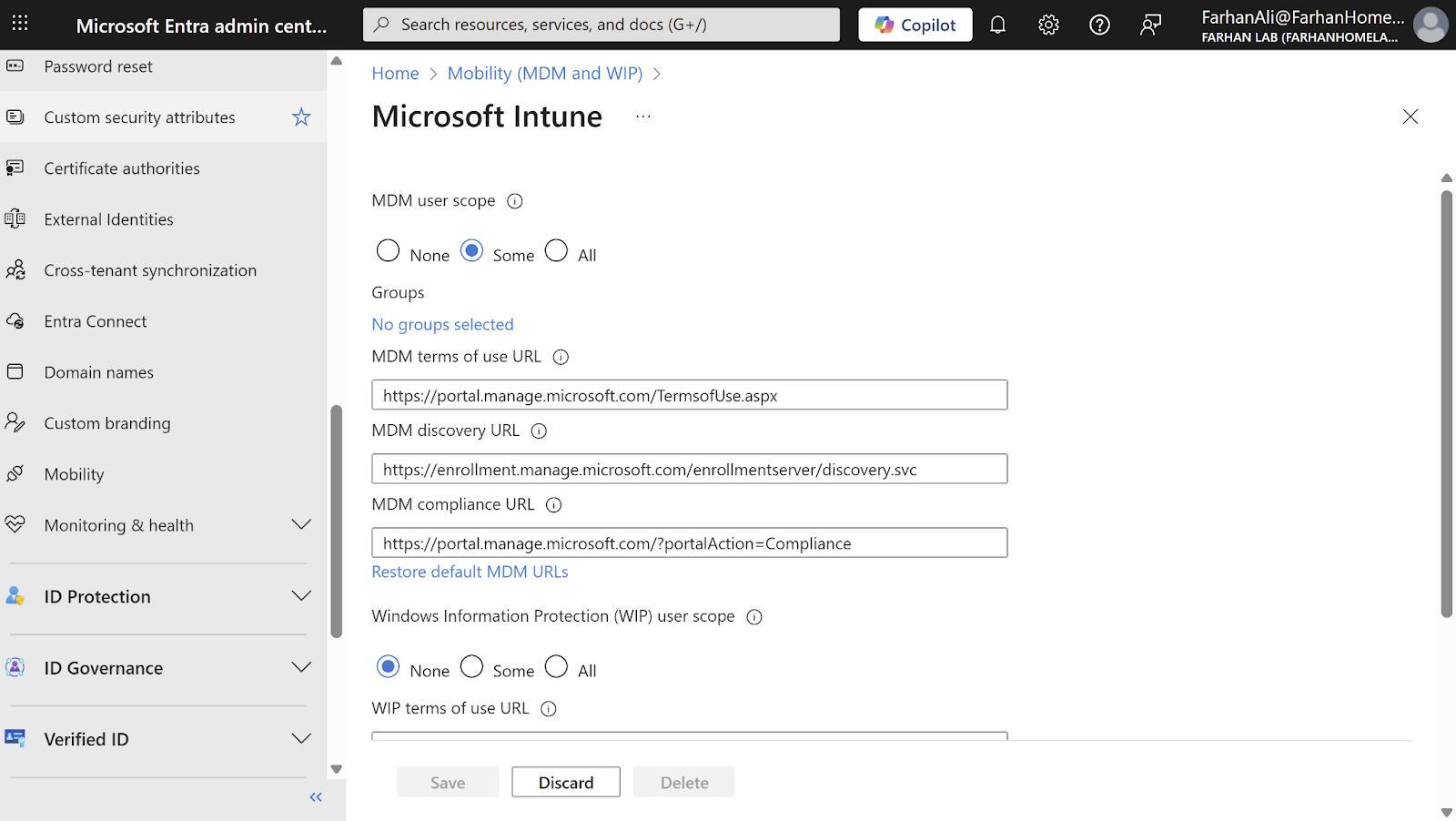
Select “Some” and add the Corporate Users group to the MDM scope.

Allow users to join devices to Microsoft Entra ID
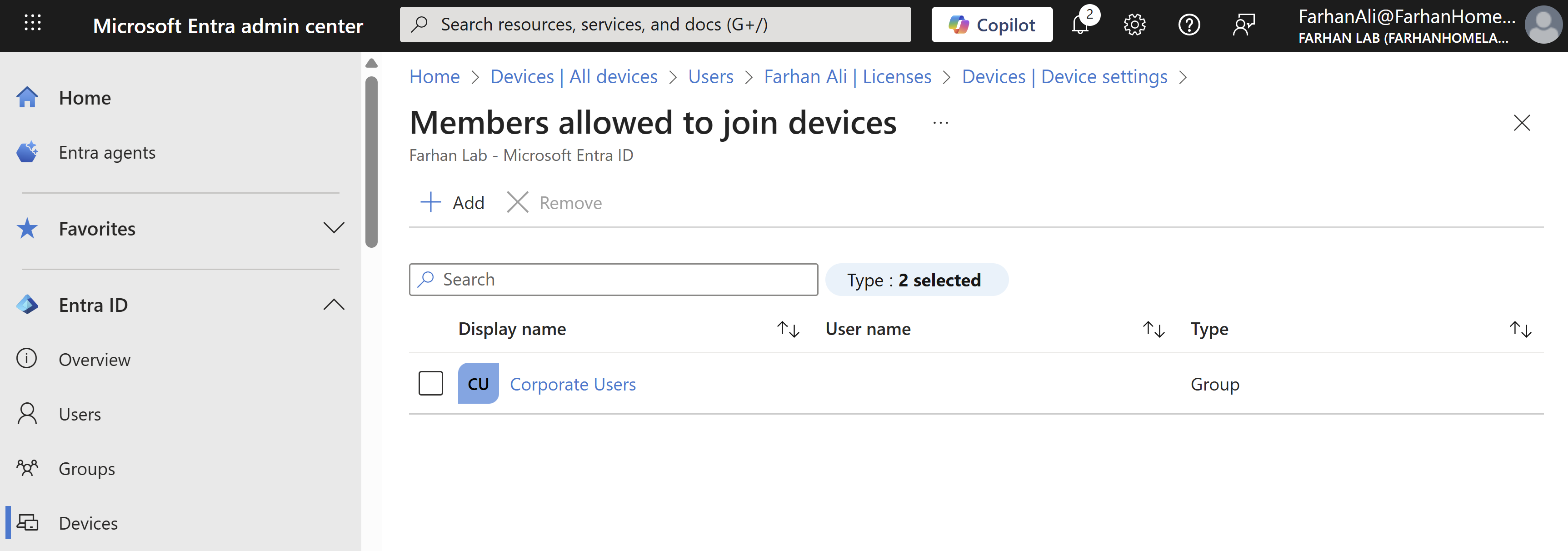
We need to specify users that are allowed to join devices to Entra ID. In most organizations, this is limited to corporate users with company-owned devices. This helps prevent personal devices from being unintentionally enrolled in Intune in BYOD scenarios.
Navigate to Entra ID -> Devices -> Device Settings -> Microsoft Entra join and registration settings
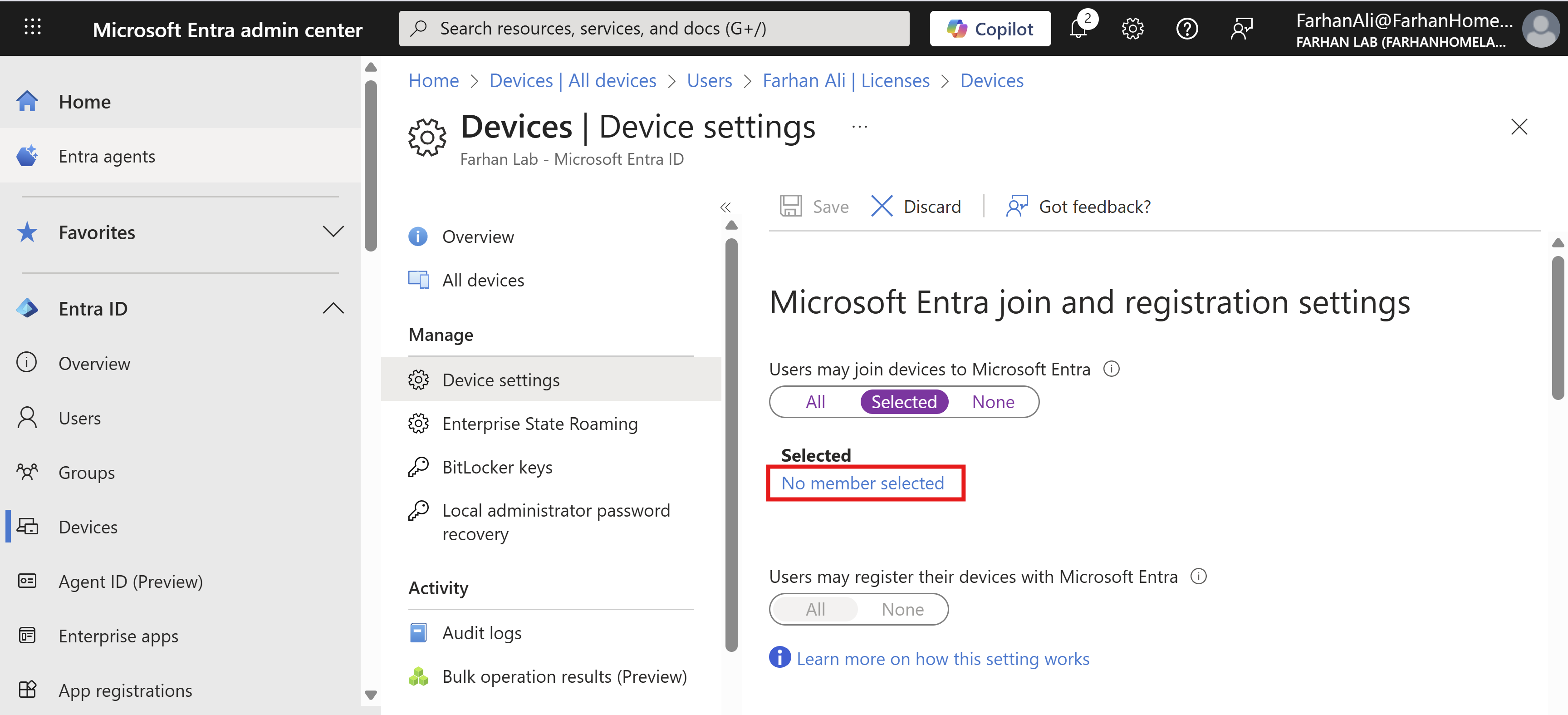
Select Corporate Users group as a selected member that may join devices to Entra ID
Create an assigned device group
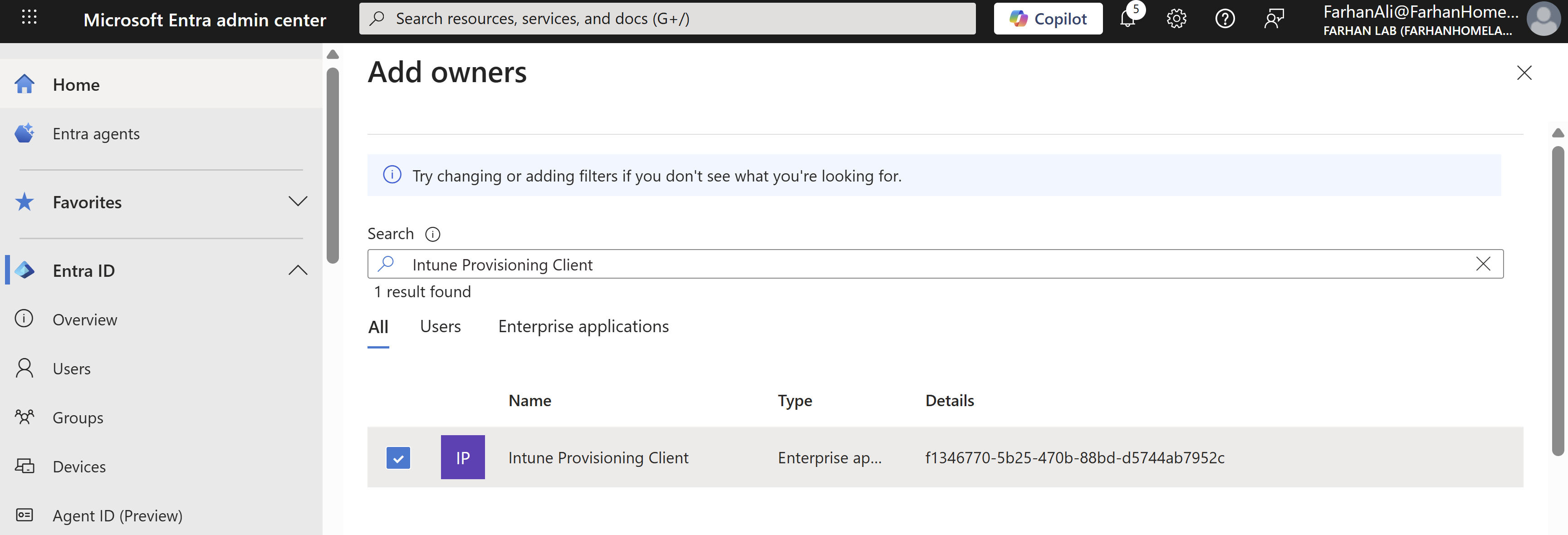
For Windows Autopilot device preparation to work properly, it is important to create an assigned device group. Unlike Windows Autopilot, where a dynamic group is generally preferred to automate device assignment, Windows Autopilot device preparation automatically adds devices to this assigned group during deployment provided that the Intune Provisioning Client is set as the group owner.
Navigate to Entra ID -> Groups -> New Group
Configuration Values:
Group Type: Security
Group Name: Windows Autopilot Device Preparation Devices
Microsoft Entra roles can be assigned to the group: No
Membership Type: Assigned
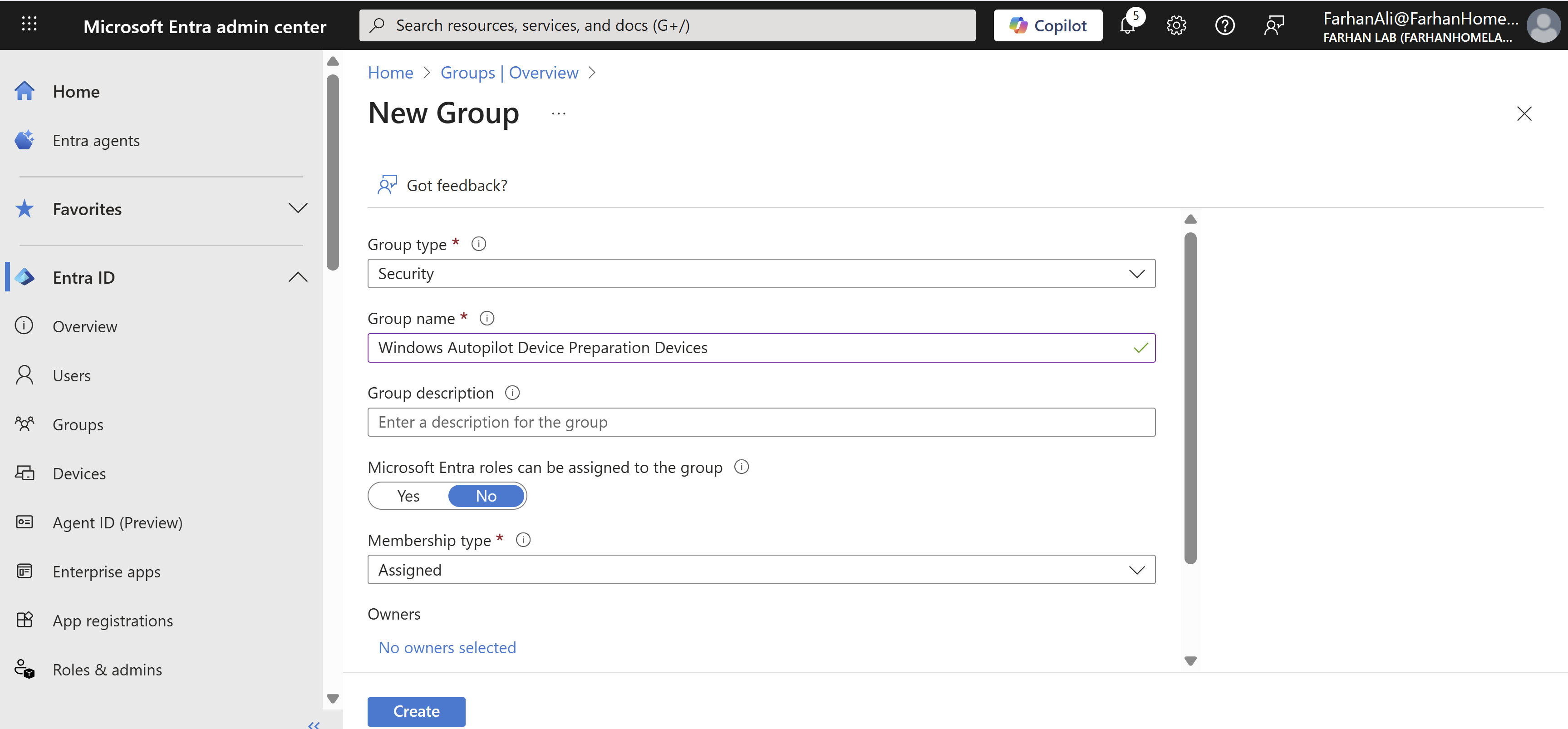
Add Intune Provisioning Client as the owner of the group
Create a user group
Windows Autopilot device preparation uses a user group to determine the users that should be targeted by the device preparation policy. The group must be a security group, though the membership type can be either assigned or dynamic. For this setup, I am using the Corporate Users group.
Assign applications to device group
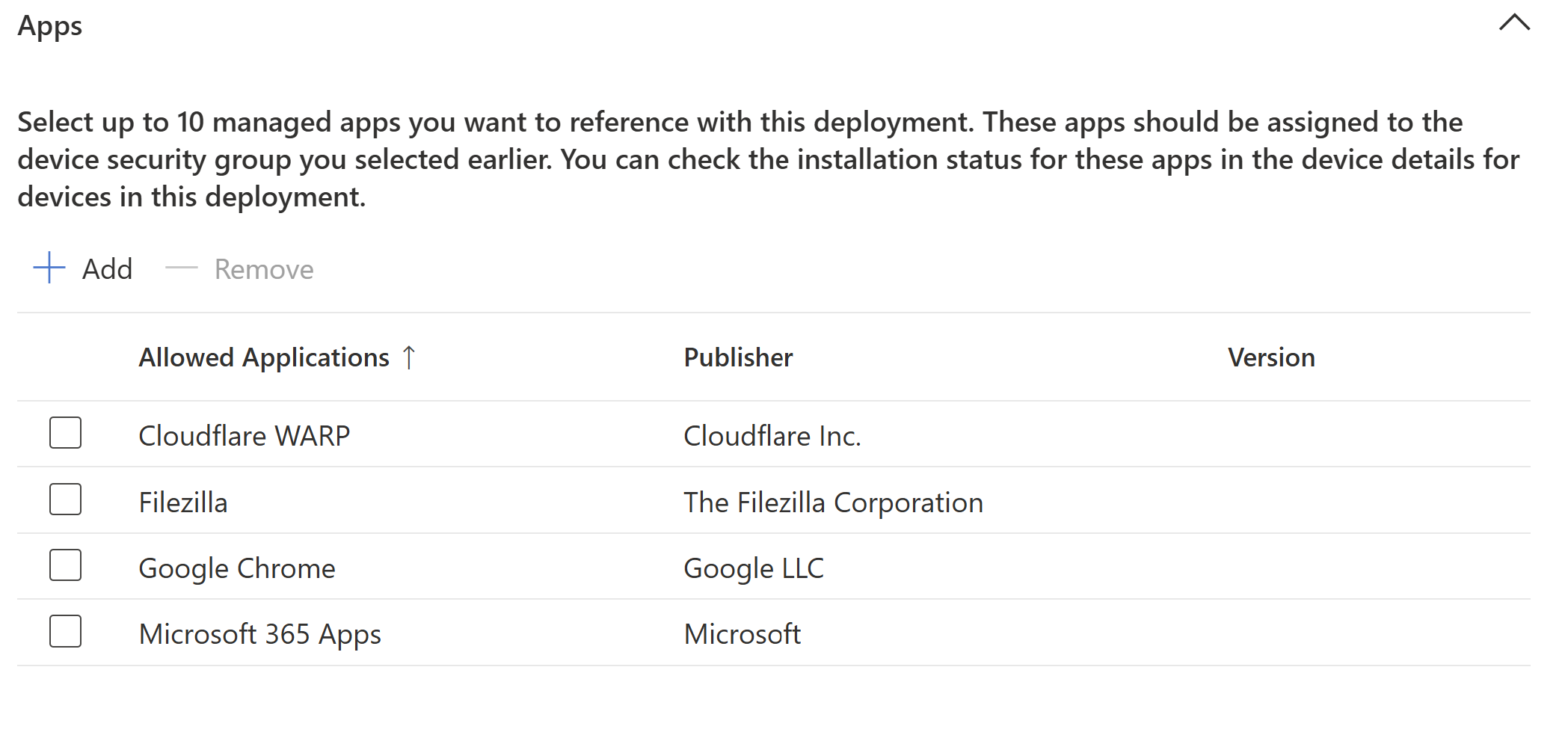
Windows device preparation policy allows you to deploy up to 10 apps and scripts during the deployment process.
Navigate to Microsoft Intune admin center → Apps → Windows → Create
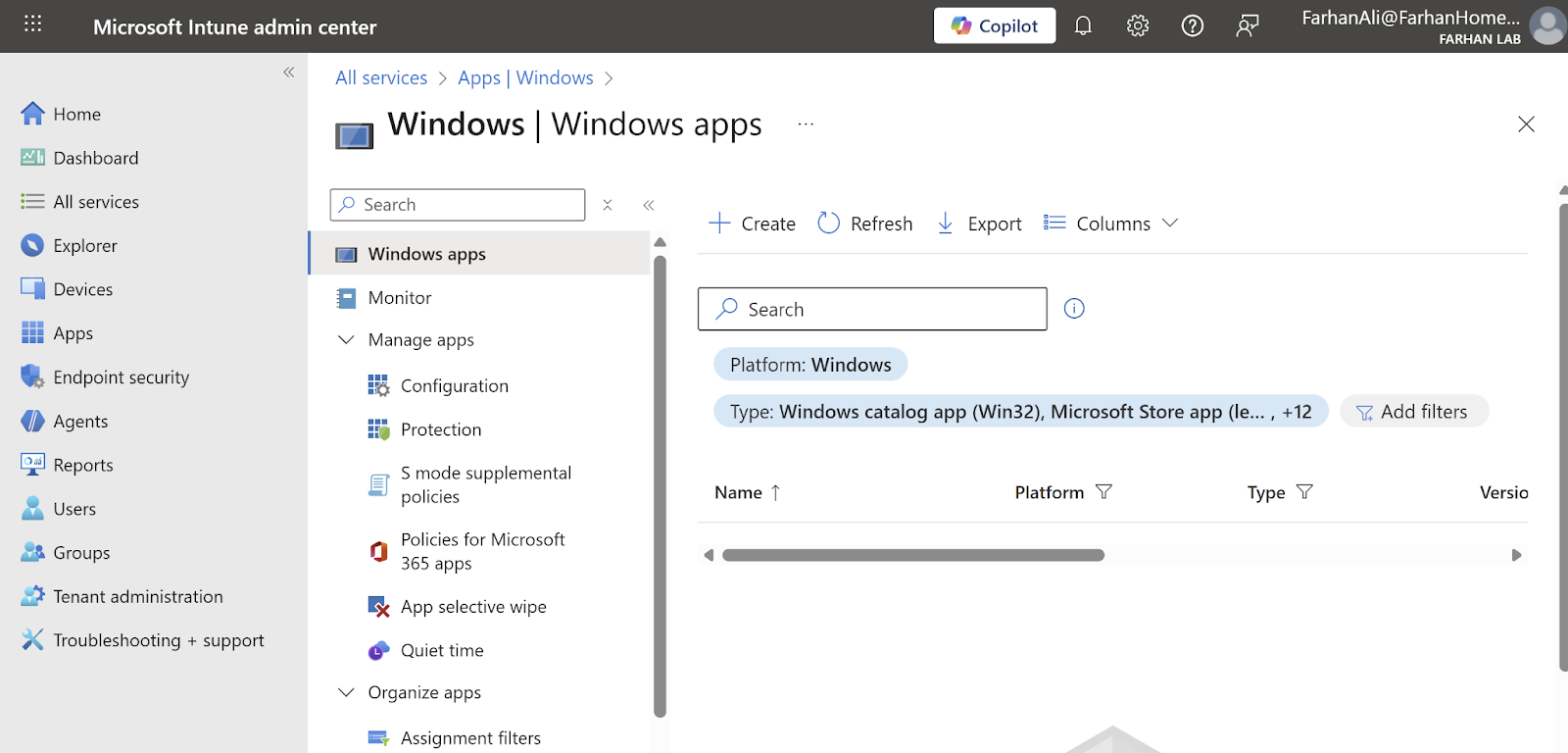
Select app type: Line-of-business. I am adding Cloudflare Warp using its msi file so this option makes the most sense.
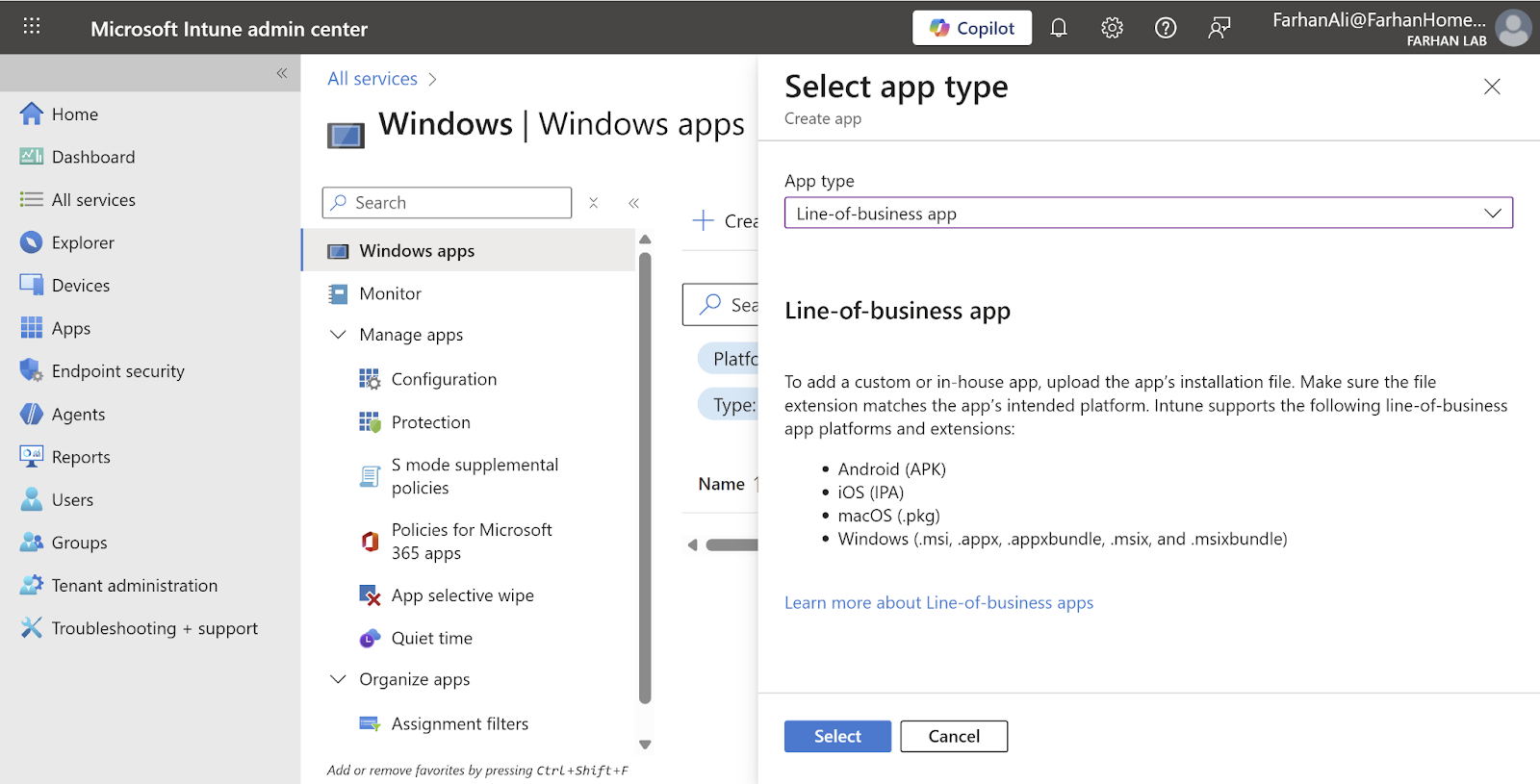
Specify Name and Publisher etc.
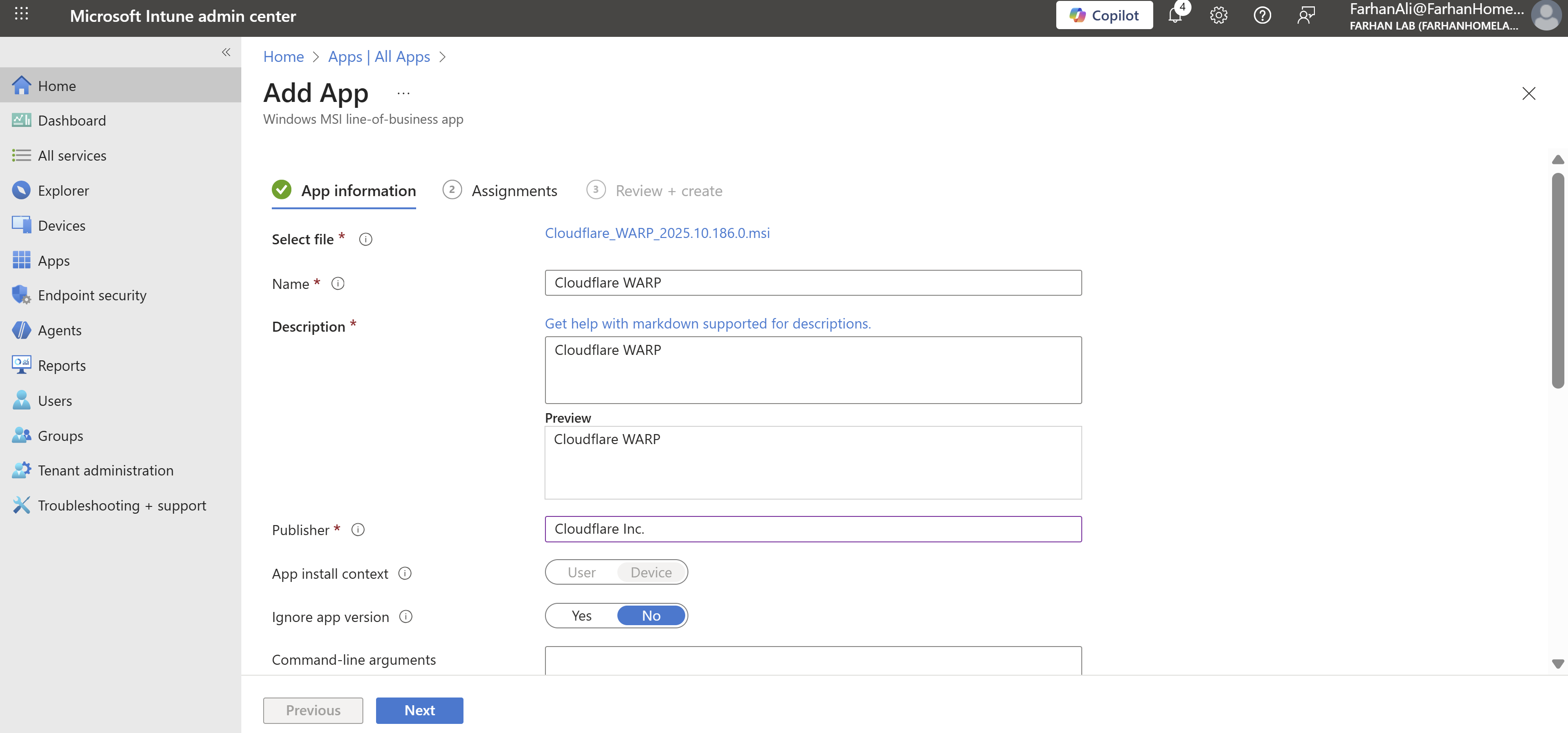
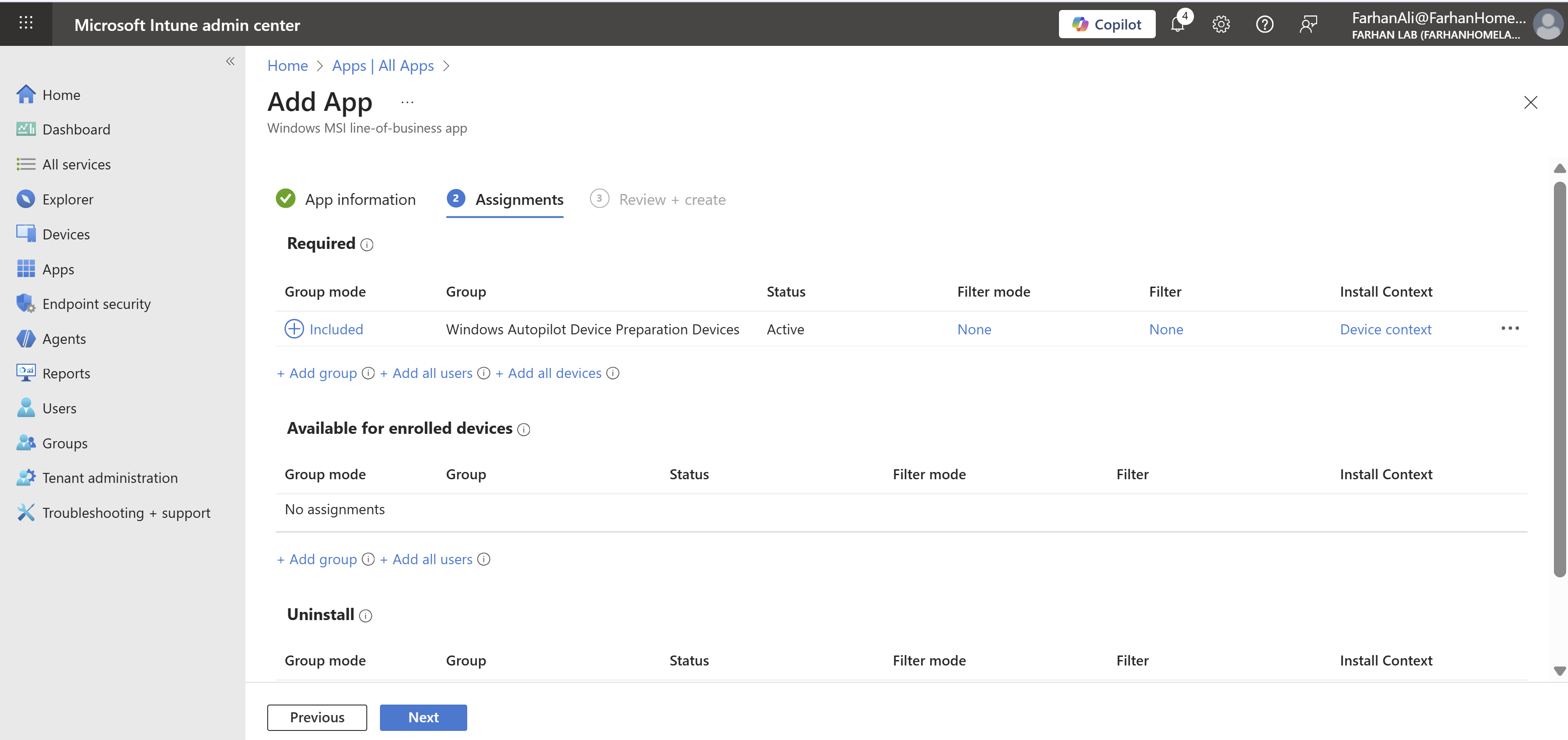
Assign it to the Windows Autopilot Device Preparation Devices group under “Required” which will ensure that it’s automatically installed on enrolled devices.
Other options are:
- Available for enrolled devices: apps are displayed in the Company Portal app and website for users to optionally install.
- Uninstall: Apps with this assignment are uninstalled from managed devices in the selected groups.
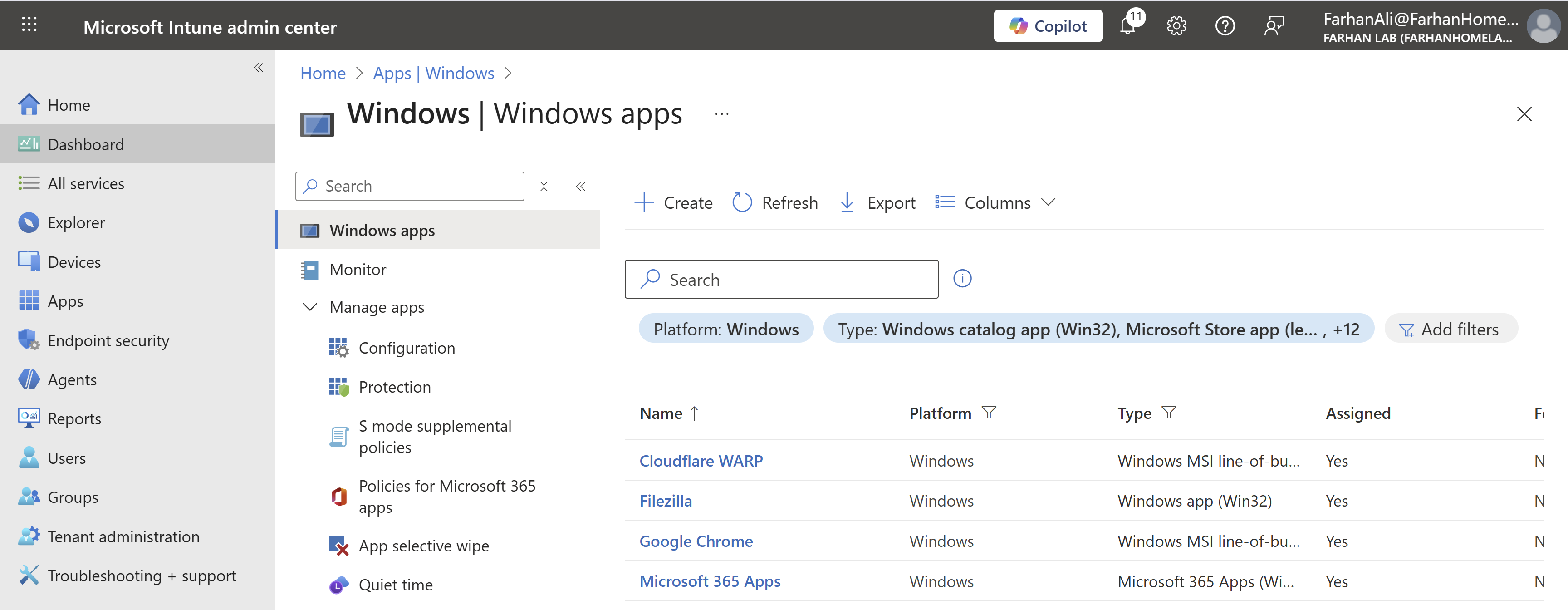
Verify app creation and add additional apps using the same method. I added FileZilla as available for enrolled devices. It is a Win32 app so I had to convert the installation file into .intunewin format using Microsoft Win32 Content Prep Tool before uploading it to intune.
It’s important to note that Windows Autopilot device preparation deployment runs before any user logs in so apps and scripts must run as the system, not as a user. Apps and scripts that need to be installed in the user context should be configured after the deployment is complete.
Create an intune policy for remote desktop users (optional)
Since I am using a VM for my lab, I need to ensure that my account is added to the device’s local Remote Desktop Users group; otherwise, I would not be able to log in via RDP. This is not required in an enterprise environment with physical devices. However, since I had to do this for the lab, I decided to document the process.
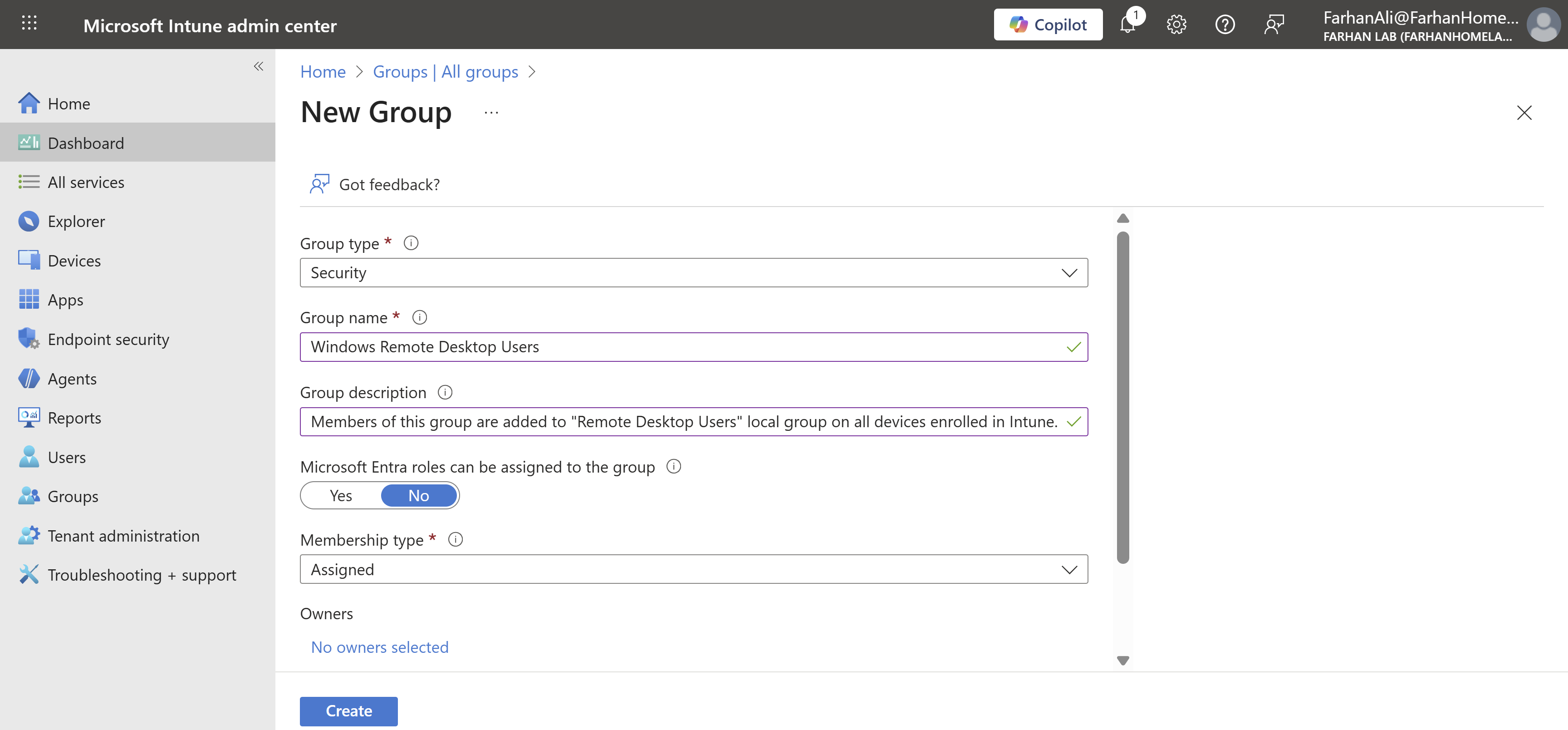
To manage this properly, I will create a security group for users who need to be added to the local Remote Desktop Users group. I will then create an Intune policy to manage local group membership by adding this security group to the Remote Desktop Users local group on the intune devices.
Navigate to Entra ID -> Groups -> New Group
Configuration Values:
Group Type: Security
Group Name: Windows Remote Desktop Users
Microsoft Entra roles can be assigned to the group: No
Membership type: Assigned
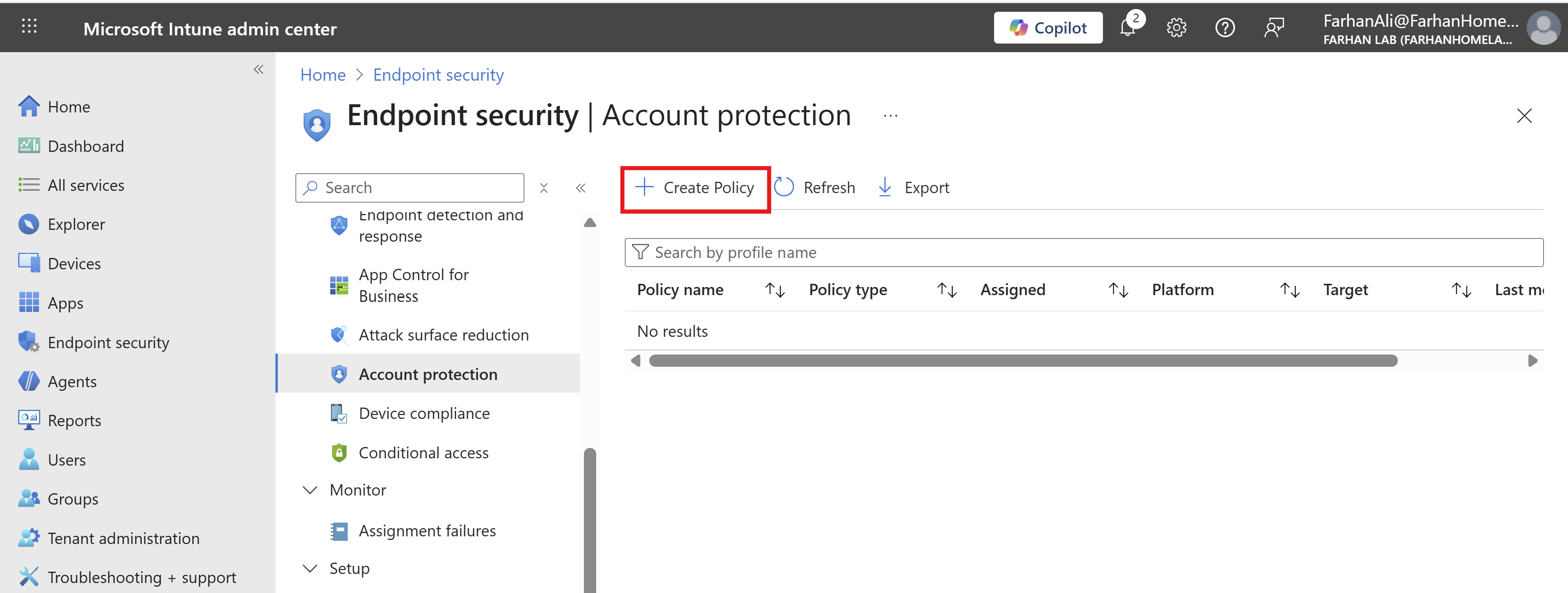
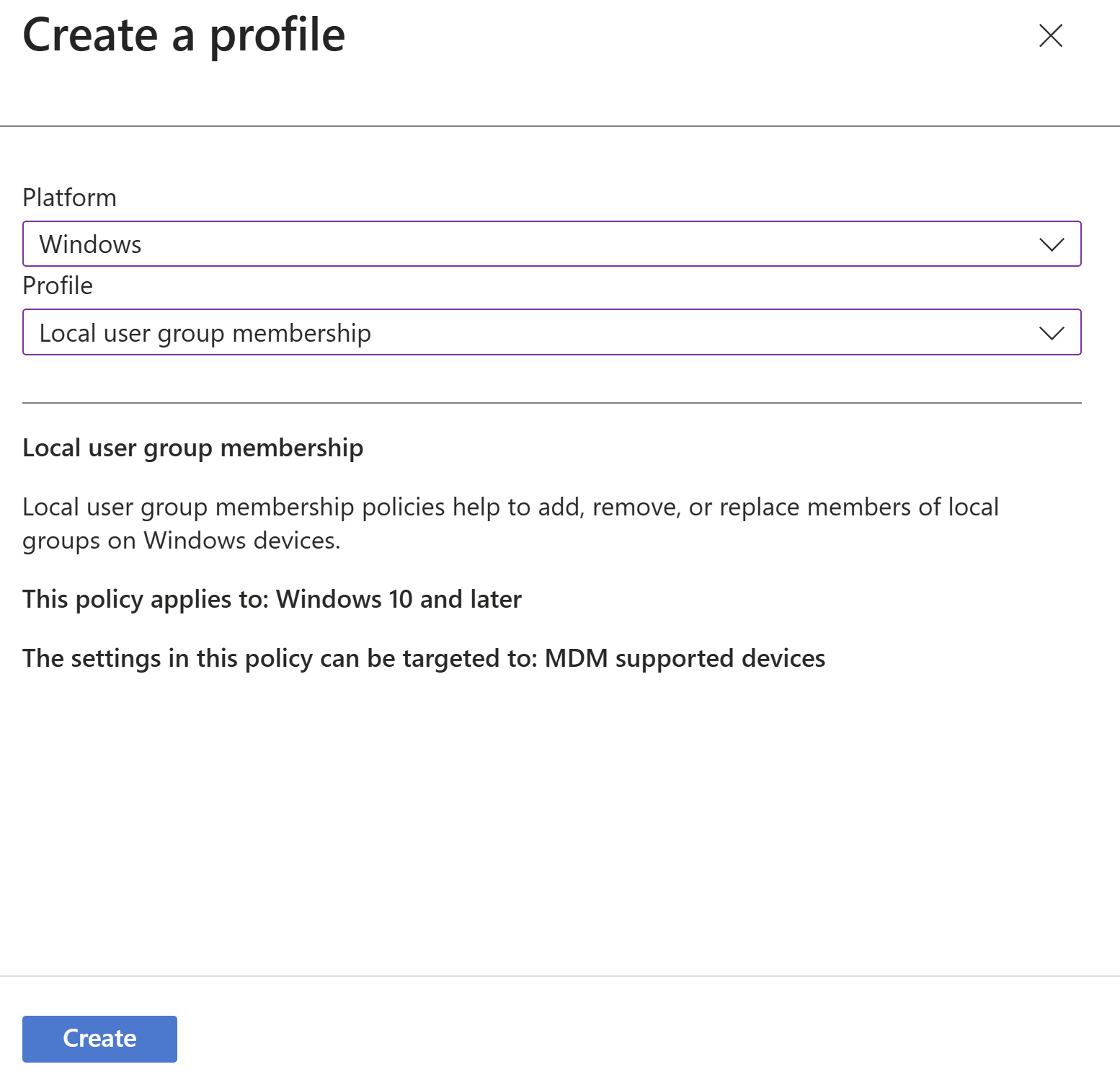
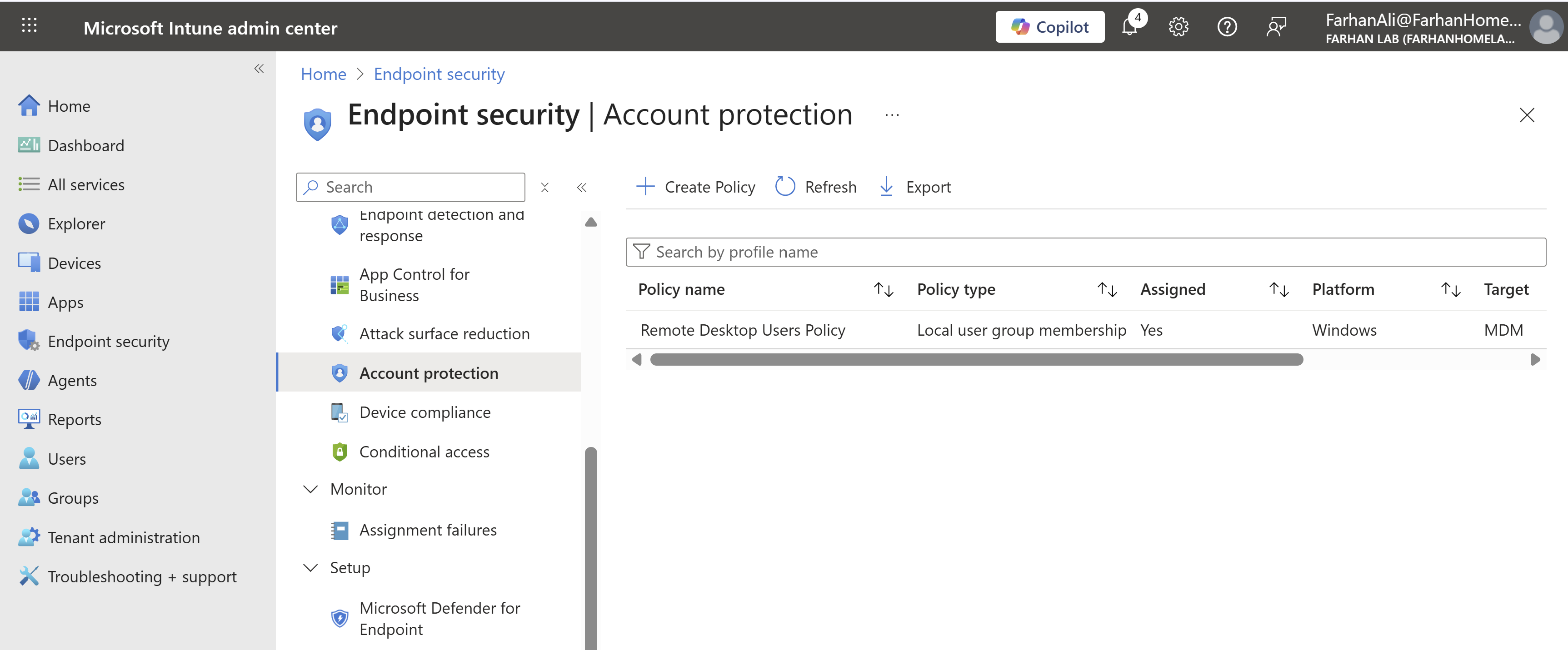
Navigate to Microsoft Intune admin center -> Endpoint Security -> Account Protection -> Create Policy
Configuration Values:
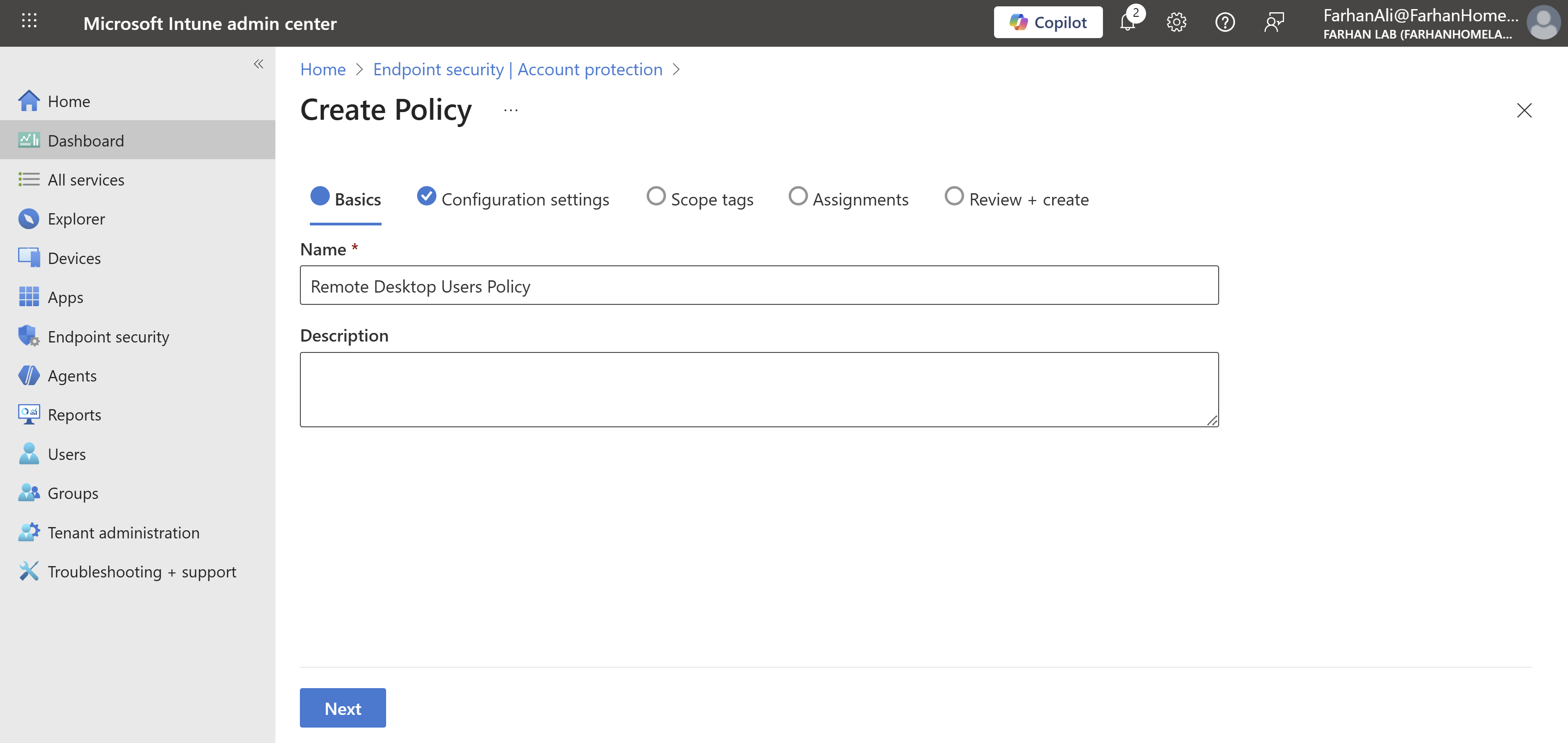
I named the policy Remote Desktop Users Policy
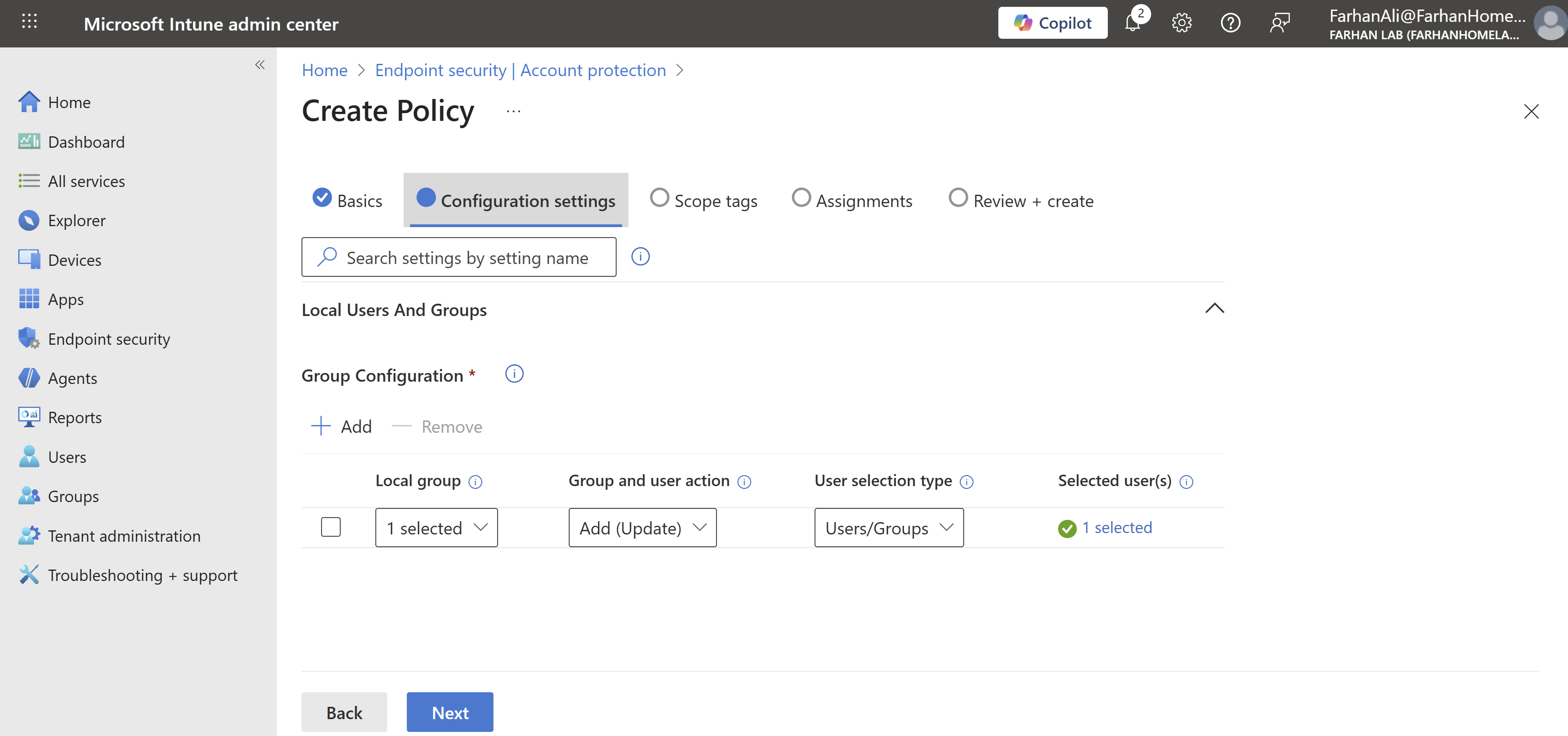
Configuration Values:
Local group: Remote Desktop Users
Group and user action: Add (Update)
User selection type: Users/Groups
Selected user(s): Windows Remote Desktop Users group
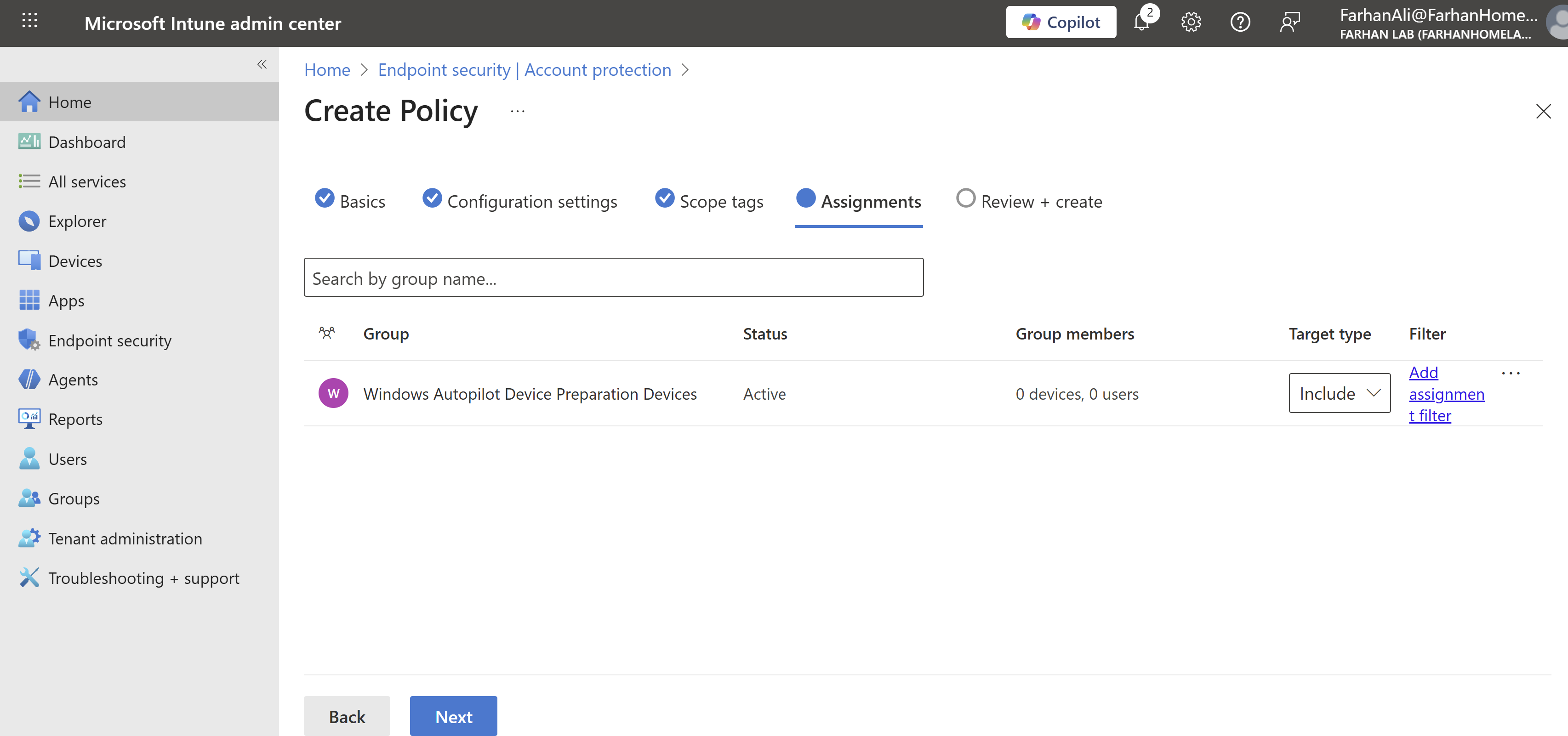
Added Windows Autopilot Device Preparation Devices group under Assignments tab
Review and create the policy
RBAC
In an enterprise environment, it is best practice to create a custom role specifically for Windows Autopilot device preparation administration, following the principle of least privilege.
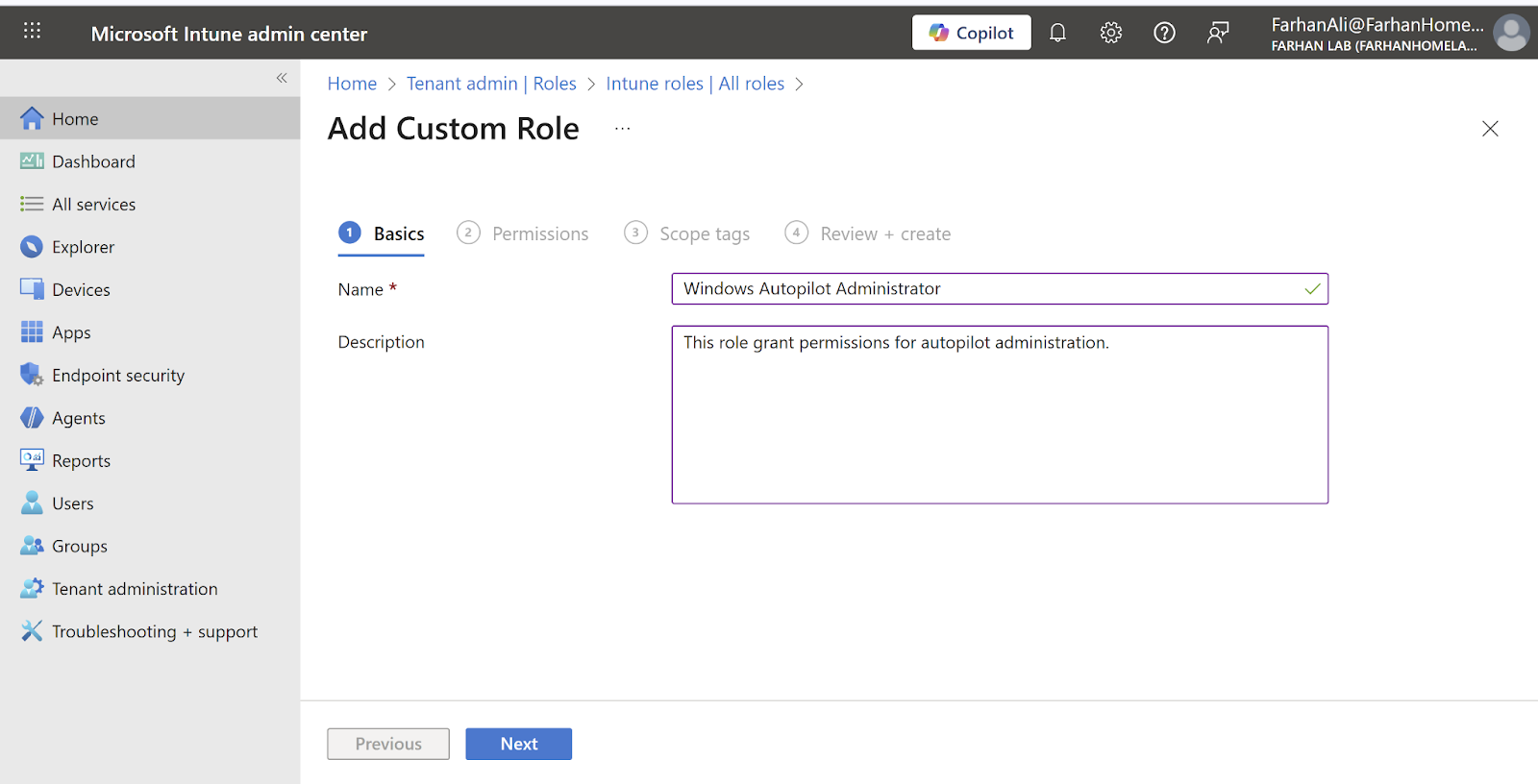
Navigate to Microsoft intune admin center -> Tenant administration -> Create -> Intune role
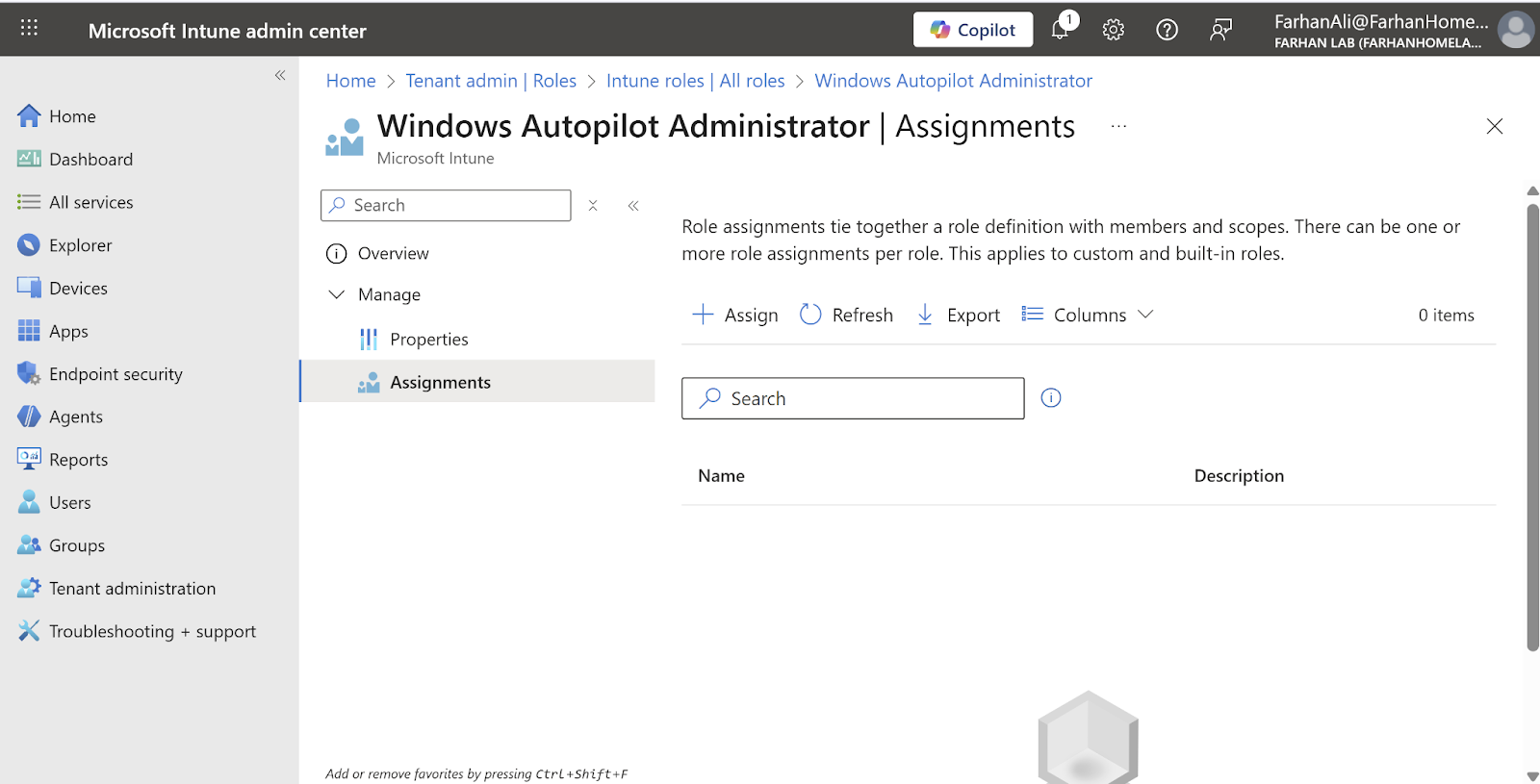
I named the role “Windows Autopilot Administrator”
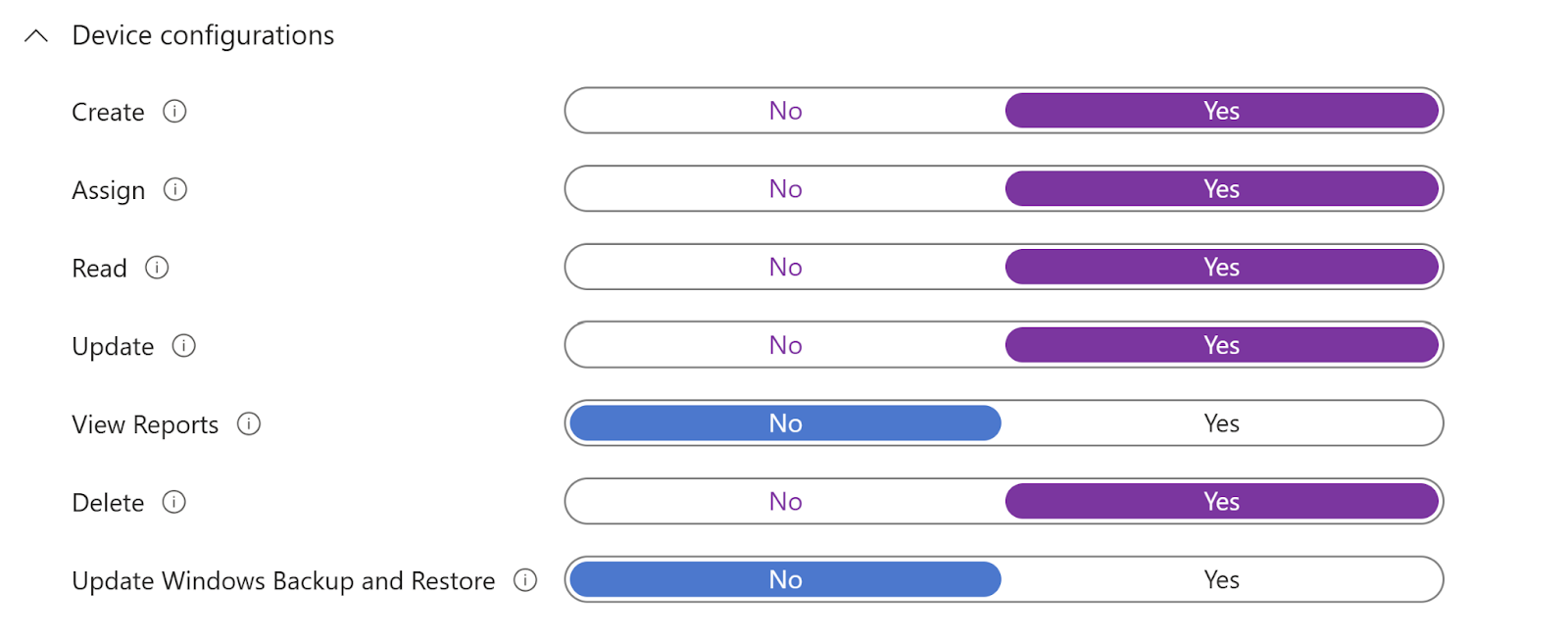
Only allow permissions required for device preparation for autopilot.
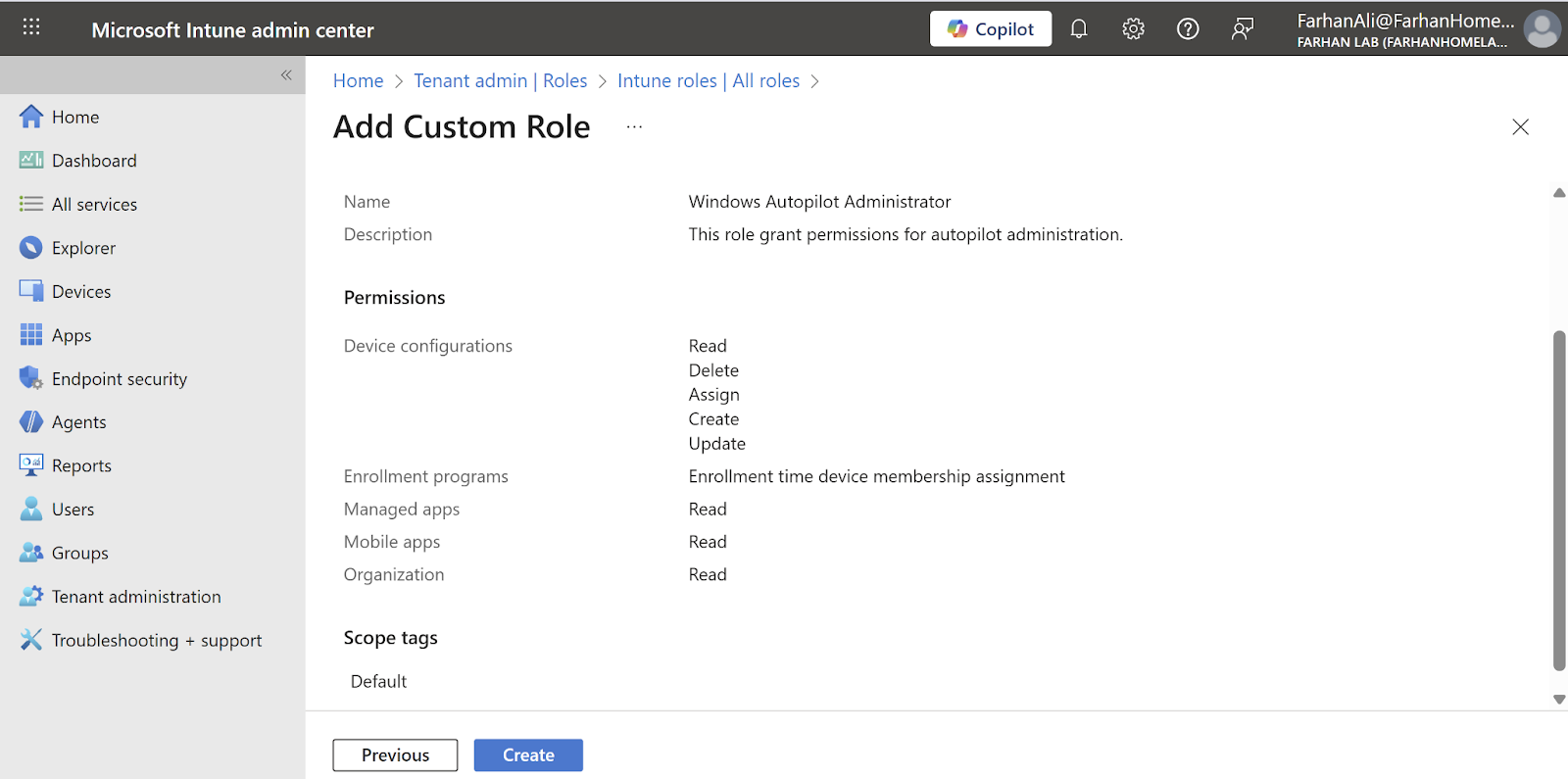
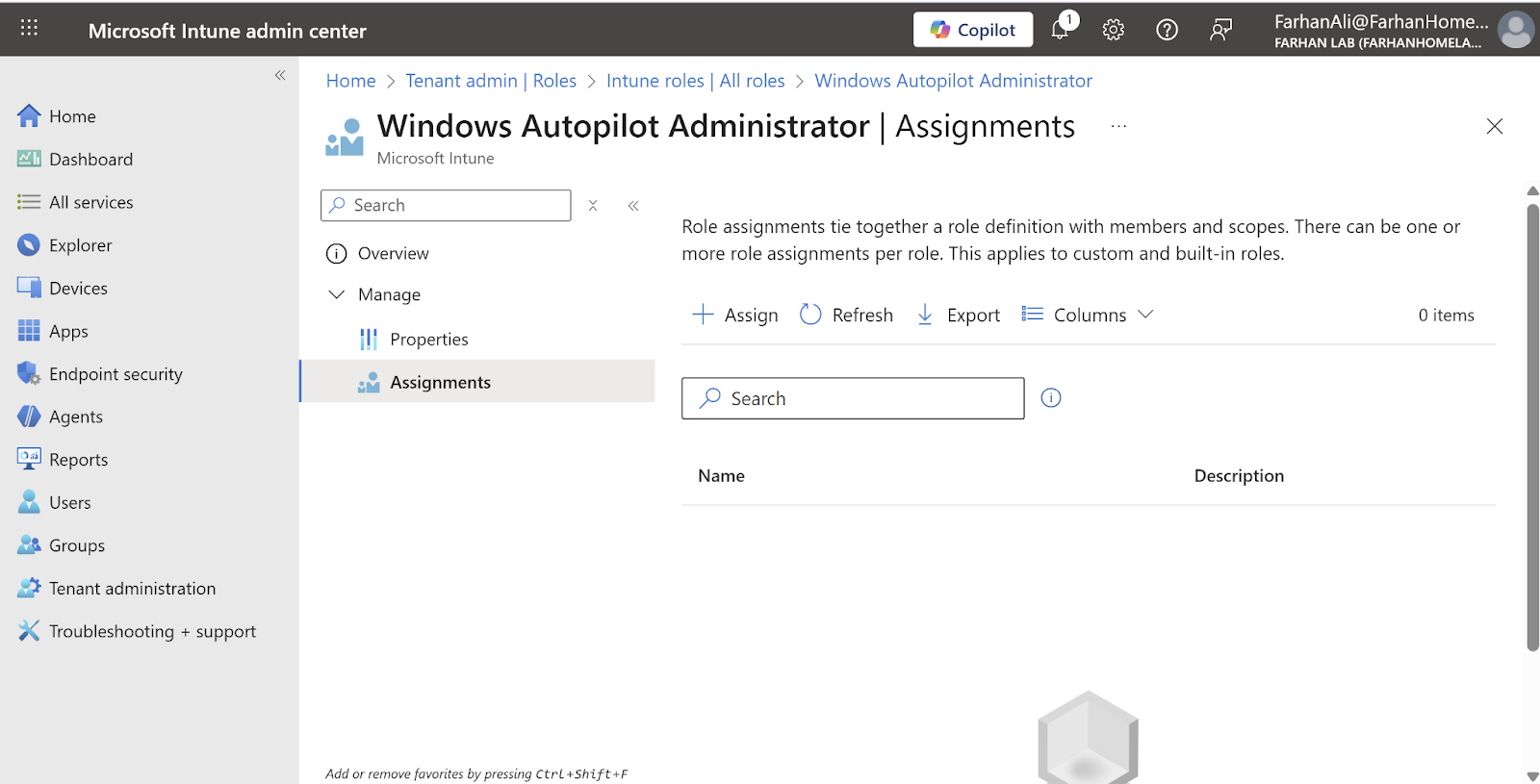
Define scope and add members through role assignment.
Navigate to Windows Autopilot Administrator -> Assignments
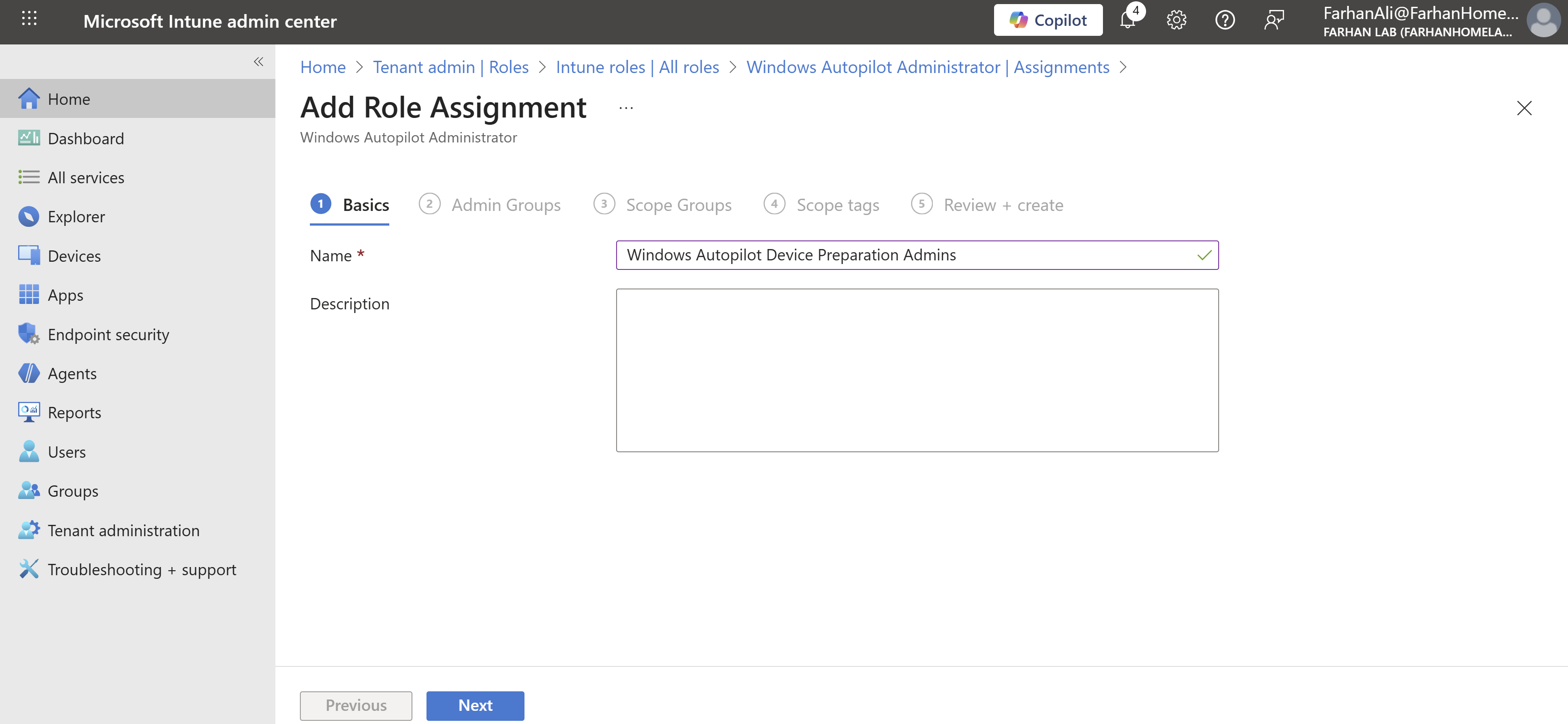
I named the assignment Windows Autopilot Device Preparation Admins
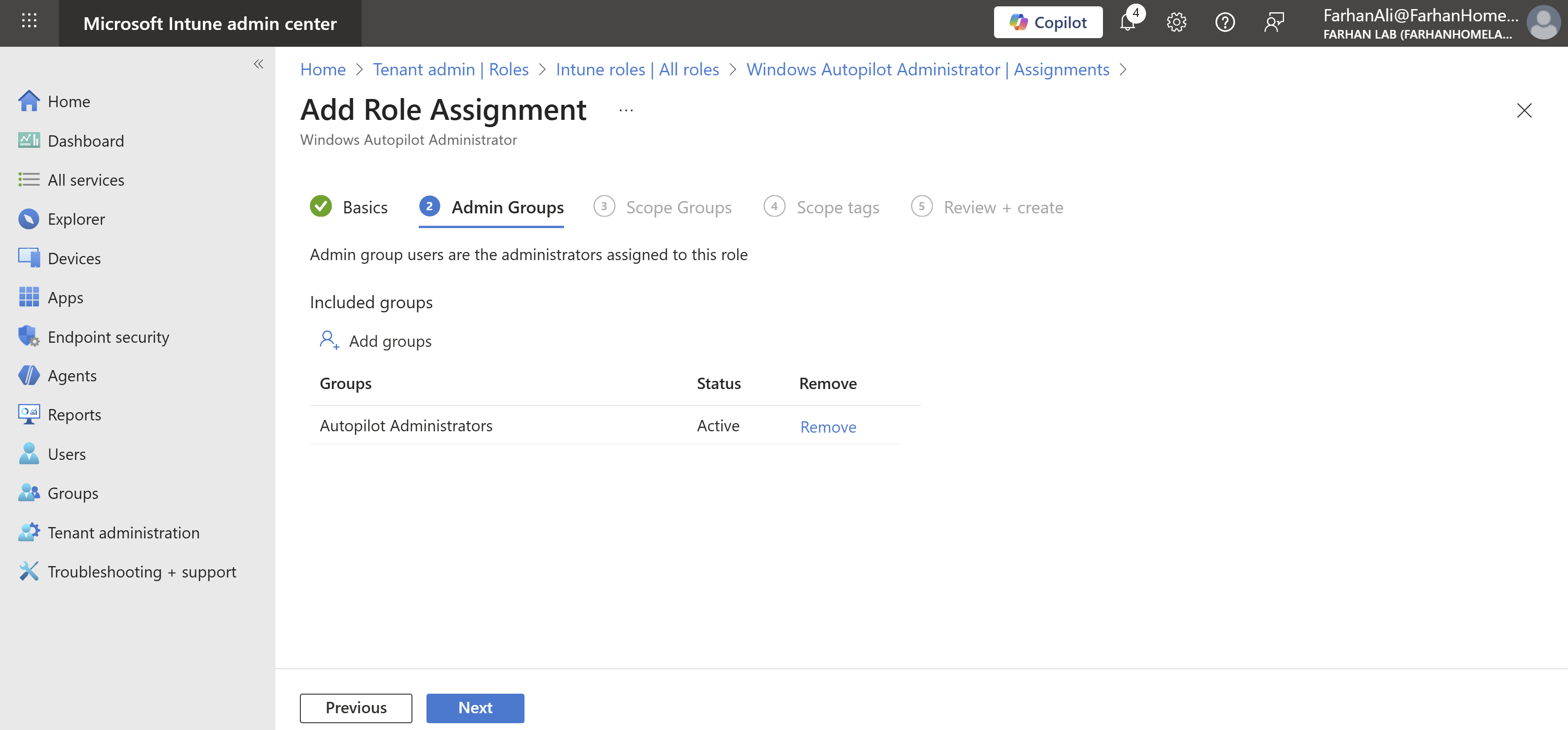
Add the Autopilot Administrators group - containing users responsible for administering Windows Autopilot device preparation - under Admin groups
Add the Windows Autopilot Device Preparation Devices group under group scopes
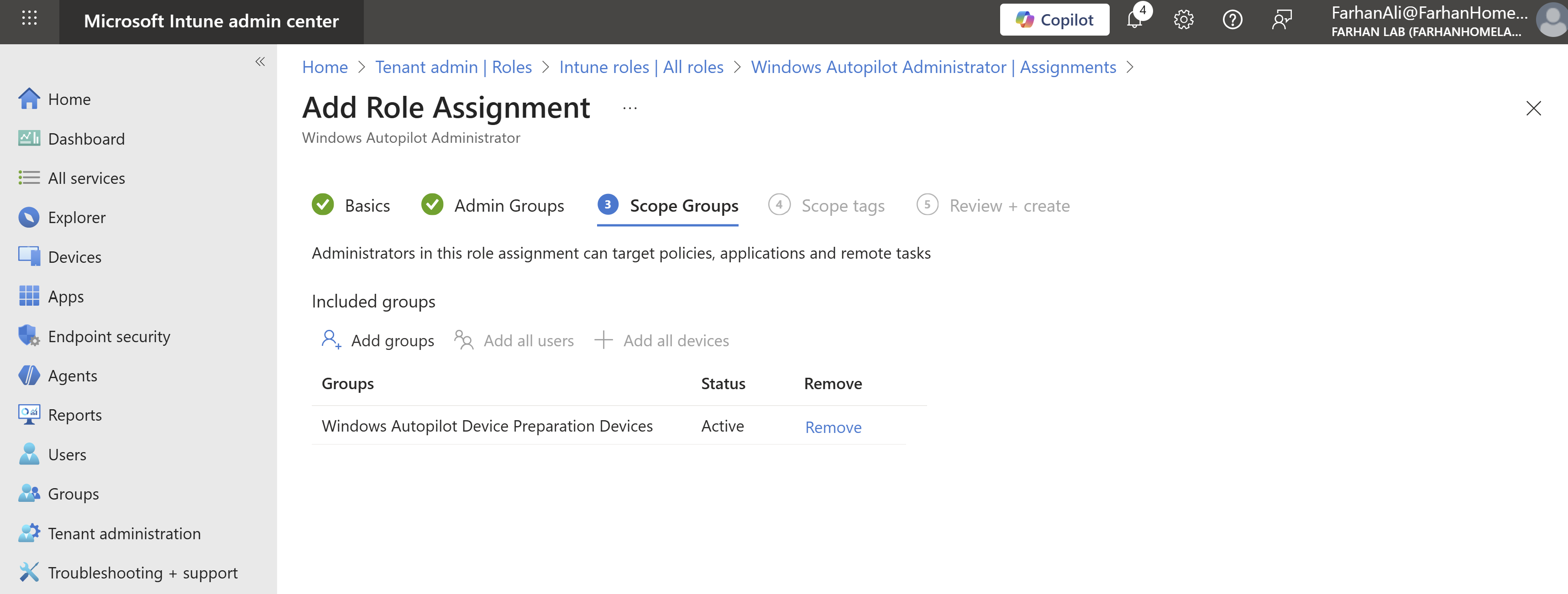
Confirm the role assignment
Deployment and Testing
With all requirements fulfilled, it’s time to deploy a Windows Autopilot device preparation policy and see the results of my work.
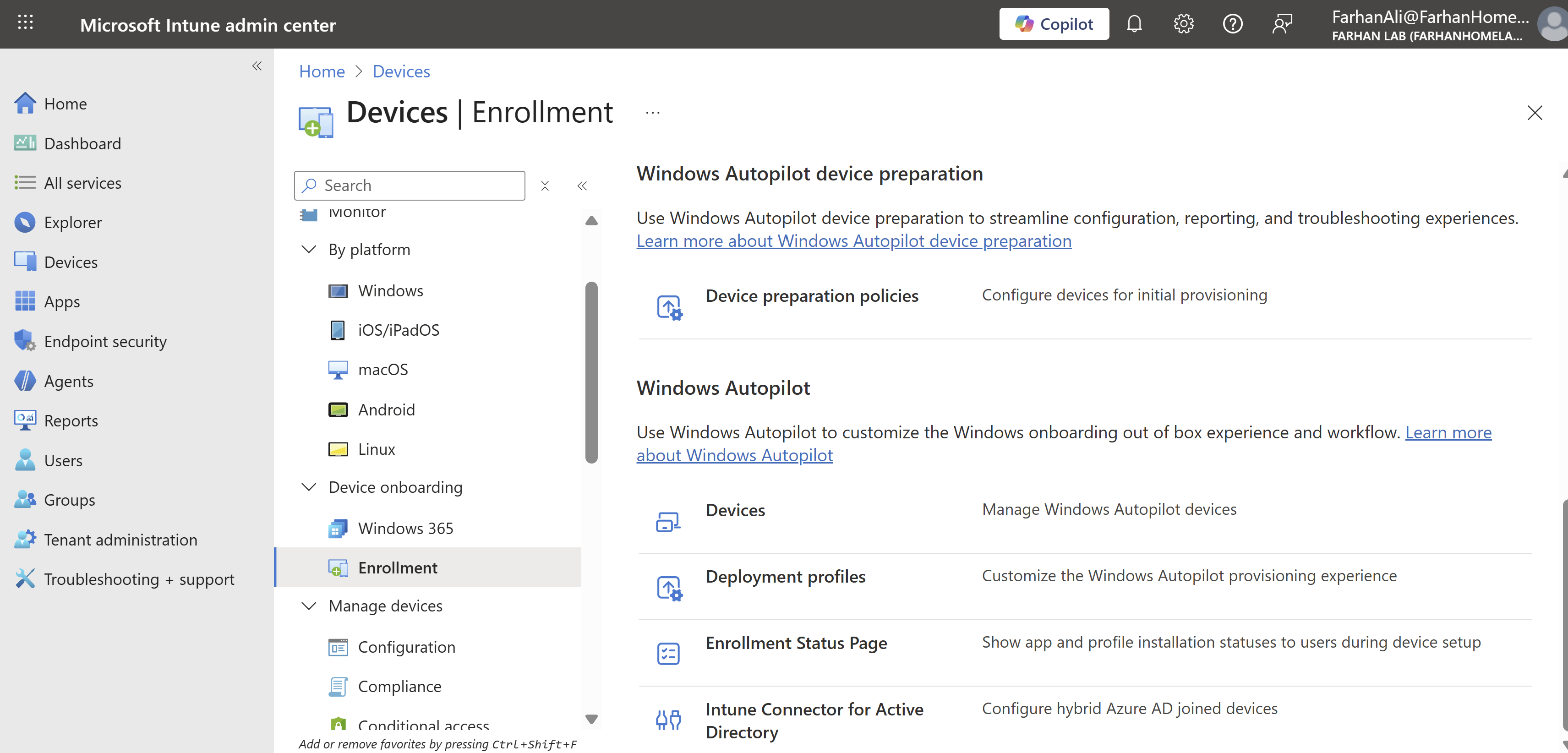
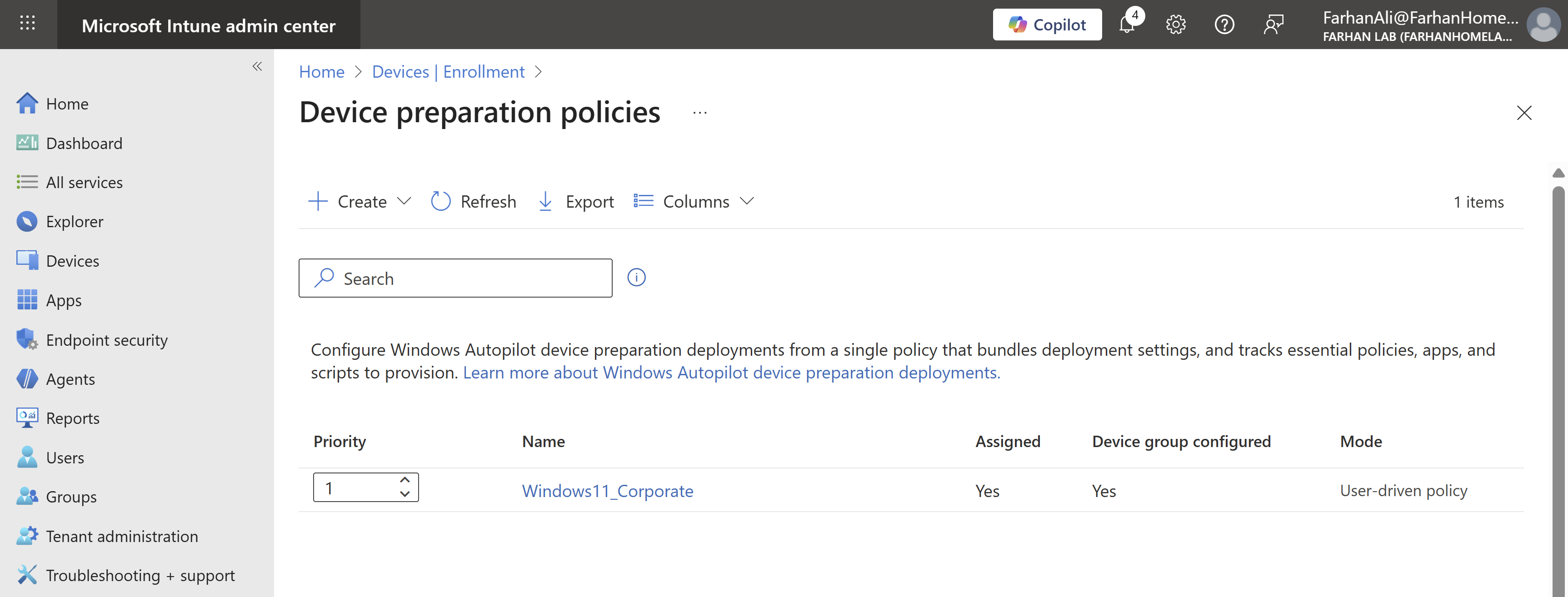
Navigate to Microsoft Intune admin center -> Windows Autopilot device preparation -> Device preparation policies
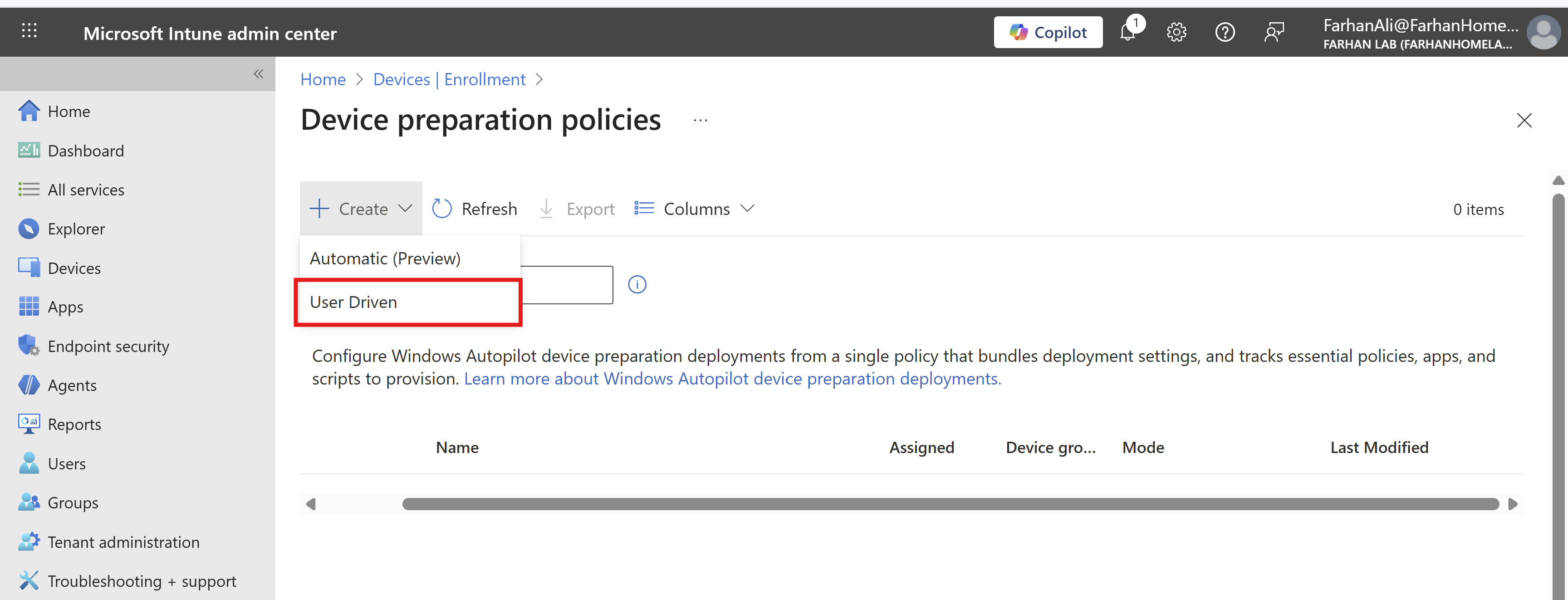
Create a new user driven policy
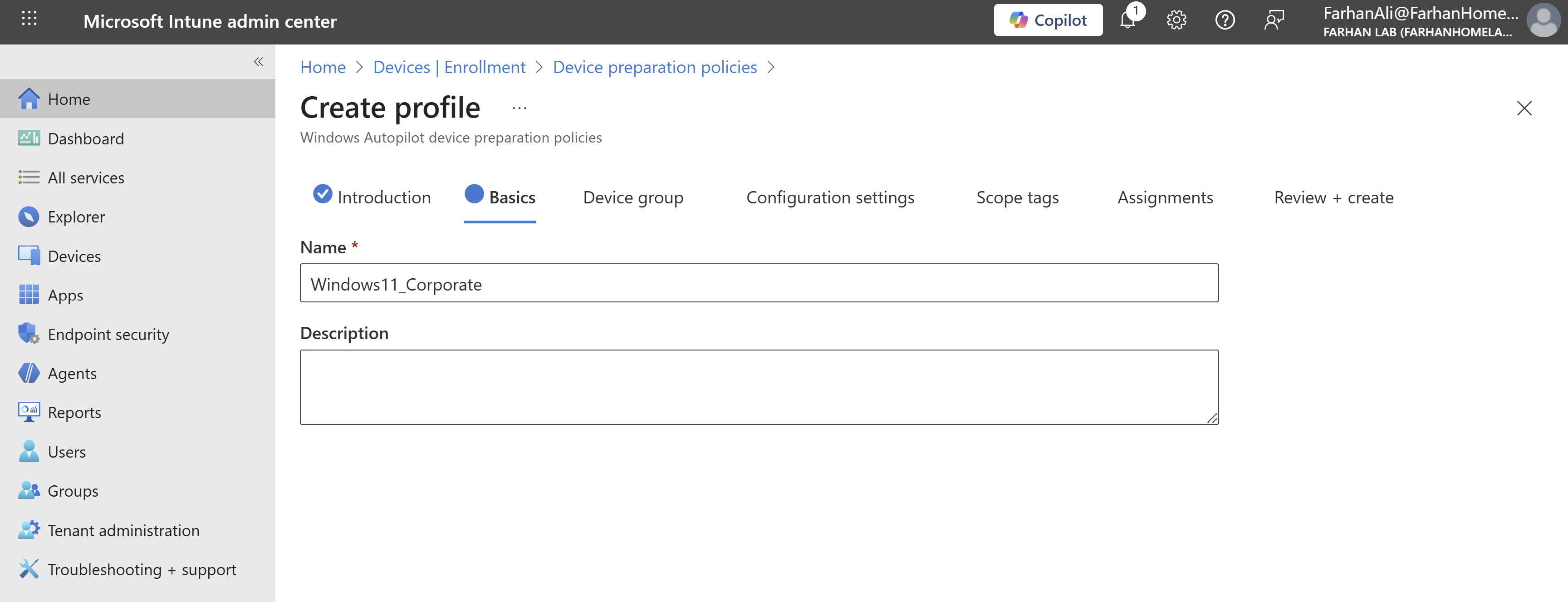
I named it Windows11_Corporate
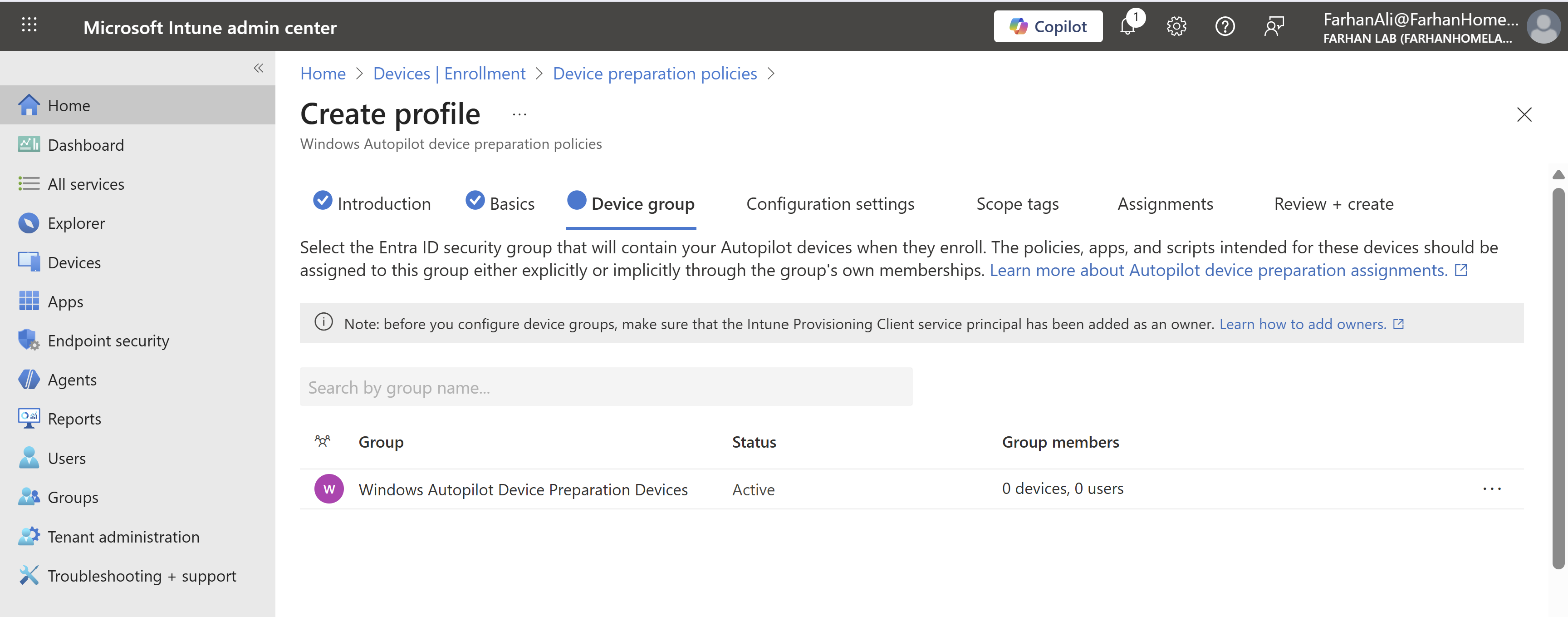
Add the Windows Autopilot Device Preparation Devices group in Device group tab
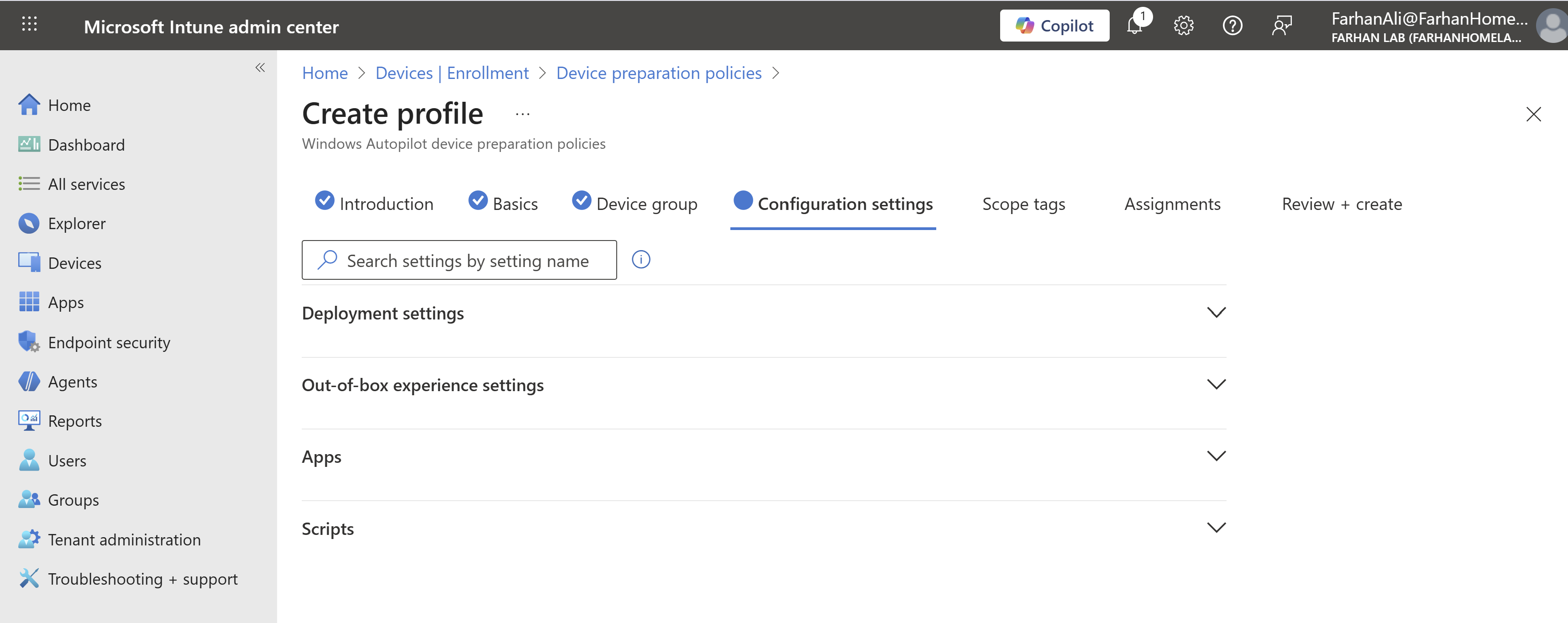
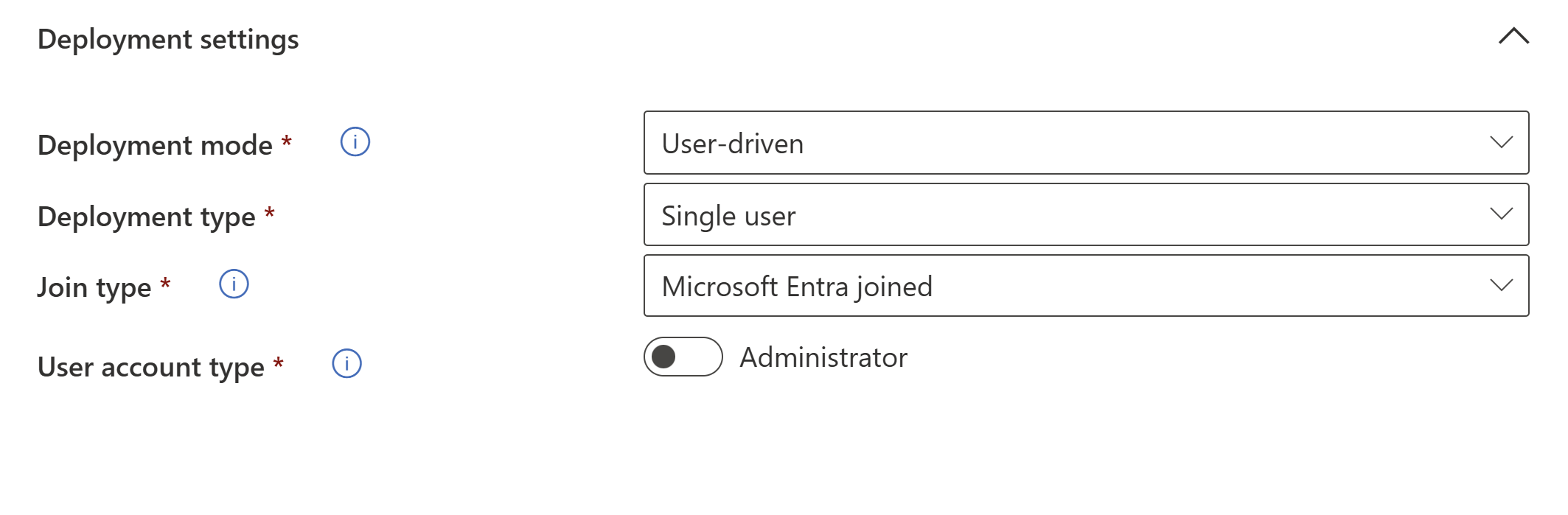
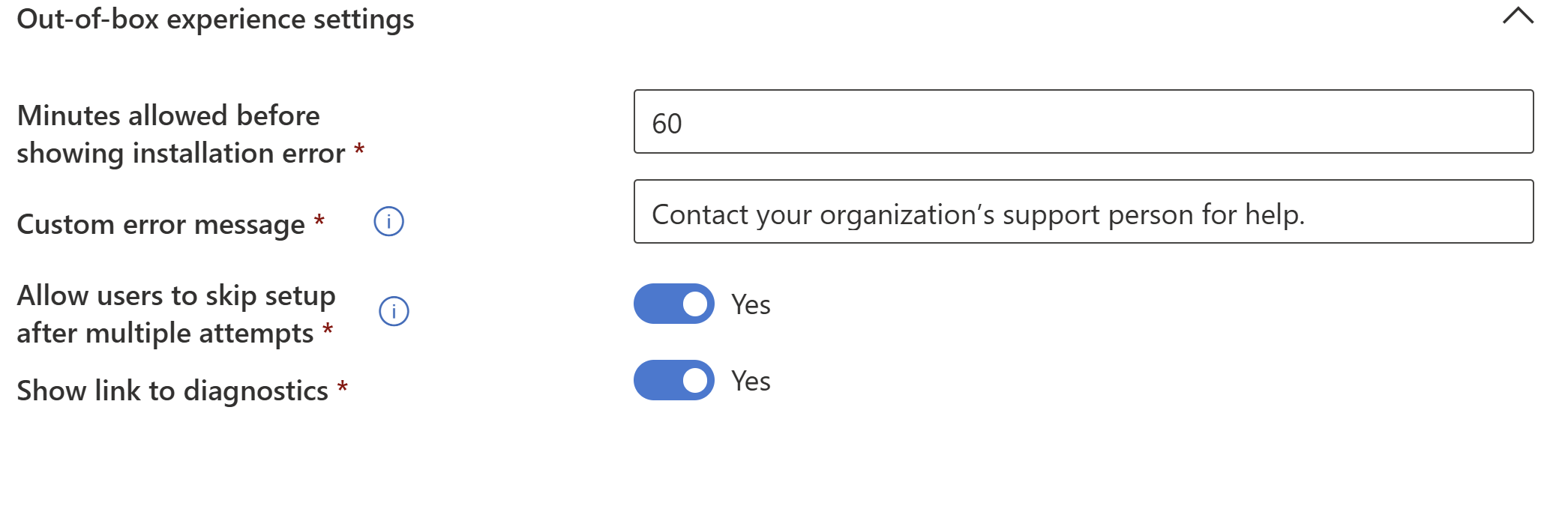
Configure configuration settings:
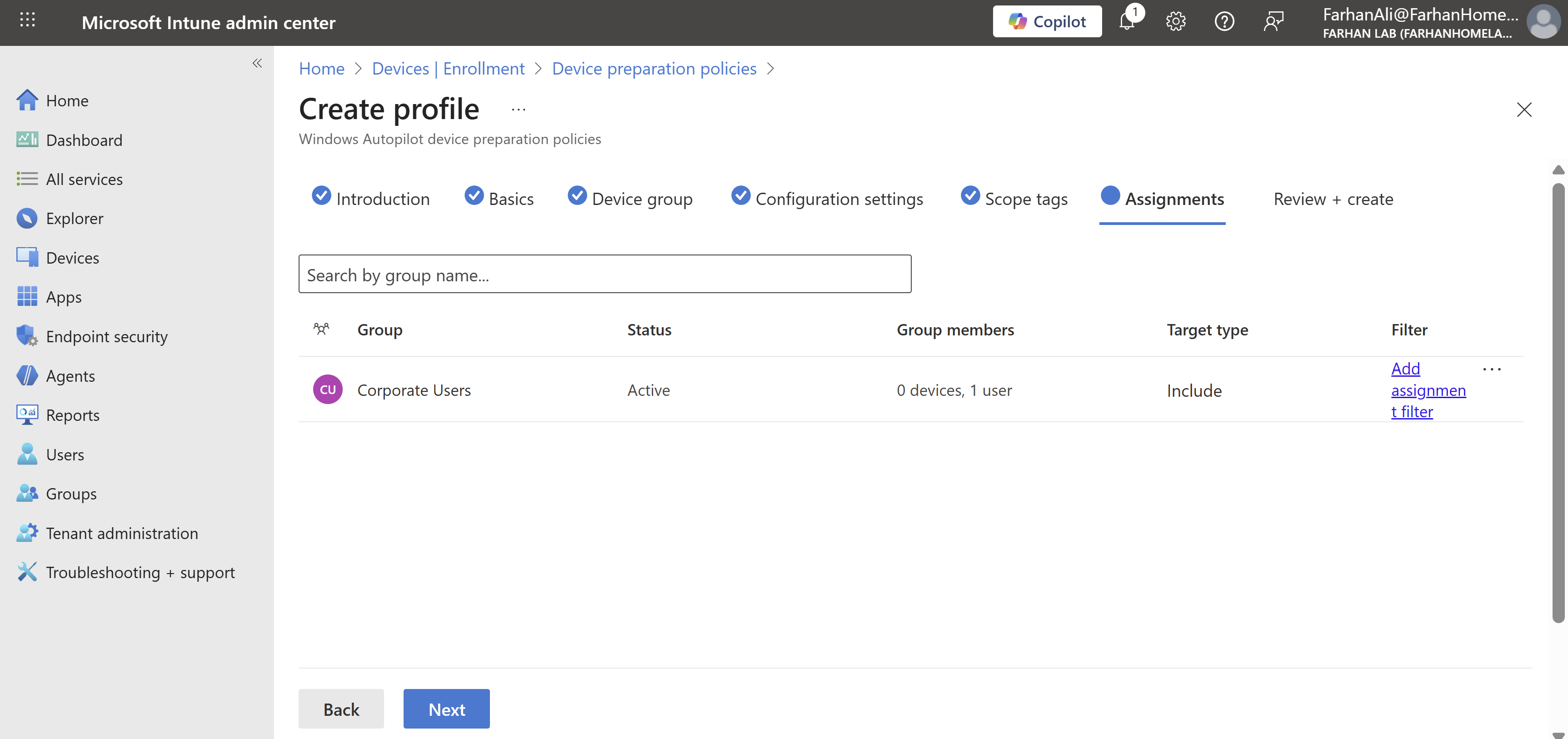
Add the Corporate Users group in Assignments tab
It’s time for testing so I will switch to the Windows 11 VM.
Ensure that the device used for Windows Autopilot device preparation is not registered as a Windows Autopilot device. If it is already registered, the Windows Autopilot profile will take precedence over the device preparation policy.
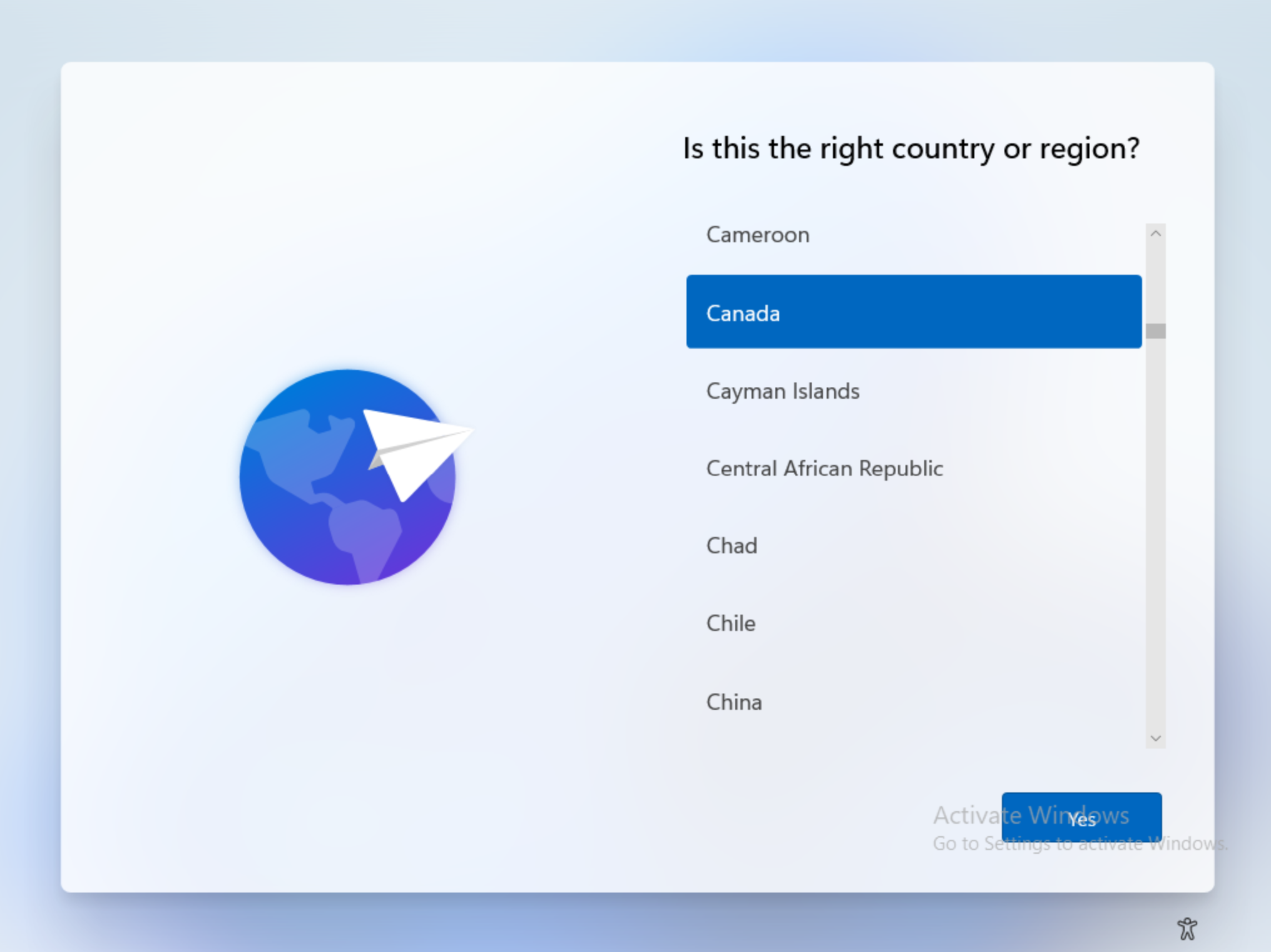
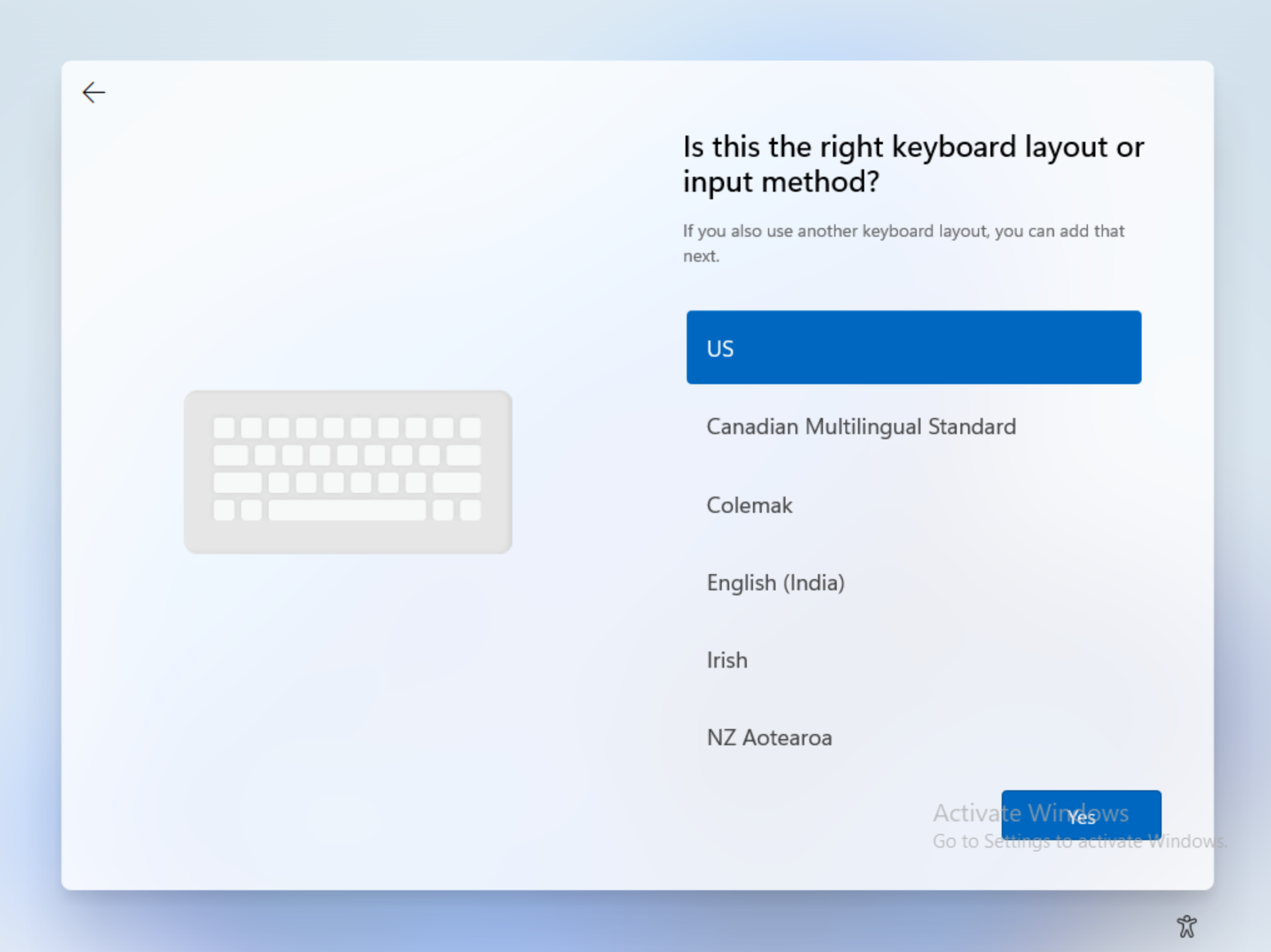
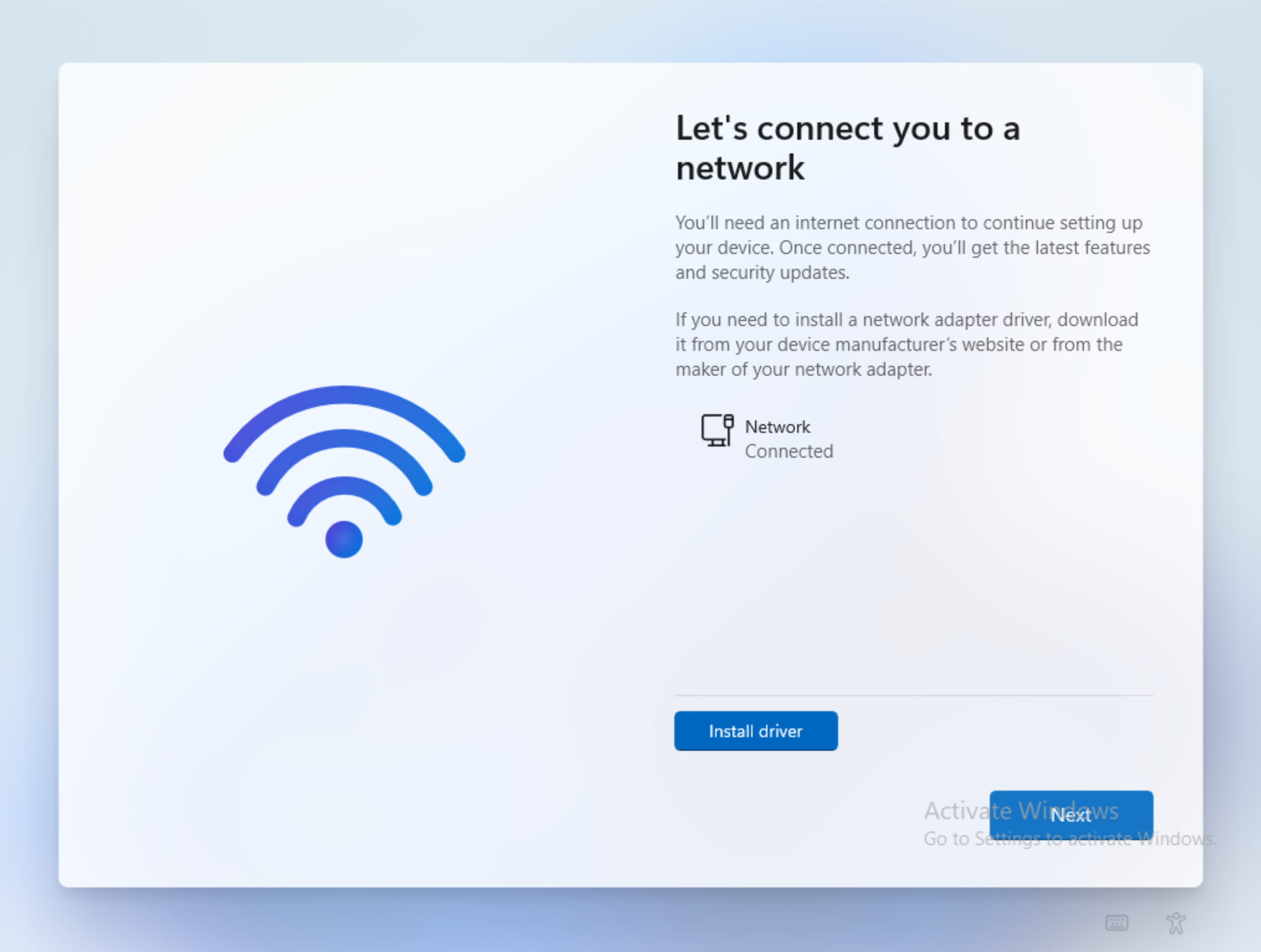
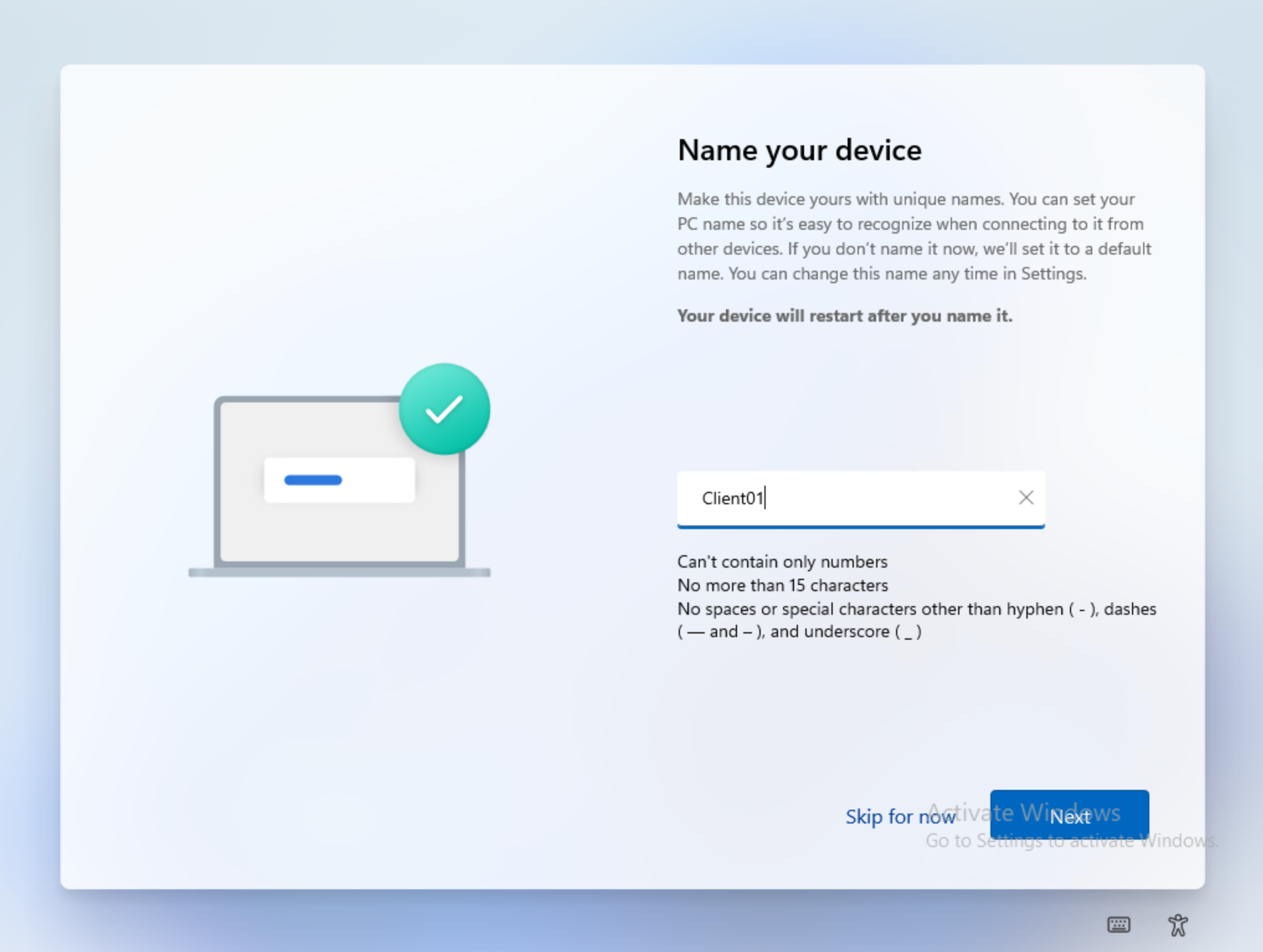
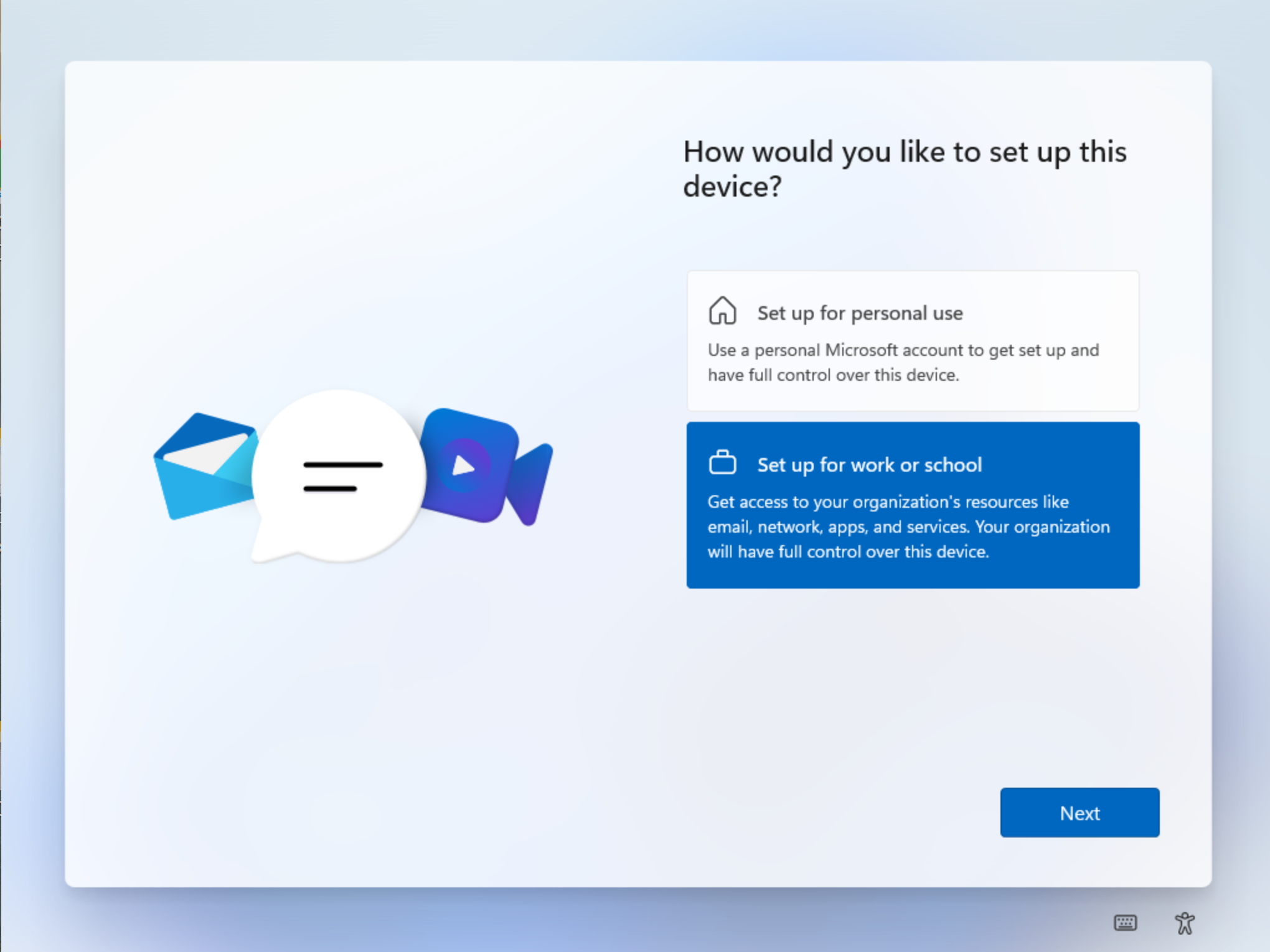
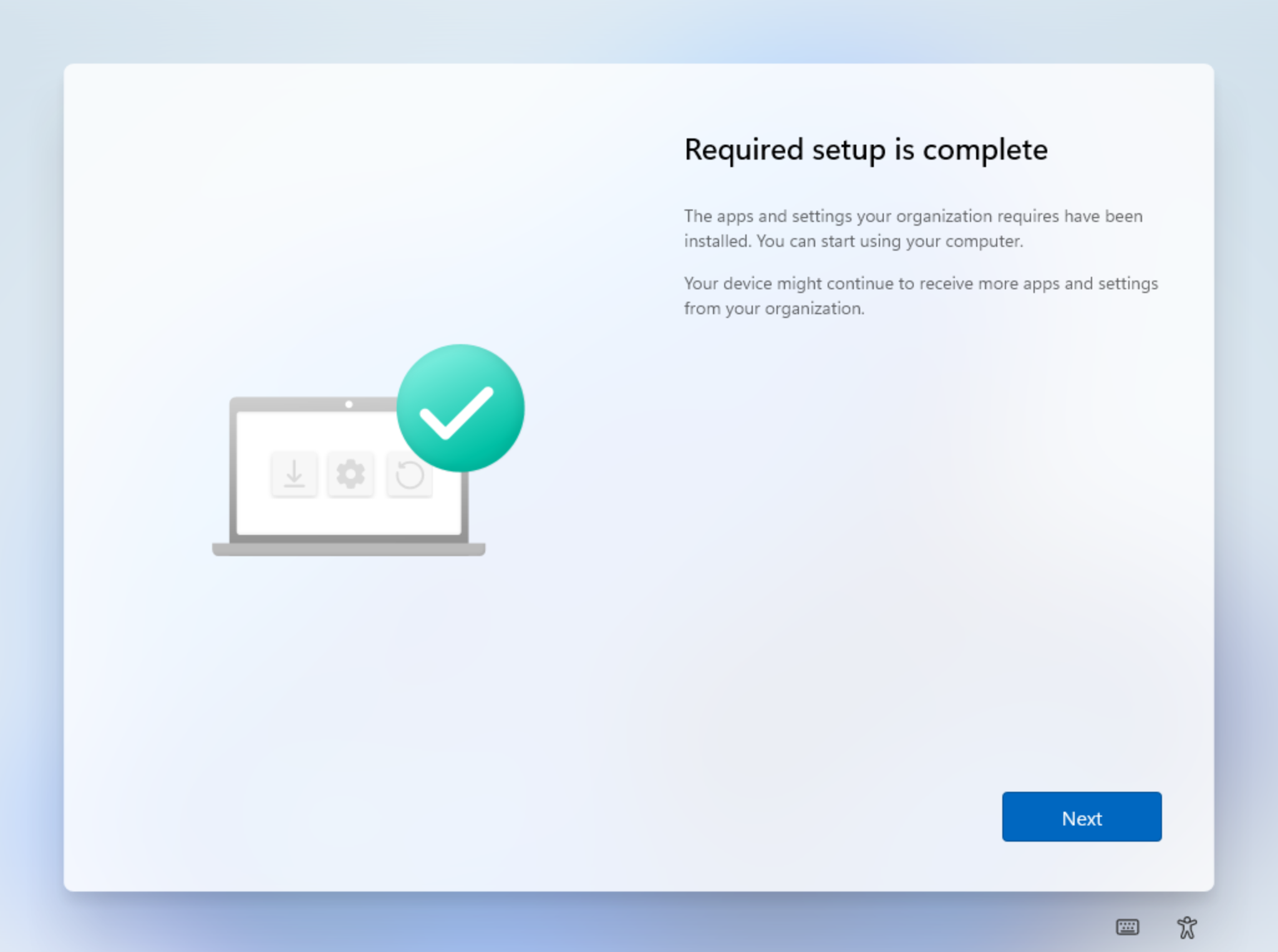
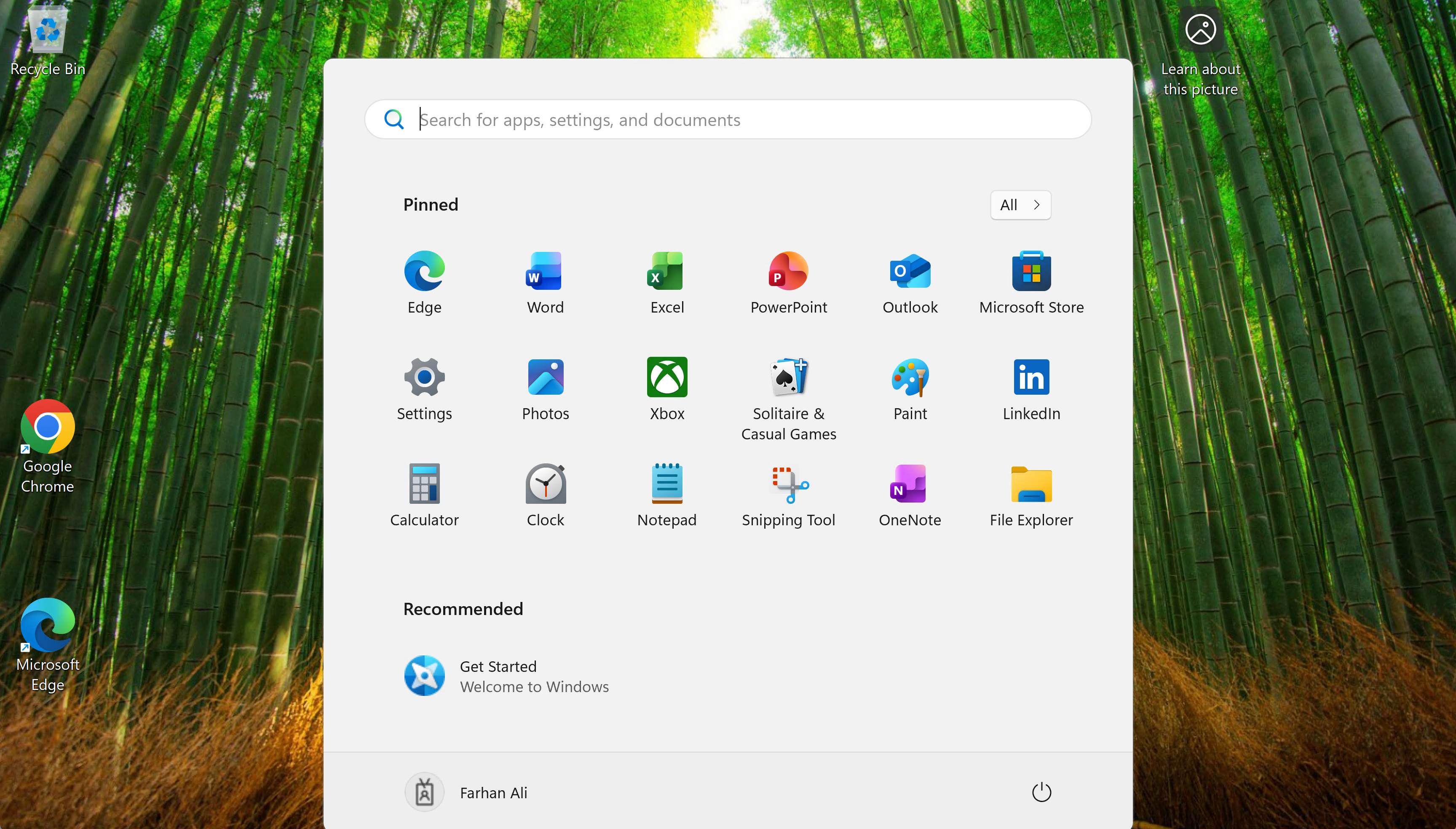
Let’s observe the OOBE flow and the remaining steps shown visually in the screenshots below.
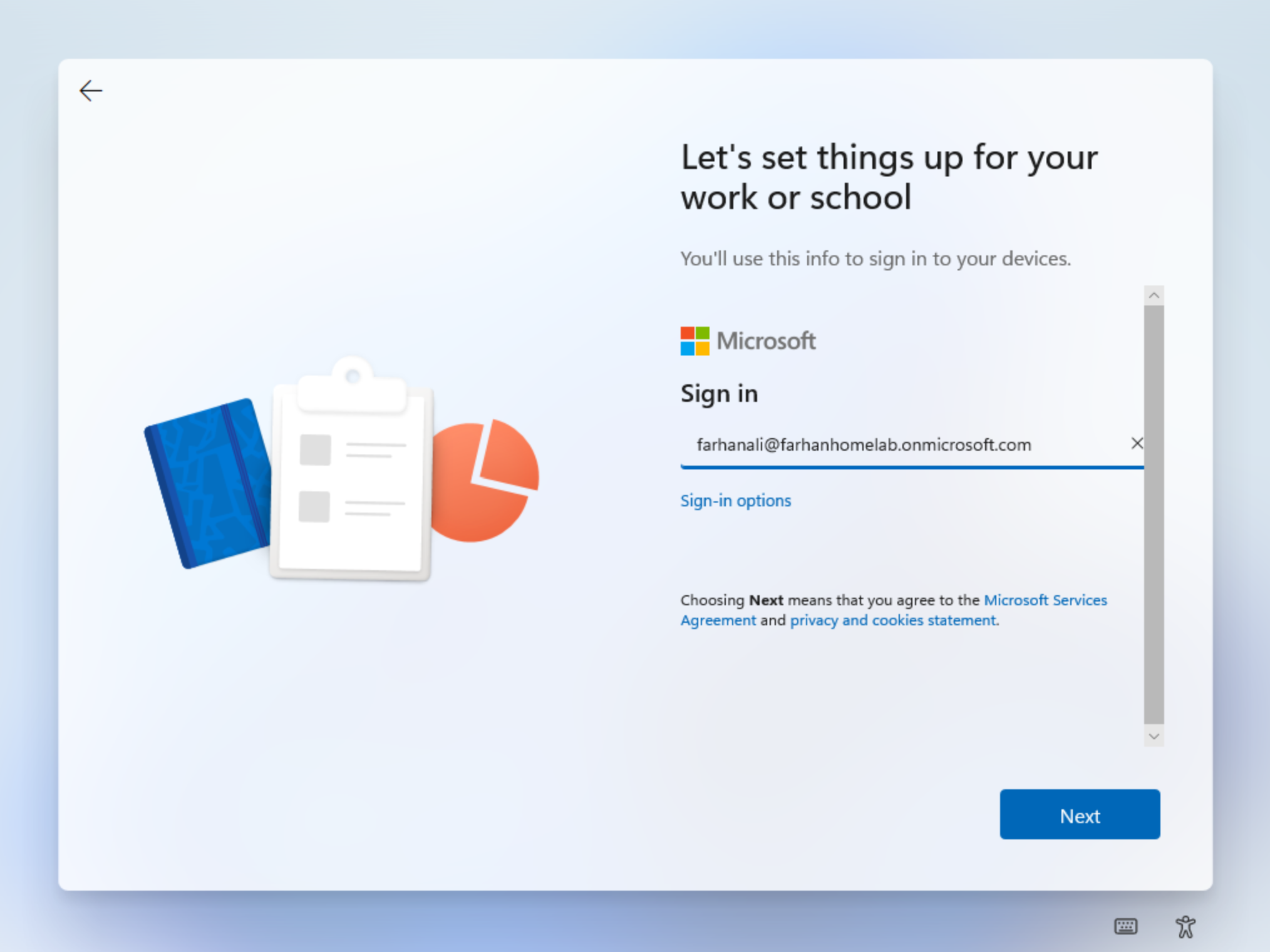
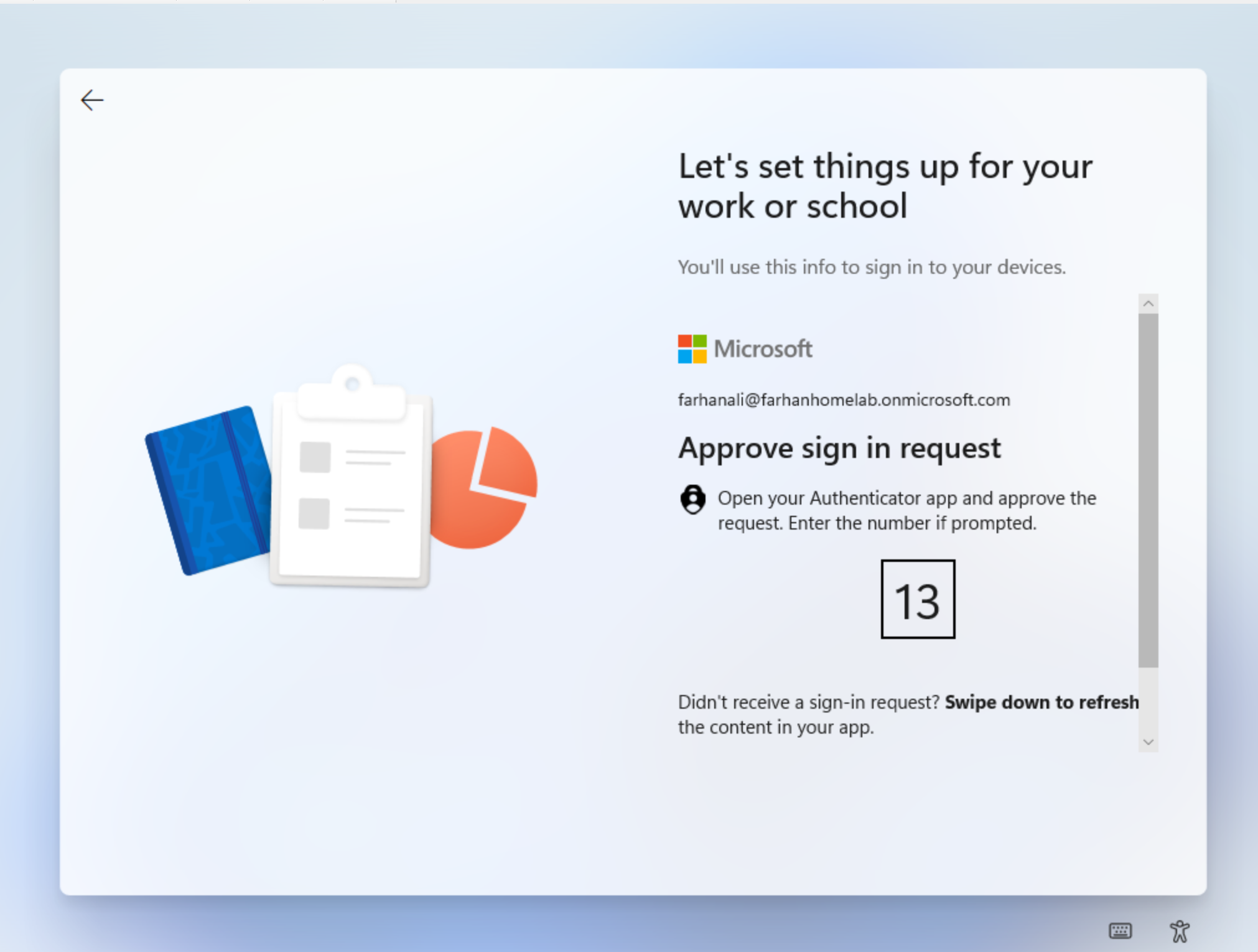
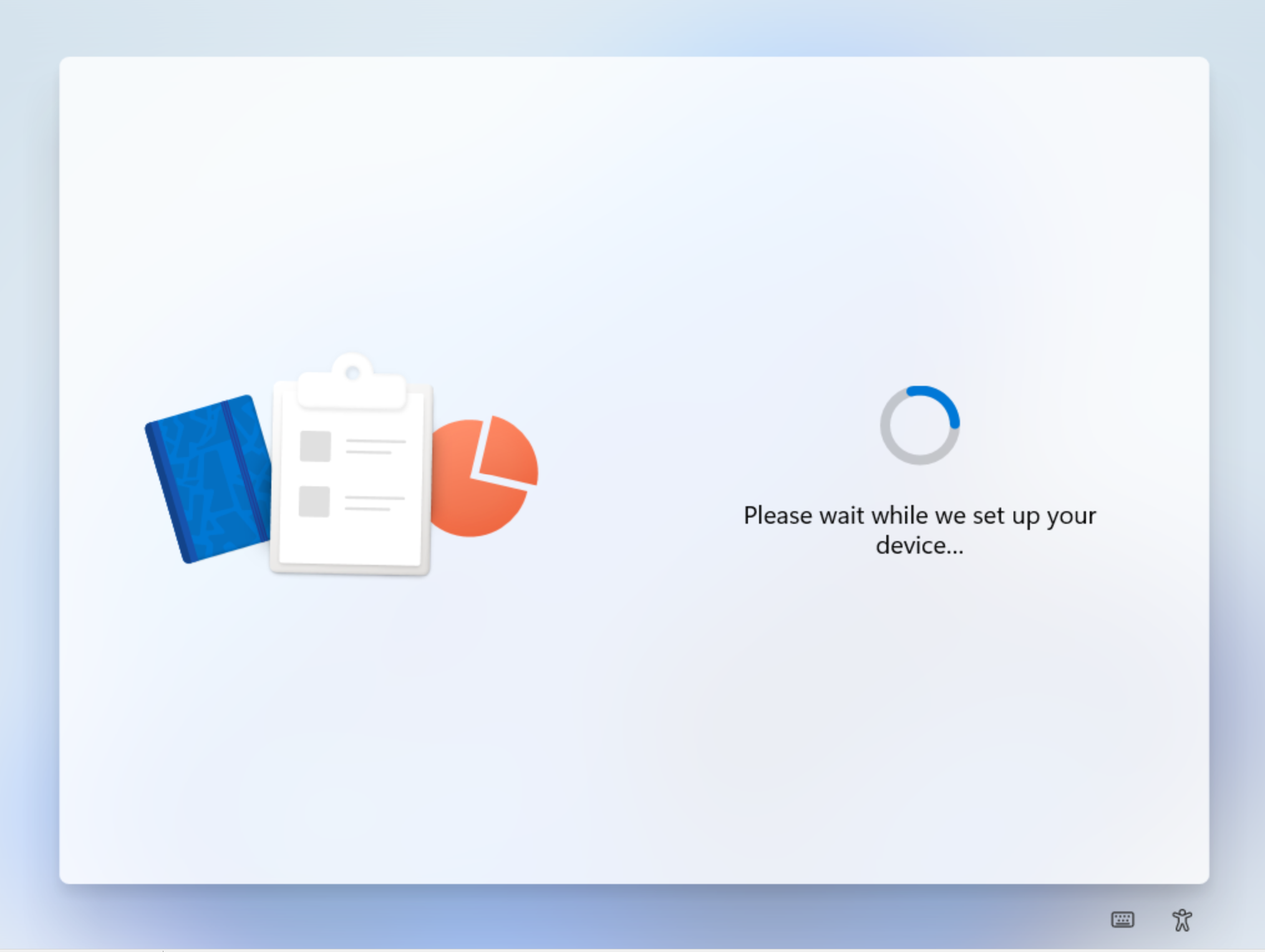
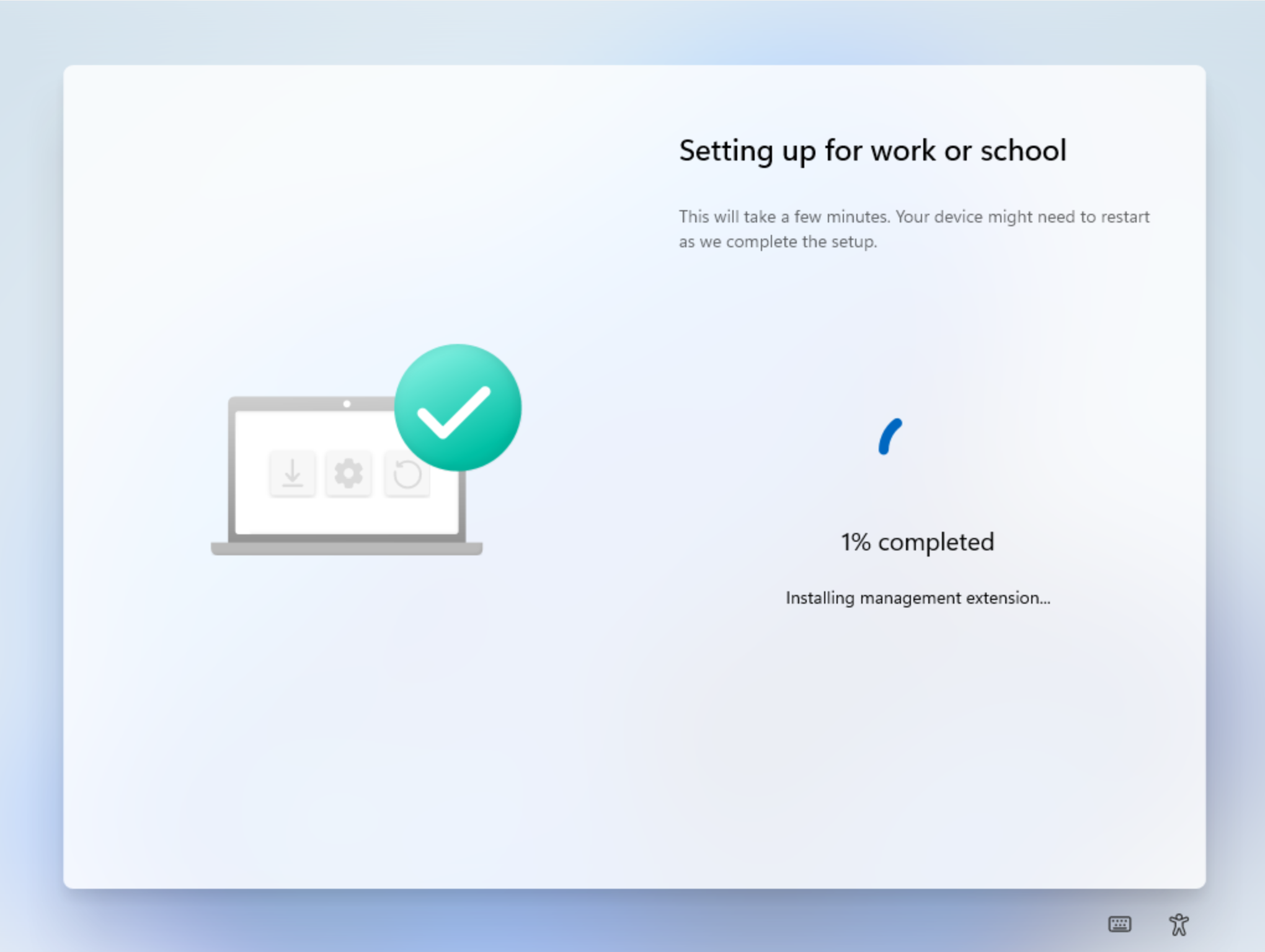
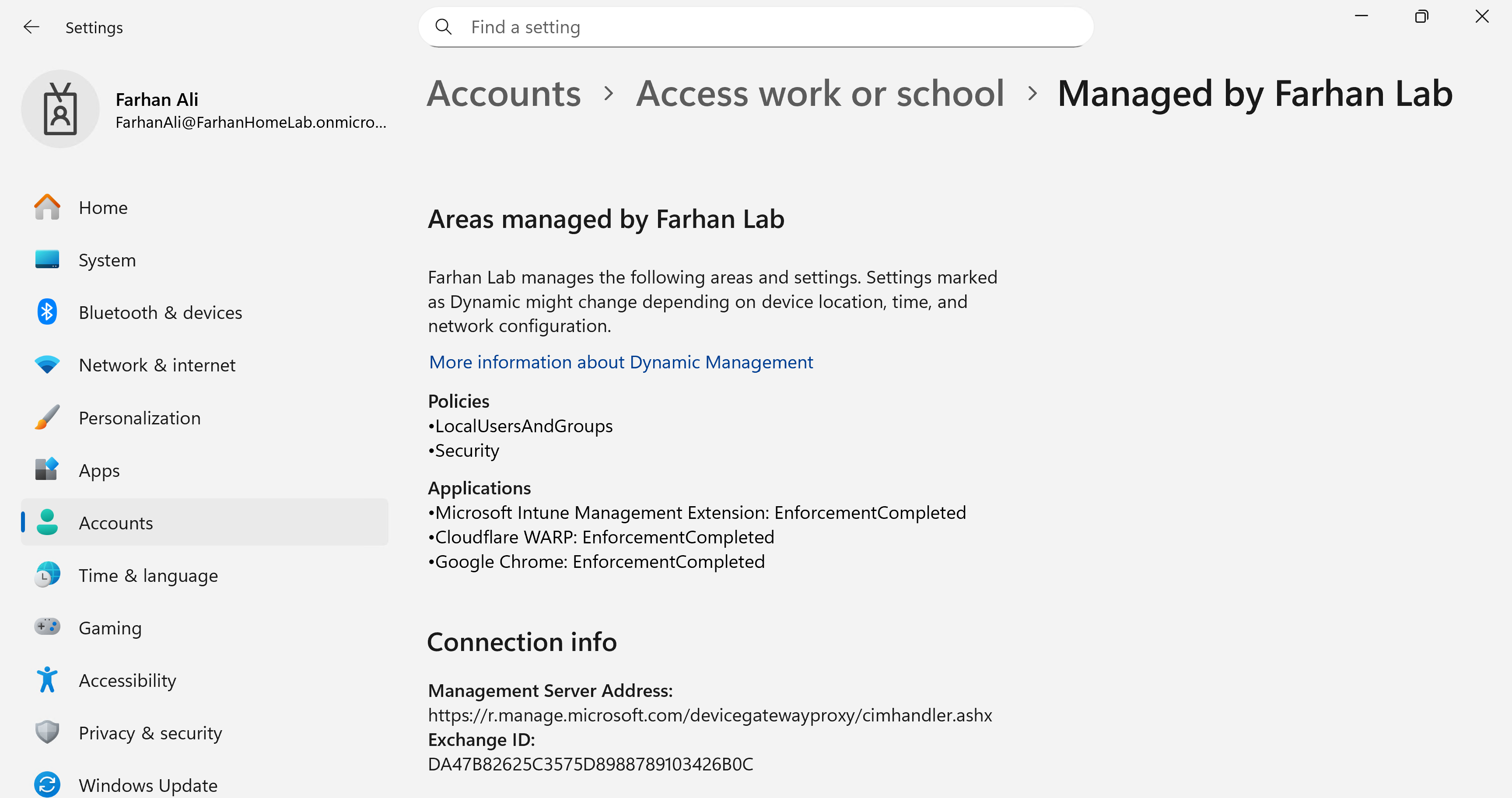
Navigate to Settings -> Accounts -> Access work or school to confirm that the device is enrolled in Intune, the required Intune policies are applied, and the specified apps are installed.
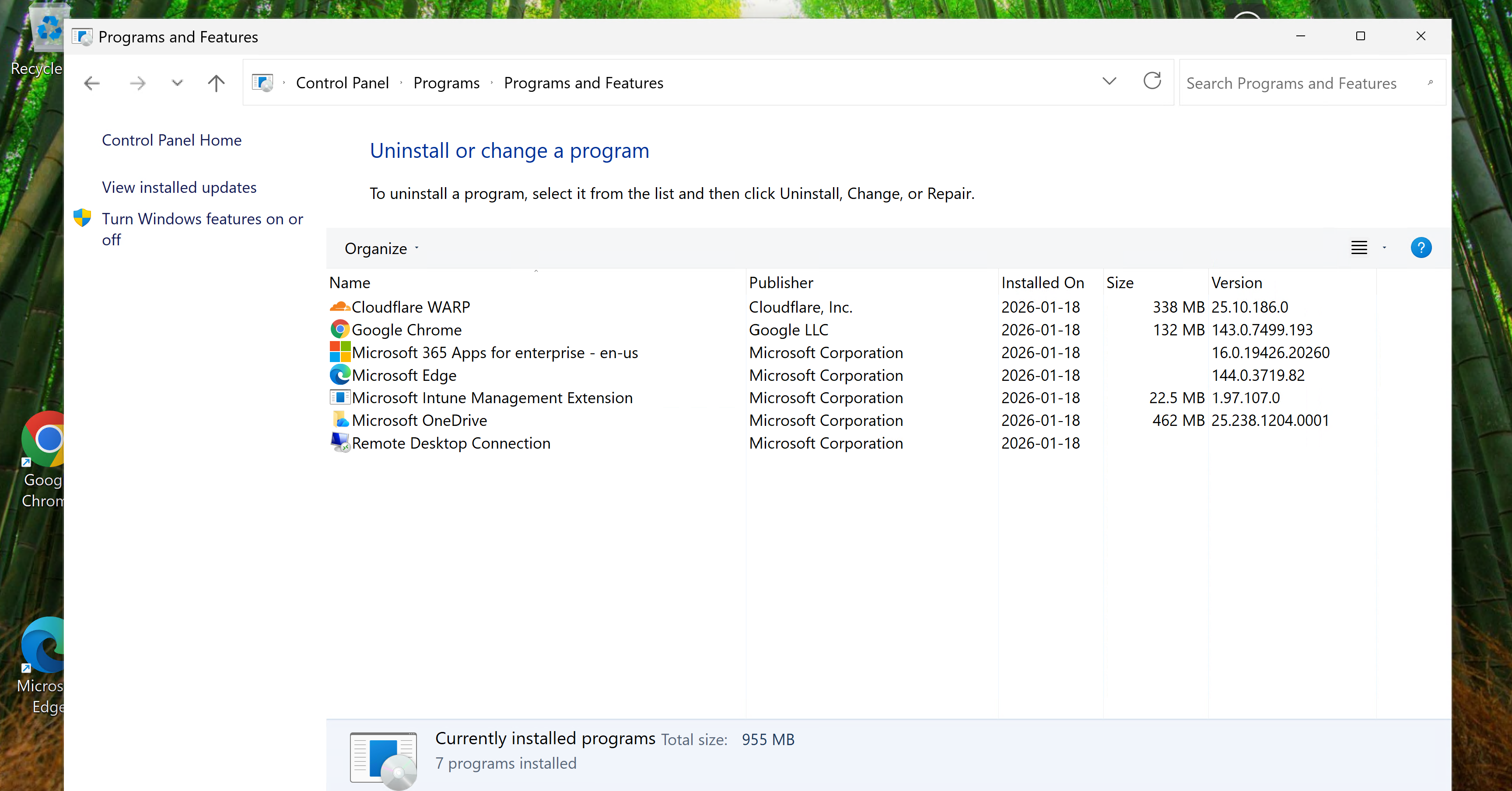
Ensured that all required apps are installed from the control panel
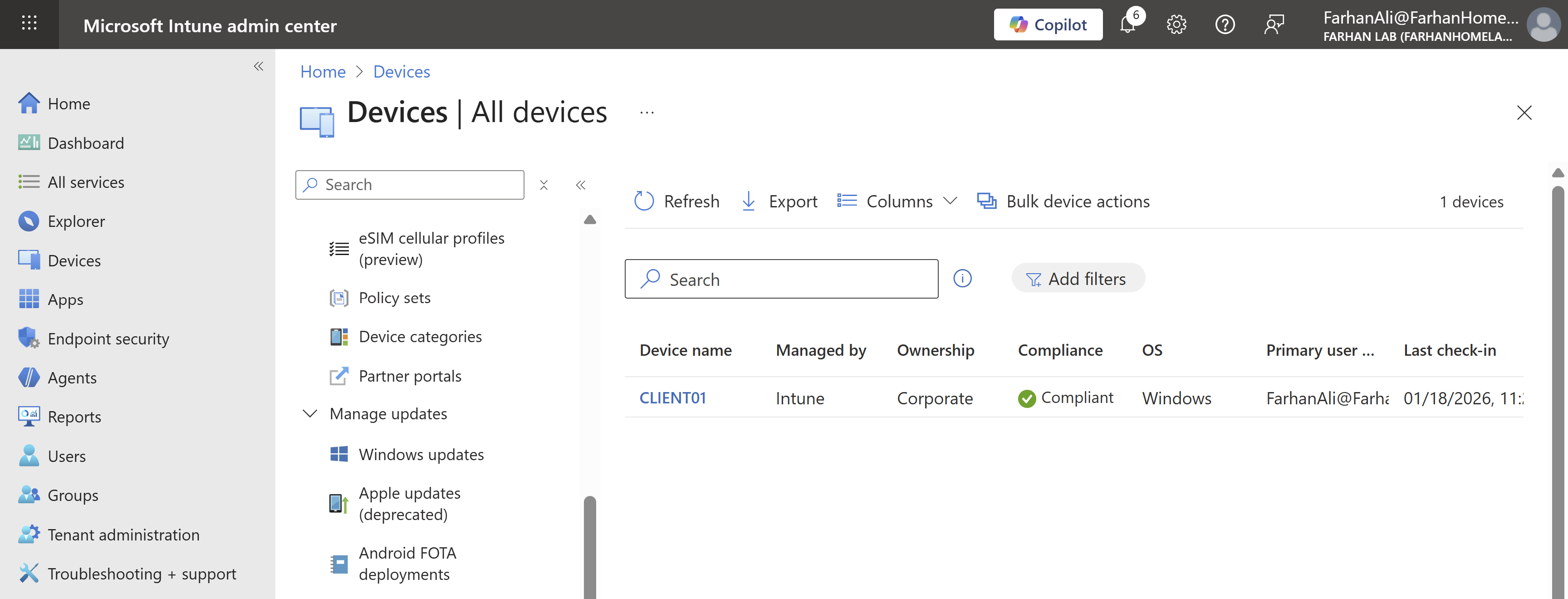
Ensure that the device shows up in the Intune portal and is compliant
Official References
| Topic | Official Link |
|---|---|
| Windows Autopilot device preparation requirements | https://learn.microsoft.com/en-us/autopilot/device-preparation/requirements?tabs=software |
| Windows Autopilot device preparation scenarios | https://learn.microsoft.com/en-us/autopilot/device-preparation/tutorial/scenarios |
| Windows Autopilot device preparation user-driven Microsoft Entra join in Intune | https://learn.microsoft.com/en-us/autopilot/device-preparation/tutorial/user-driven/entra-join-workflow |
| Managing Win32 Apps | https://learn.microsoft.com/en-us/intune/intune-service/apps/apps-win32-app-management |