
End-to-End SCCM Server Deployment and Configuration
SCCM (now rebranded as Microsoft Endpoint Configuration Manager - MECM) will still be called SCCM throughout this documentation because… come on Microsoft.
This project walks through the infrastructure setup and installation phase, configured as close to an enterprise build as possible while still scaled down for a lab environment.
I have divided the project into four major steps:
- Set Up Active Directory Infrastructure (FA-DC01)
- Build SQL + Site Server for SCCM (FA-SCCM)
- Prepare FA-SCCM for SCCM Installation
- Install System Center Configuration Manager
Post-configuration tasks (boundaries, discovery methods, clients etc.) are documented separately: Access Here
Infrastructure Components:
| Virtual Component | Description | IP Address |
|---|---|---|
| Address Space | Address space used in this lab | 172.16.171.0/24 |
| FA-DC01 | Domain Controller | 172.16.171.5 |
| FA-SCCM | SCCM Site Server + SQL Server | 172.16.171.10 |
Download Resources:
| Name | Download Link |
|---|---|
| Windows Server 2022 | https://www.microsoft.com/en-us/evalcenter/evaluate-windows-server-2022 |
| SQL Server 2022 | https://www.microsoft.com/en-us/evalcenter/evaluate-sql-server-2022 |
| SQL Reporting Services 2022 | https://www.microsoft.com/en-us/download/details.aspx?id=104502 |
| SQL Server Management Studio | https://learn.microsoft.com/en-us/ssms/install/install |
| Windows ADK and WinPE Add-on | https://learn.microsoft.com/en-us/windows-hardware/get-started/adk-install |
| Configuration Manager 2403 (current branch) | https://www.microsoft.com/en-us/evalcenter/evaluate-microsoft-endpoint-configuration-manager |
All software listed above is compatible with Configuration Manager version 2403 (verified).
1. Set Up Active Directory Infrastructure (FA-DC01)
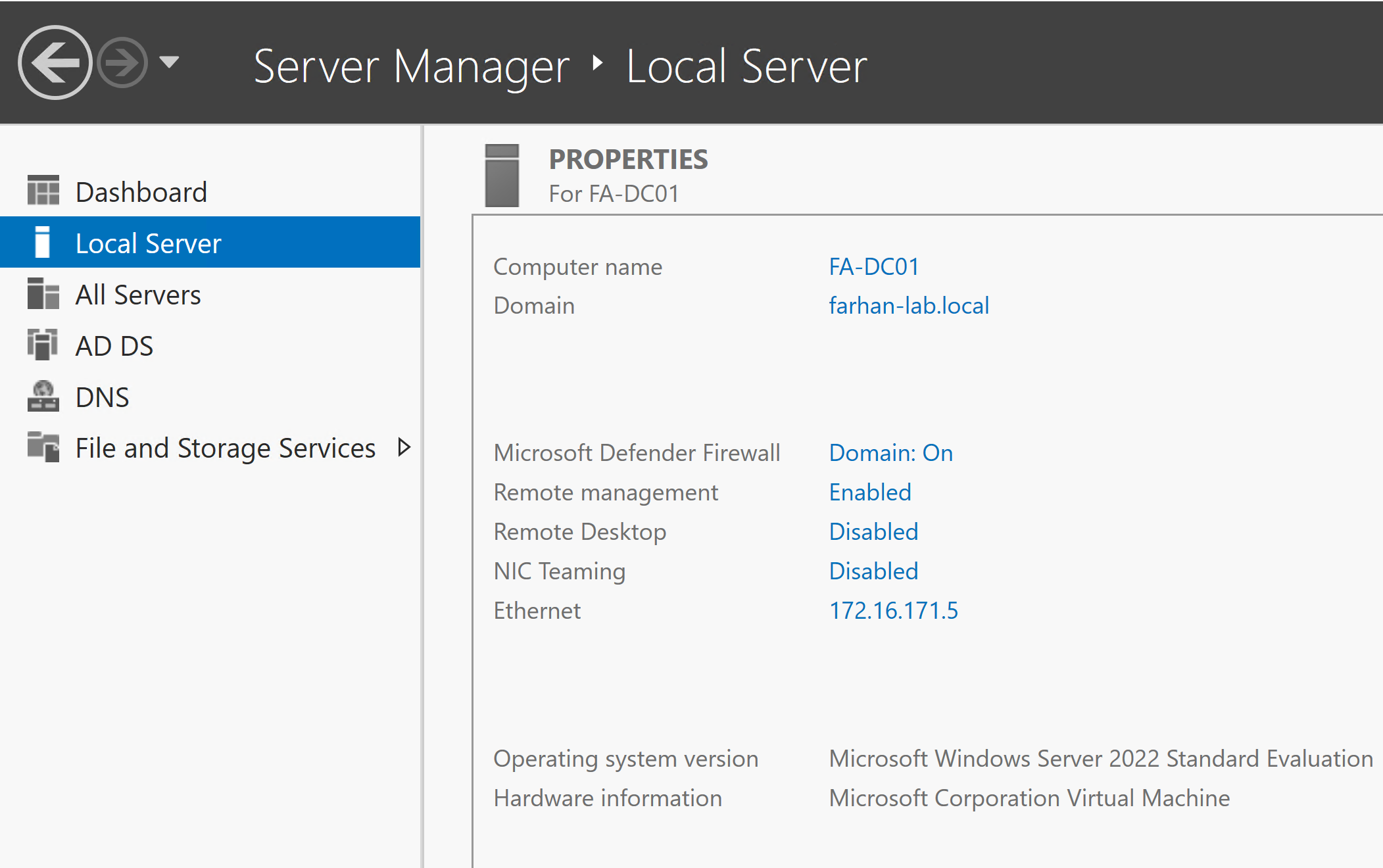
Created a virtual machine, installed Windows Server 2022, added the AD DS role, and promoted the server to a domain controller.
Configuration Values:
- Server Name: FA-DC01
- Static IP: 172.16.171.5
- Hostname: FA-DC01
- Domain Name: farhan-lab.local
- FQDN: fa-dc01.farhan-lab.local
DNS Configuration
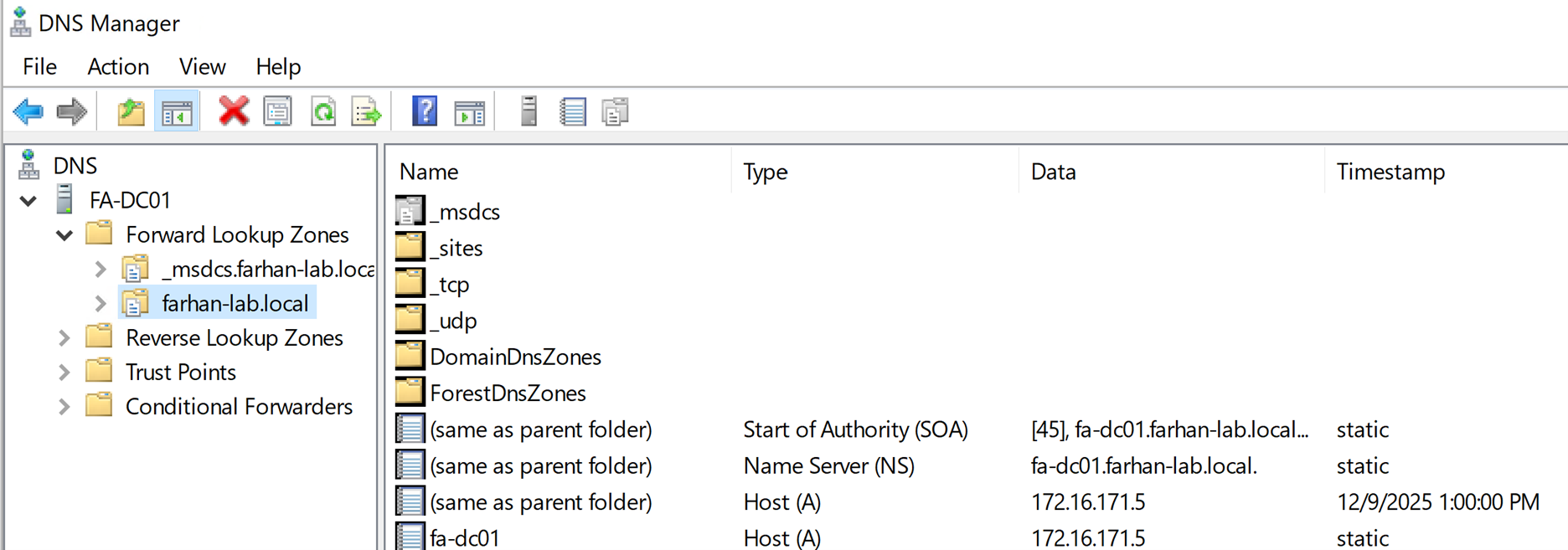
Added Domain Name Services (DNS) role on the server and verified functionality.
-
nslookup farhan-lab.local
-
nslookup FA-DC01.farhan-lab.local
-
nslookup 172.16.171.5
-
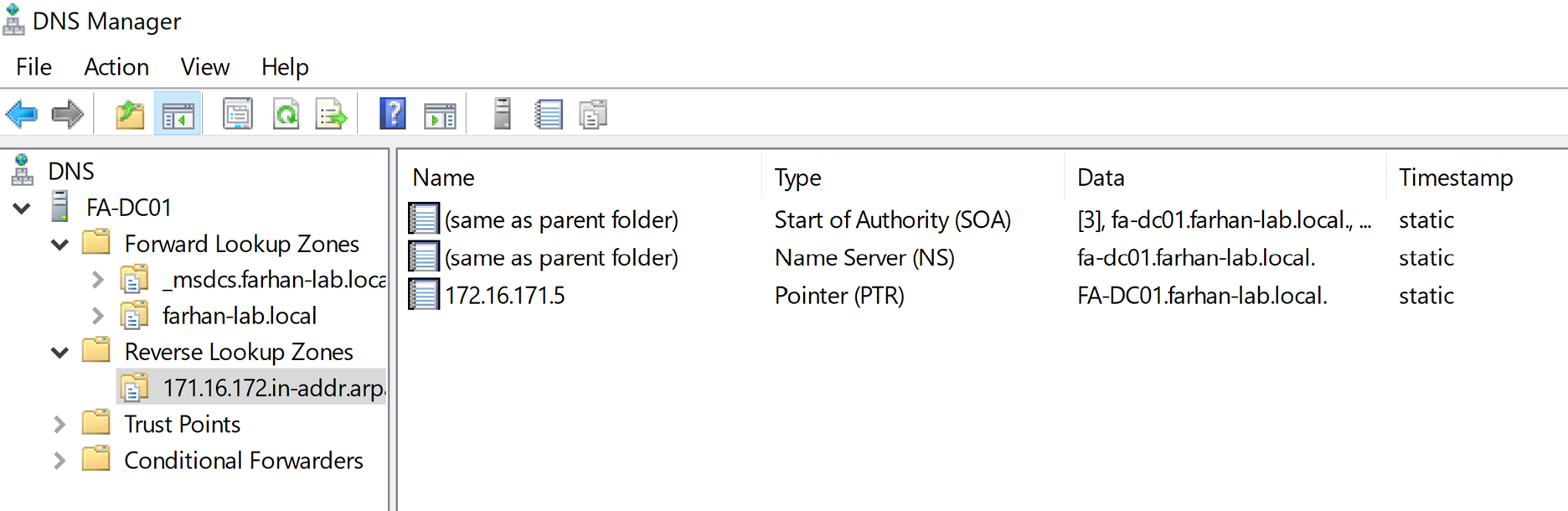
Created reverse lookup zone (172.16.171.x)
OU Structure
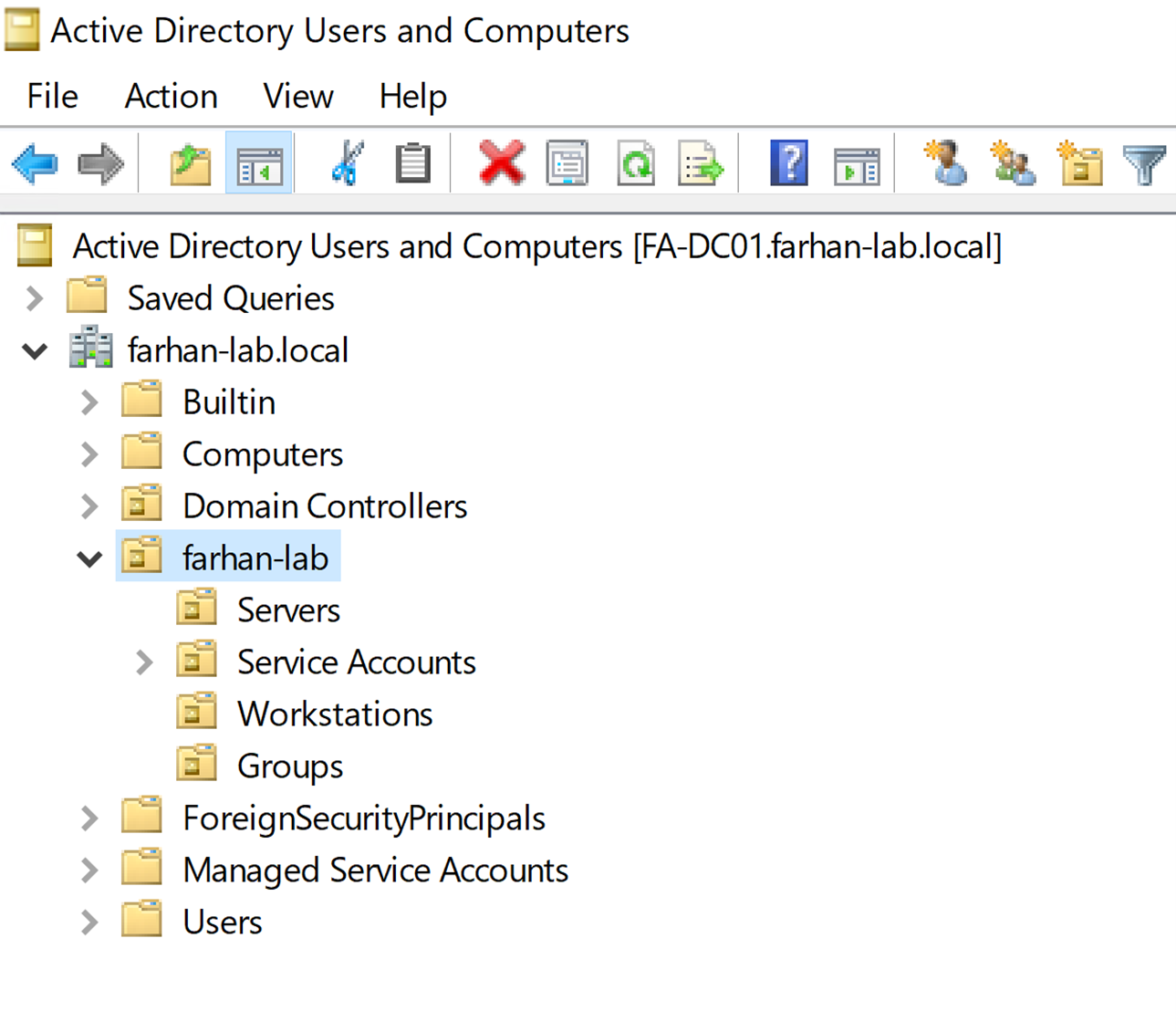
Created an OU structure suited for my lab. This is optional, but I prefer creating a dedicated root OU so GPO scope is clean.
Service Accounts
Created service accounts to be used by SCCM and permissions for service accounts are tailored for their specific function following the least access model.
| Service Account | Purpose |
|---|---|
| SCCM_Admin | Used to install SCCM and perform admin-level configuration |
| SCCM_SQLService | Runs SQL services |
| SCCM_NetworkAccess | Used for client communication / network access (not relevant for this project) |
| SCCM_ClientPush | Used for pushing SCCM client agents (not relevant for this project) |
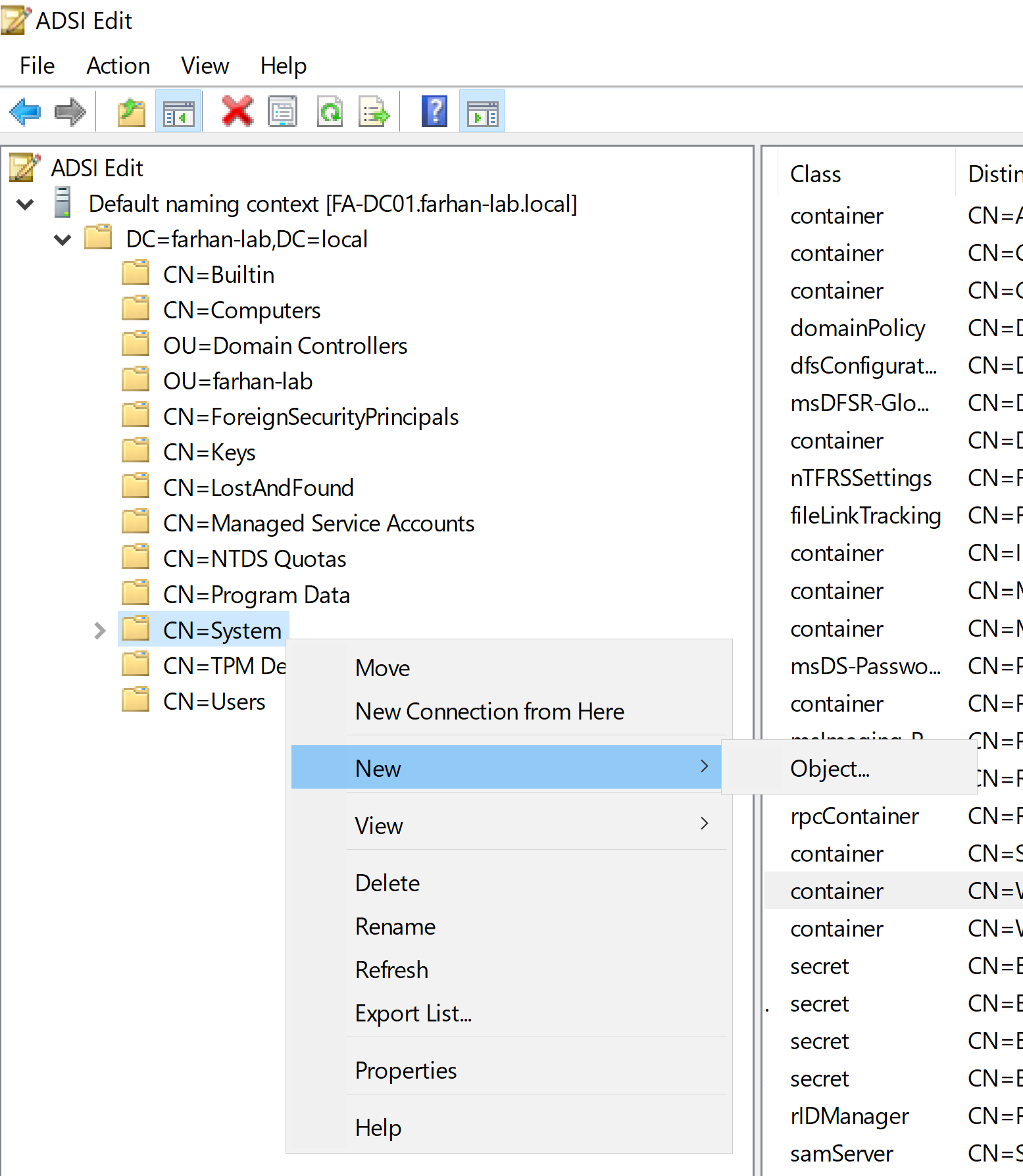
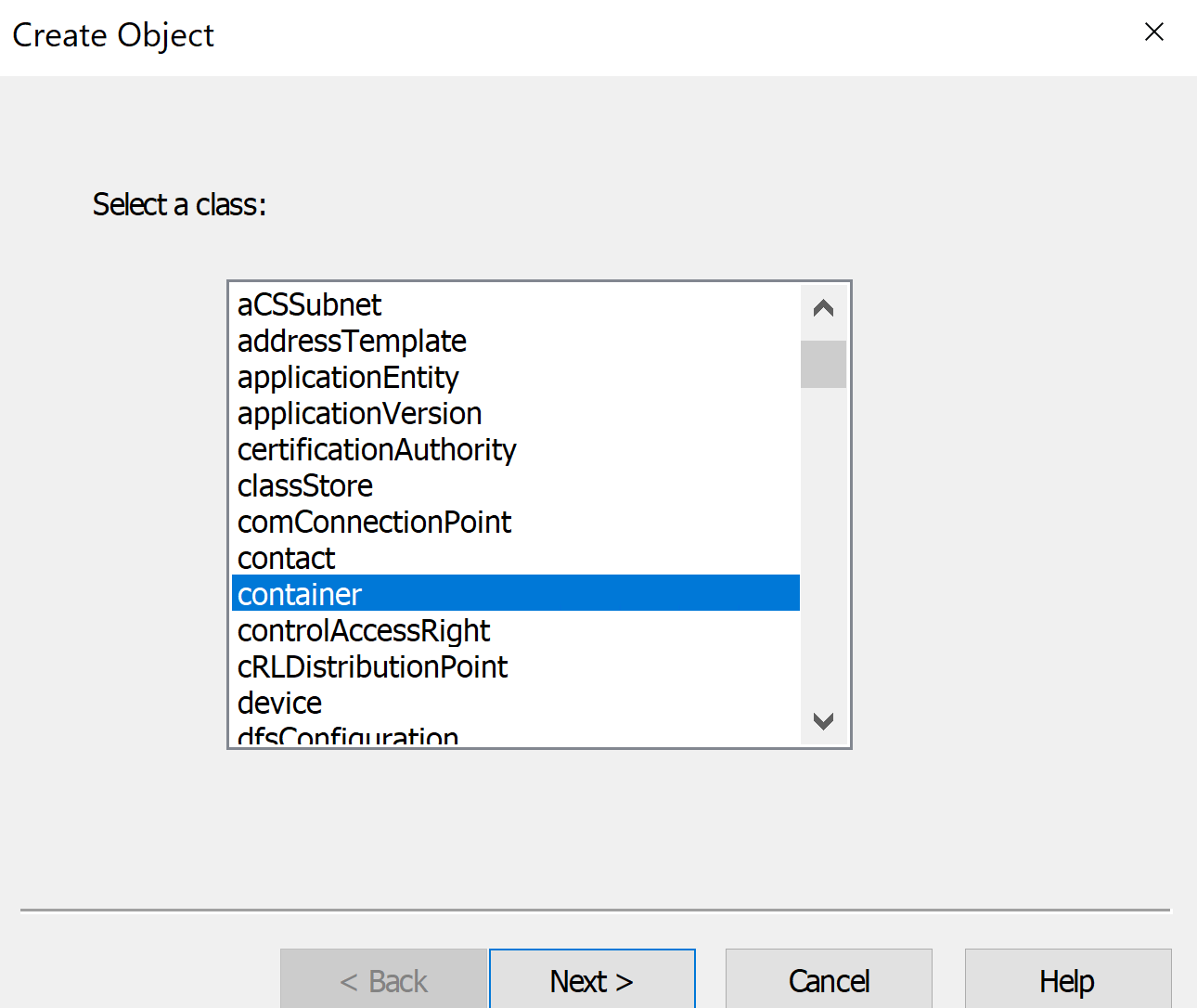
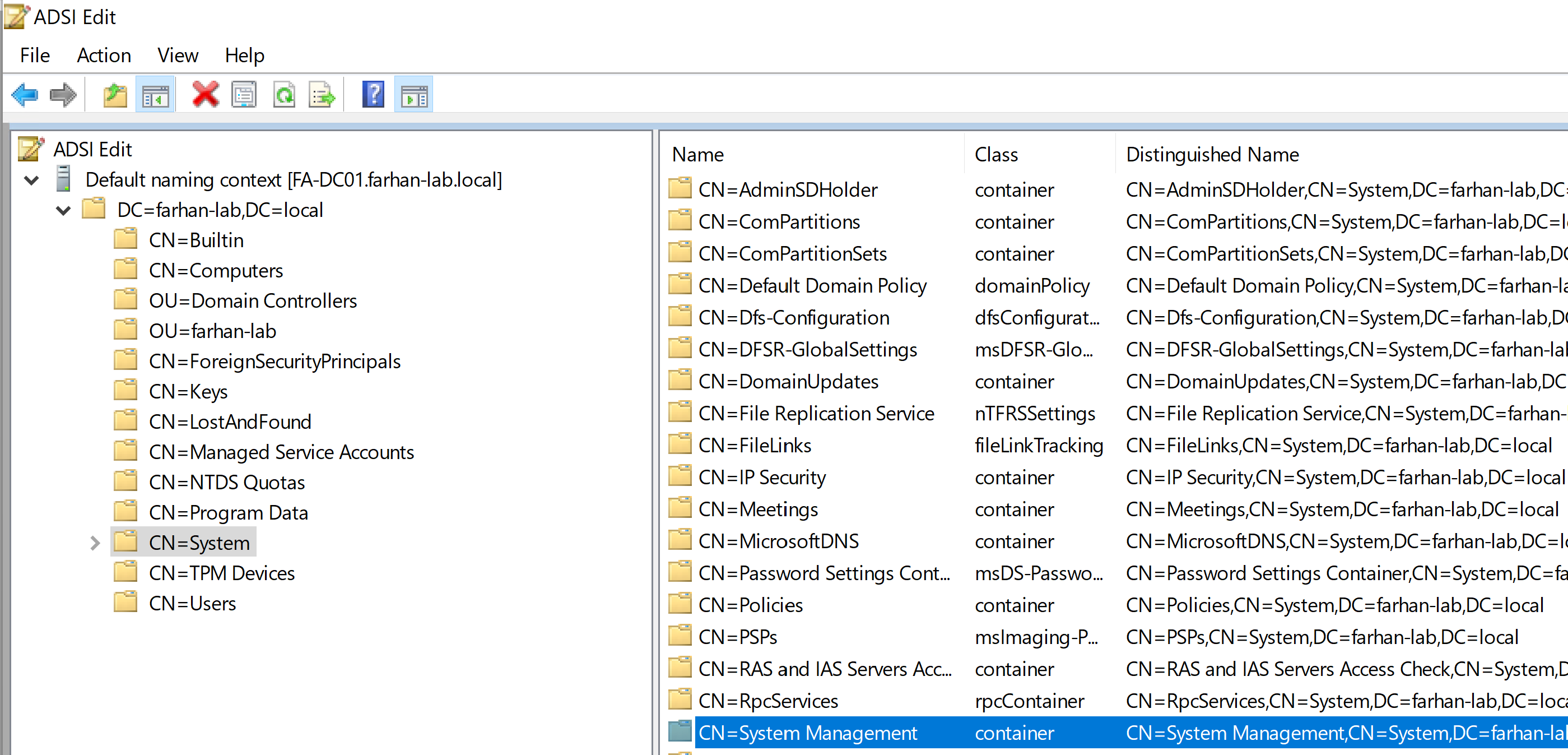
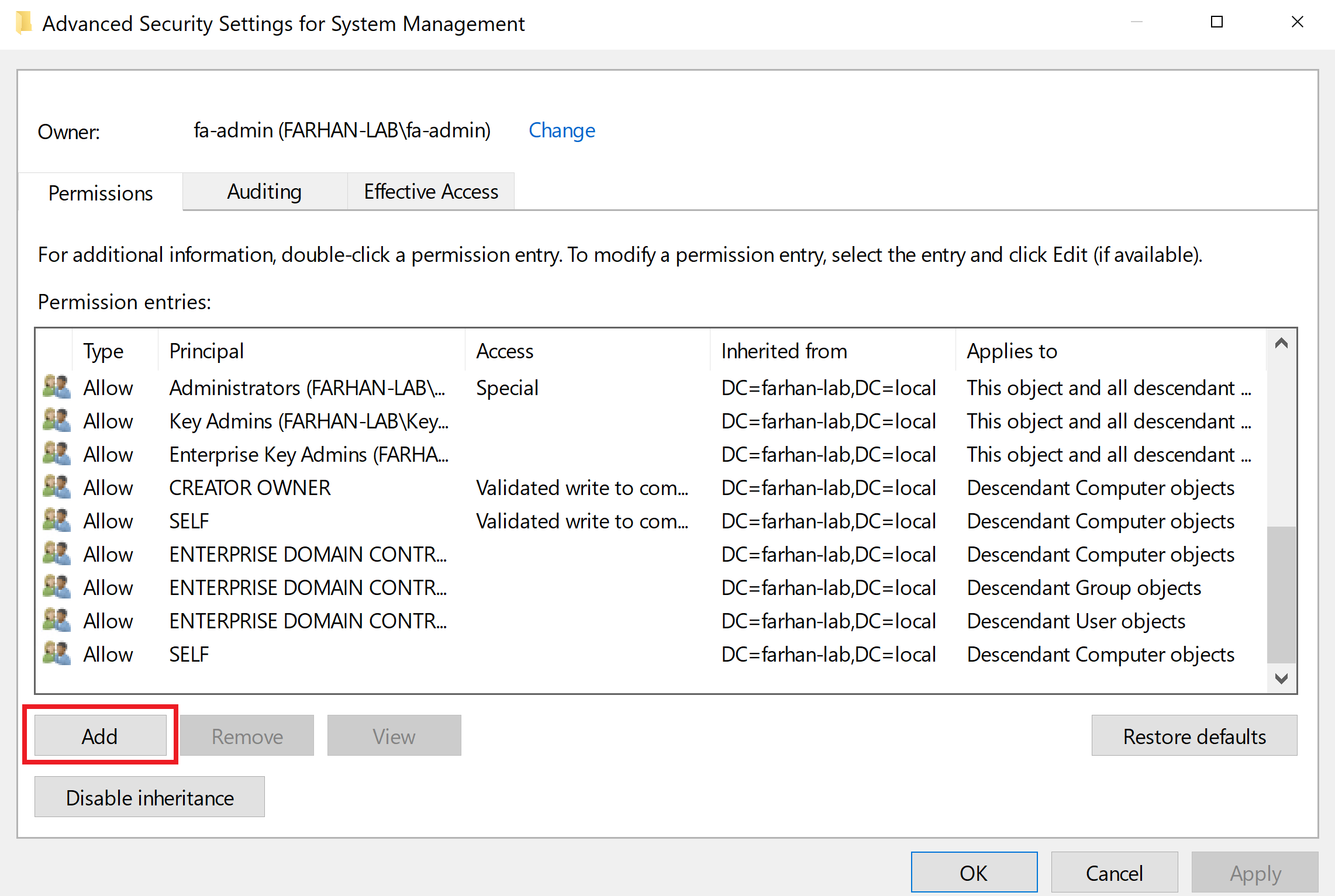
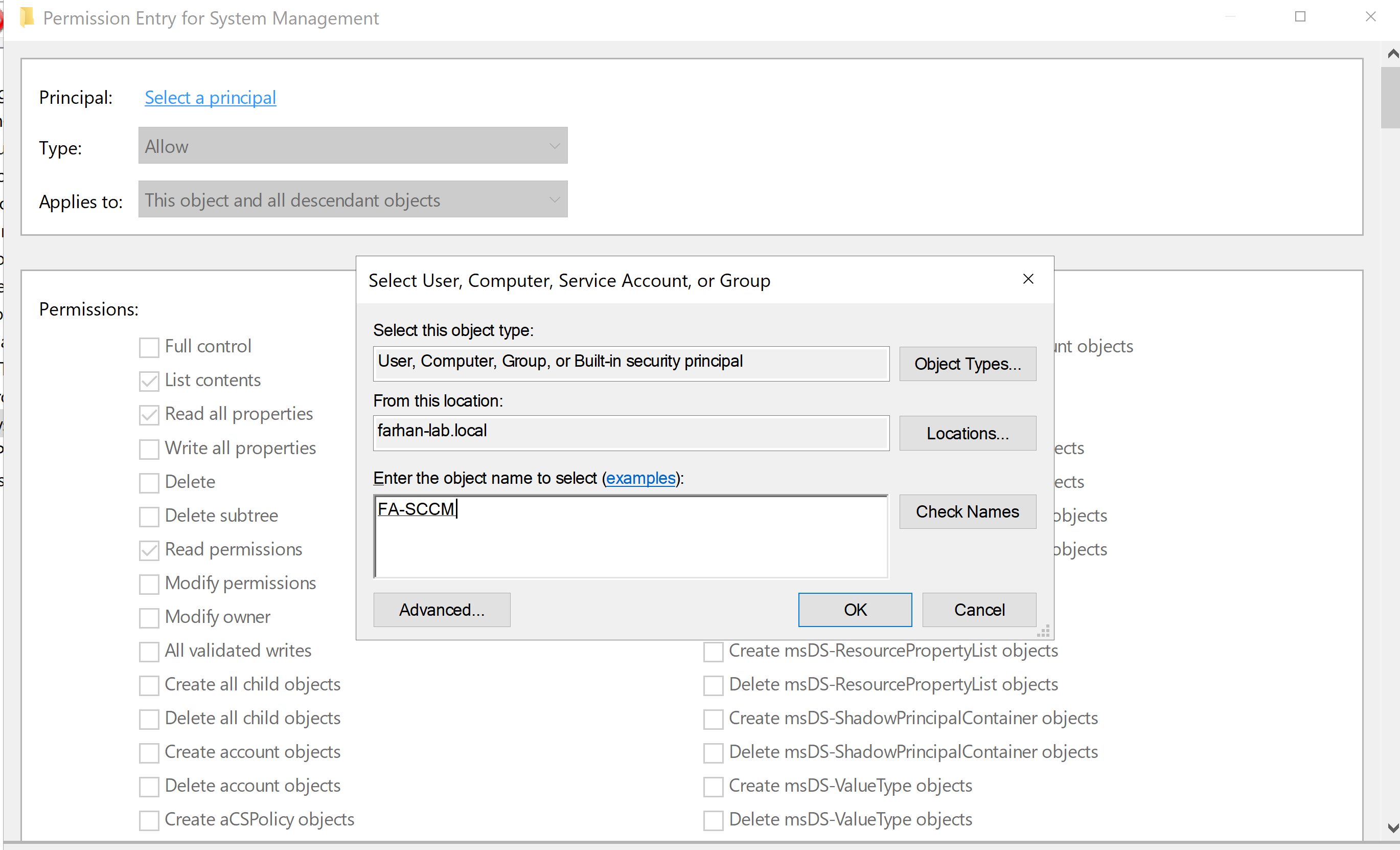
System Management Container
-
Created System Management container in ADSIEdit
-
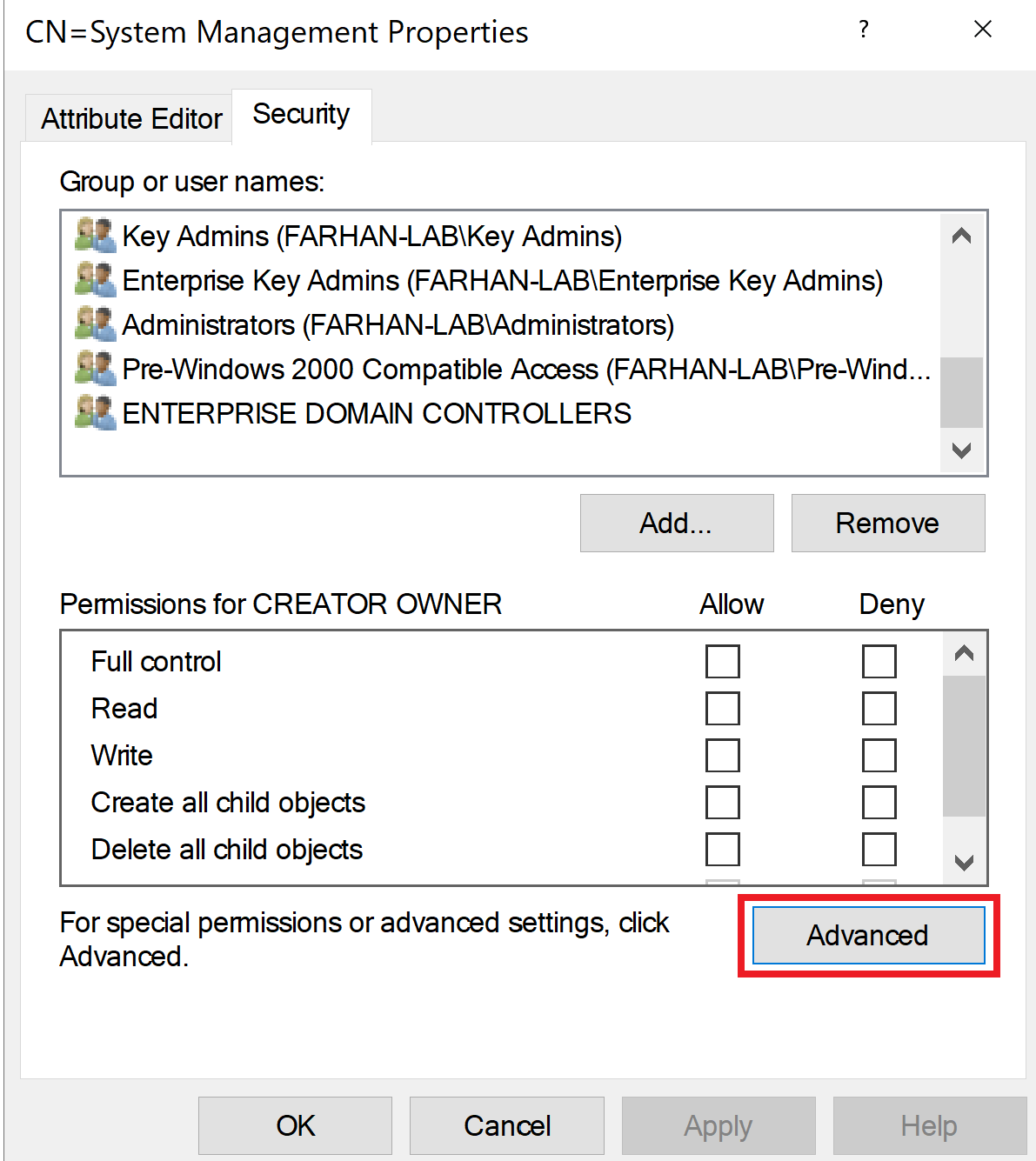
Delegated Full Control to FA-SCCM$ (this step comes after configuring FA-SCCM server)
2. Build SQL + Site Server for SCCM (FA-SCCM)
I am using one server for both SQL and SCCM (collocated). This is fine for labs and small organizations but not recommended for large enterprises due to higher I/O requirements which may limit the high availability options.
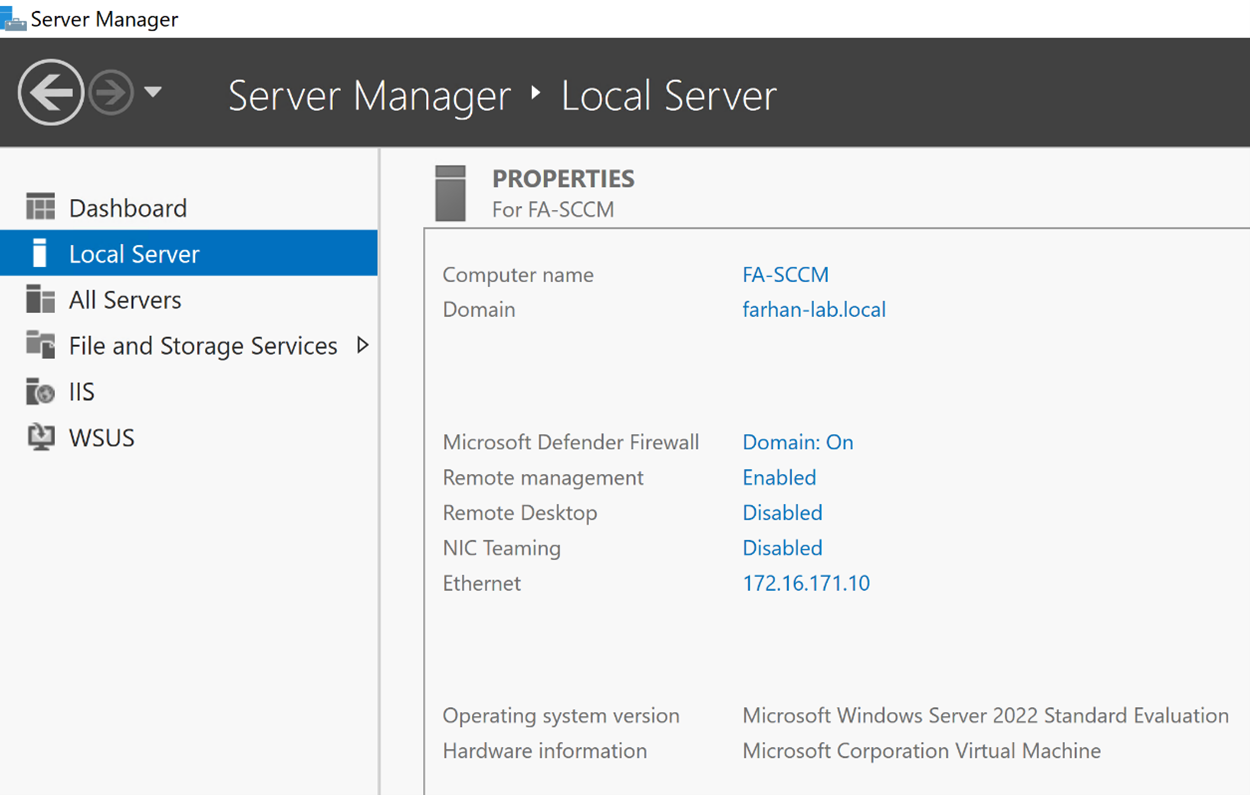
Installed Windows Server 2022 on a new virtual machine and joined it to the domain.
Configuration Values:
- Static IP: 172.16.171.10
- Preferred DNS Server: 172.16.171.5 (FA-DC01)
- Hostname: FA-SCCM
- Join domain: farhan-lab.local
Storage Preparation for SCCM
Disk allocation is critical for SCCM performance. Microsoft recommends dedicated RAID volumes for database files.
I created separate virtual disks for (scaled down the disk space for my lab environment):
| Virtual Hard Drive | Disk Space | Usage |
|---|---|---|
| SCCM_INSTALL | 50GB | Configuration Manager application and log files |
| SCCM_SQL_MDF | 20GB | Site database data file (.mdf) |
| SCCM_SQL_LDF | 15GB | Site database log file (.ldf) |
| SQL_TempDB | 15GB | Temp database files (.mdf and .ldf) |
| SQL_WSUS_Database (optional) | 10GB | WSUS database files |
| SCCM_Application_Sources (optional) | 10GB | Application source files for software deployments |
| SCCM_ContentLibrary (optional) | 10GB | All content files for software deployments |
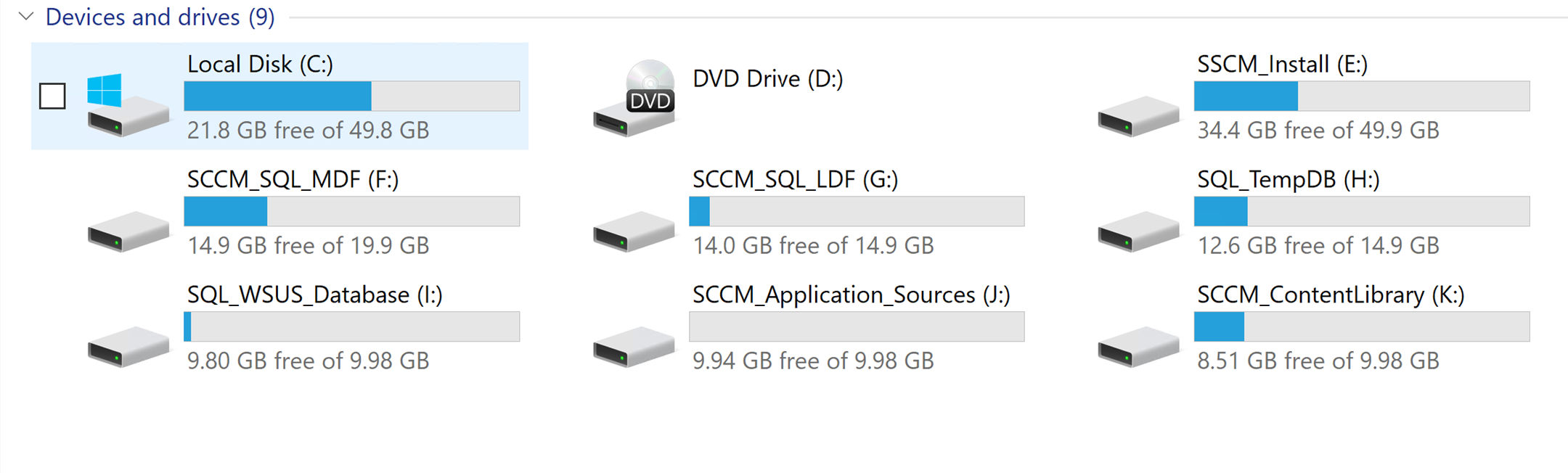
Created a file named no_sms_on_drive.sms and placed it in every drive except SCCM_ContentLibrary to prevent the content library from being installed on any other drive.
Install SQL Server on FA-SCCM
-
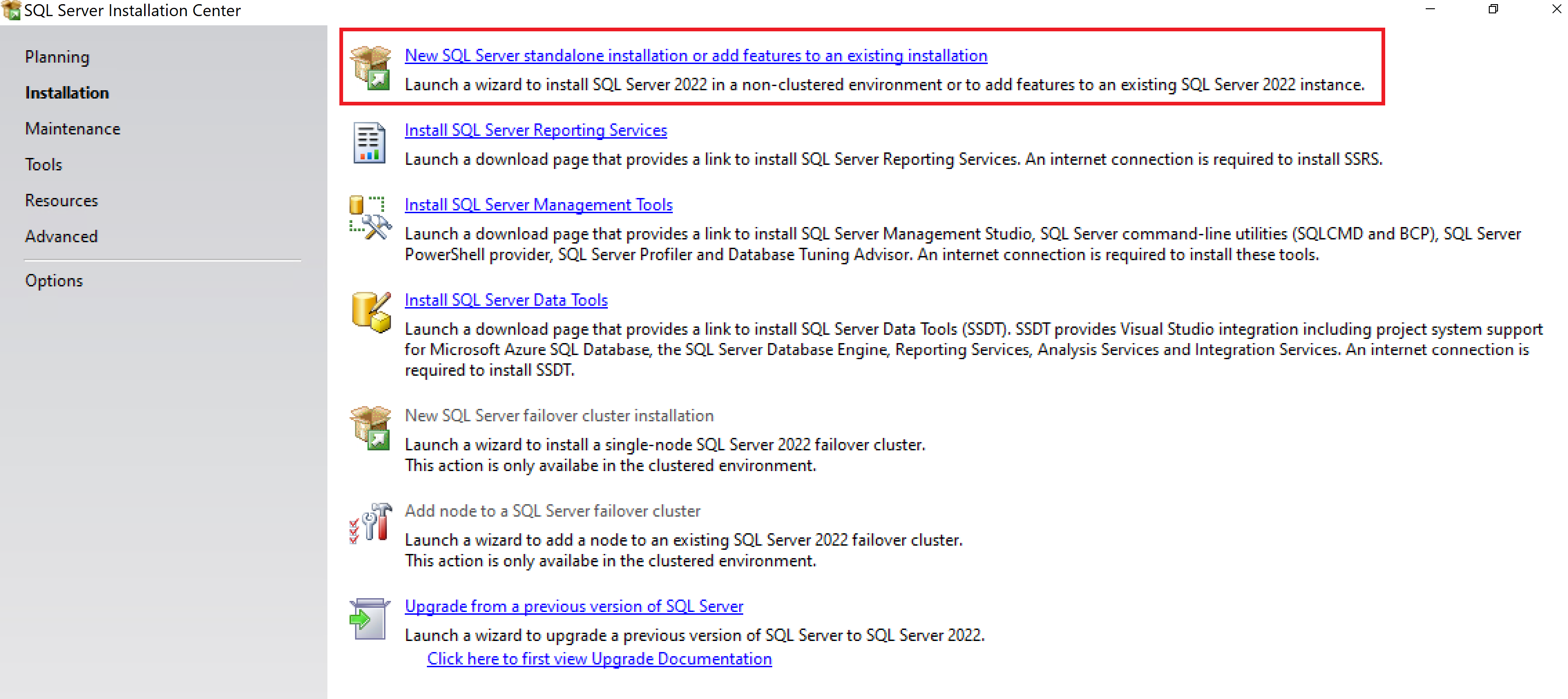
Install SQL Server 2022
-
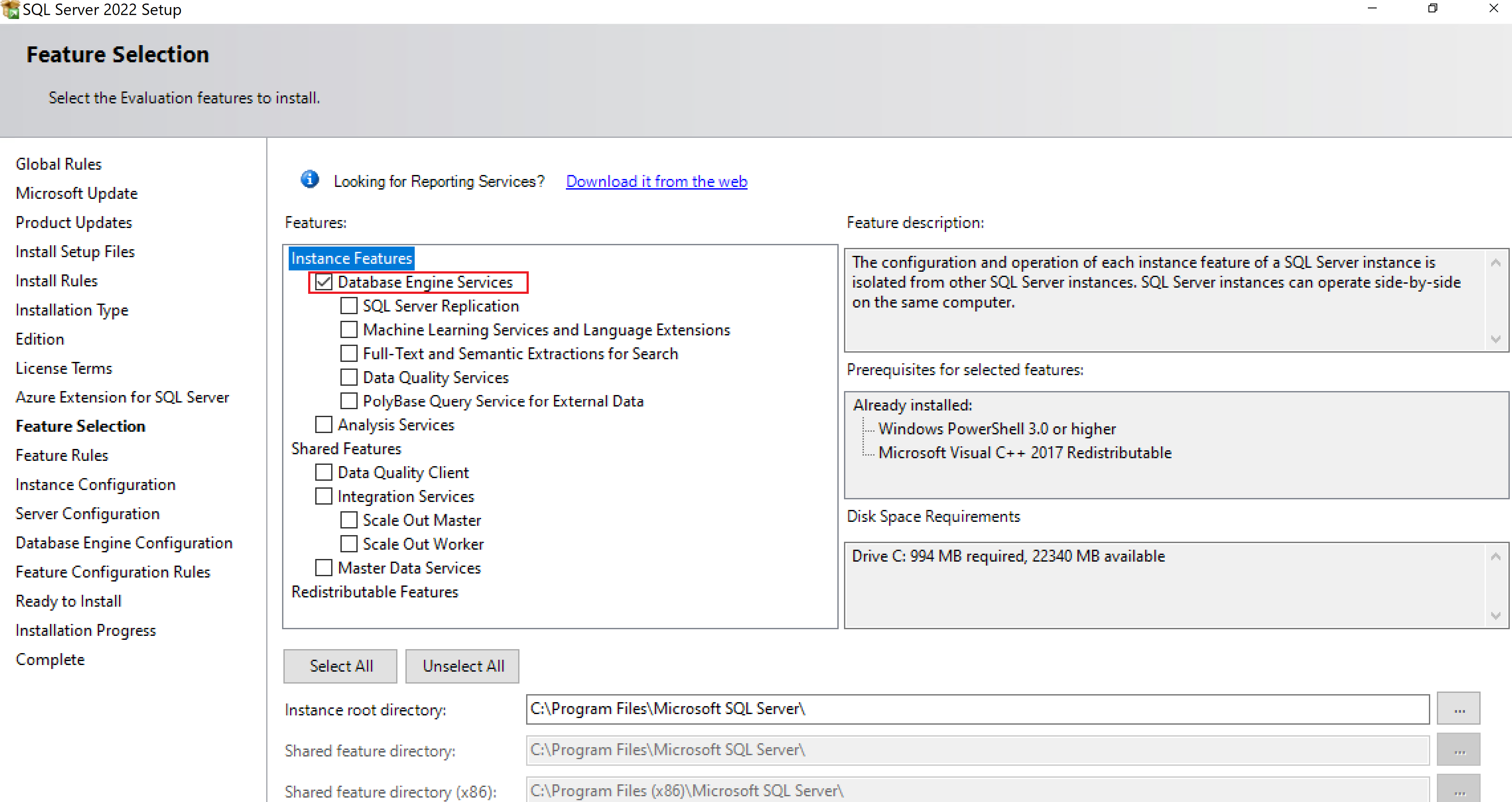
Enable Database Engine Services
-
Verify collation is set to: SQL_Latin1_General_CP1_CI_AS
-
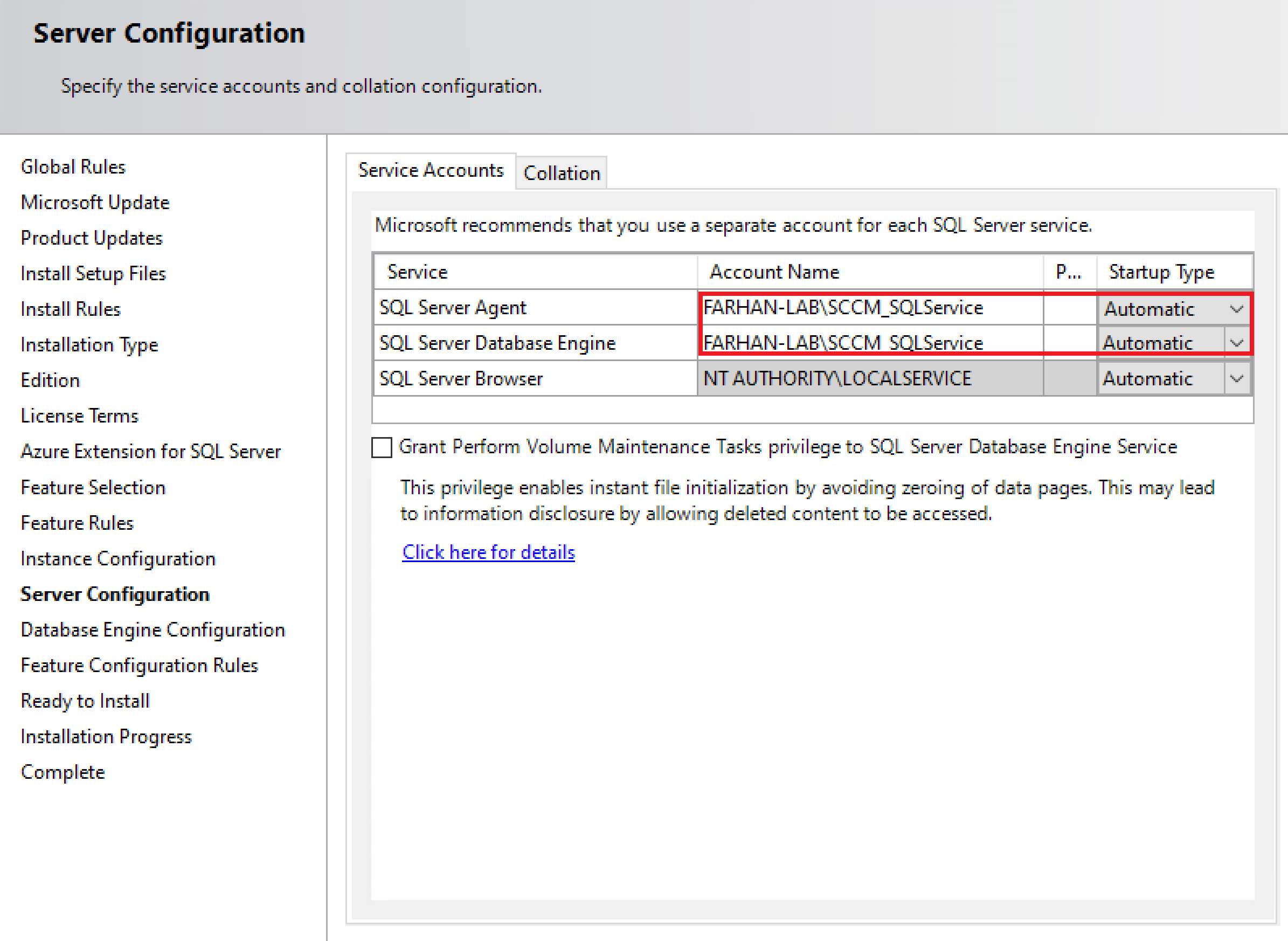
Configure SQL services to run as SCCM_SQLService (service account)
-
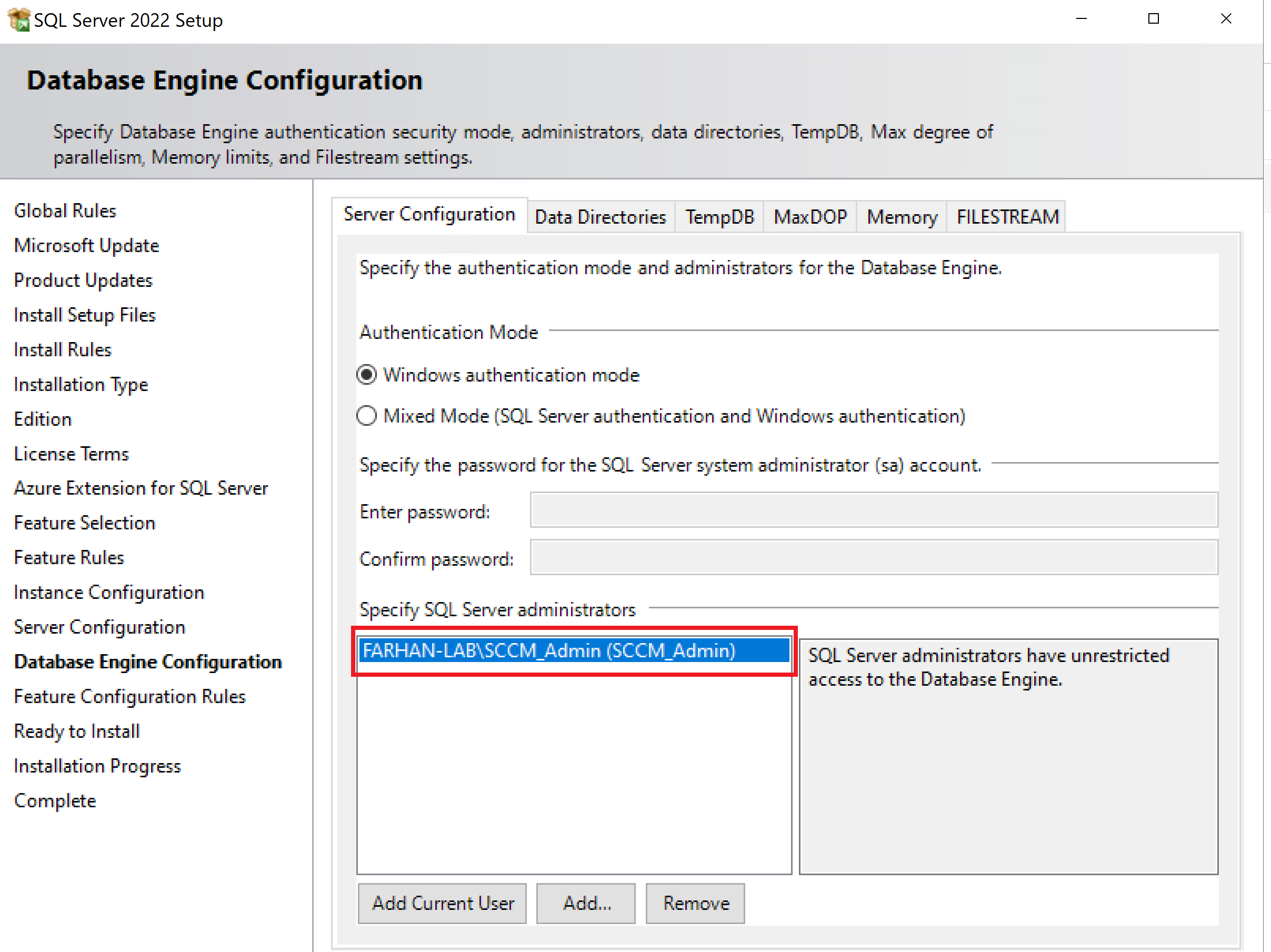
Add SCCM_Admin (service account) as SQL sysadmin
-
Change tempDB location → SQL_TempDB
- Increase tempDB autogrowth to 256MB (optional: so the file growth is not as often)
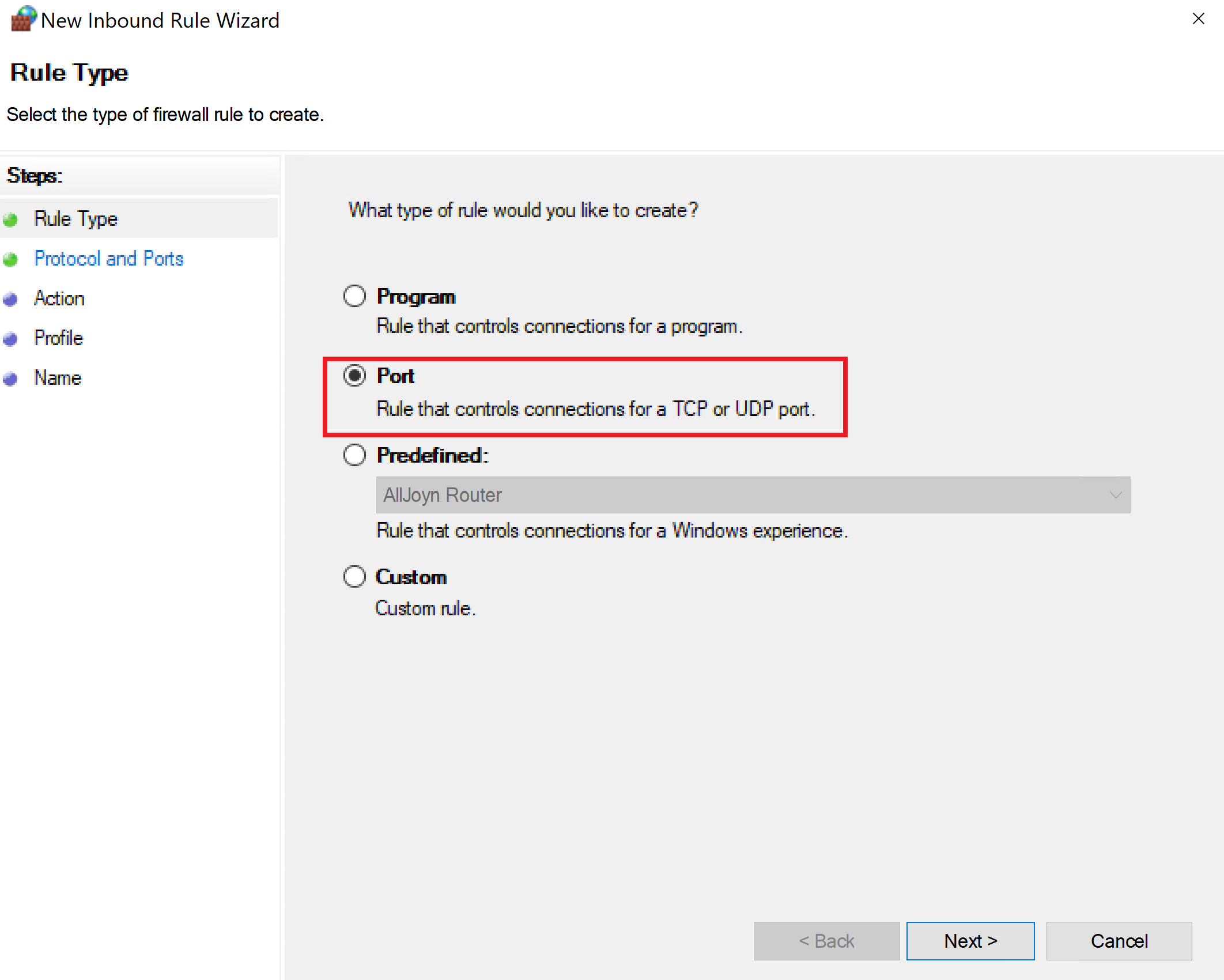
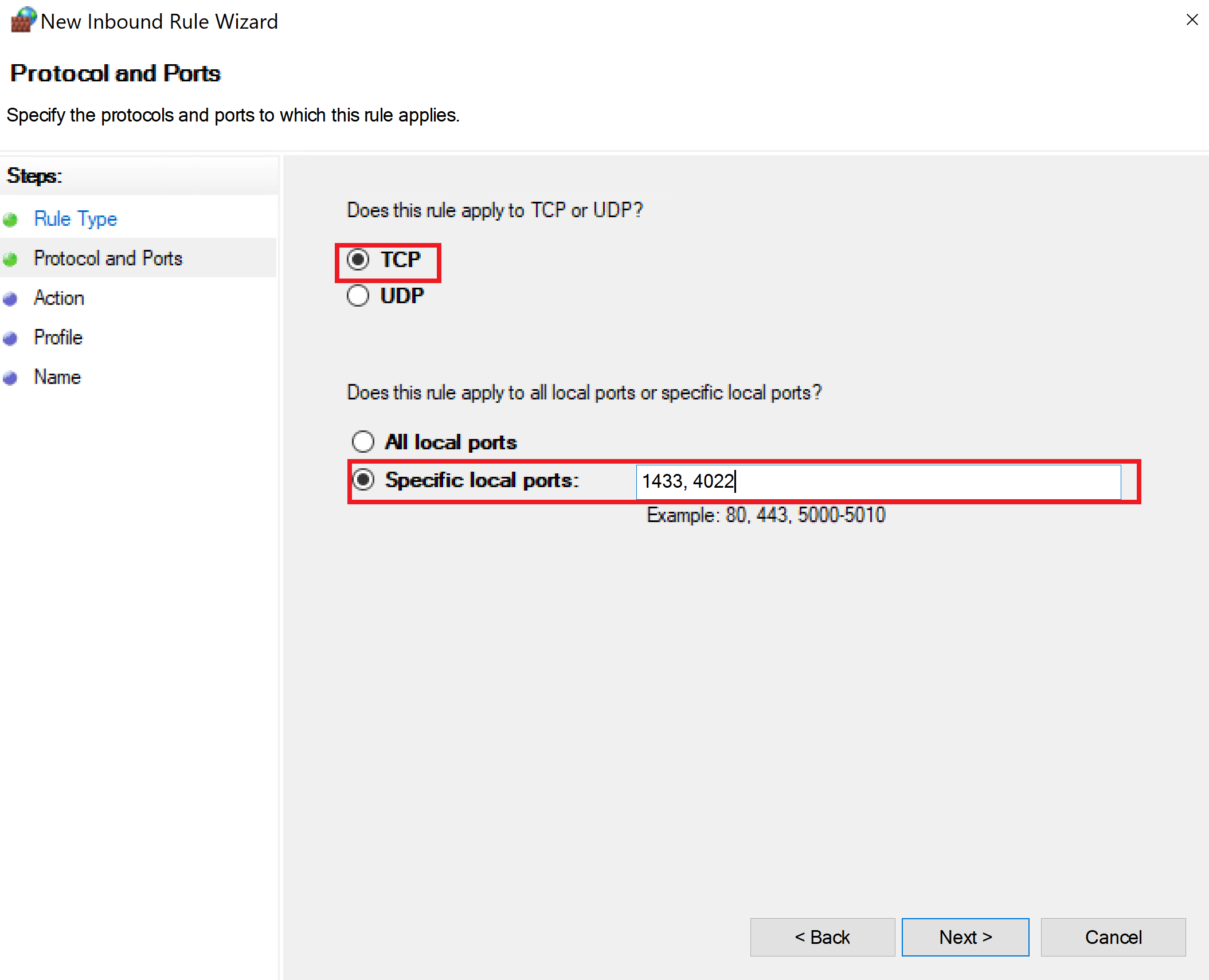
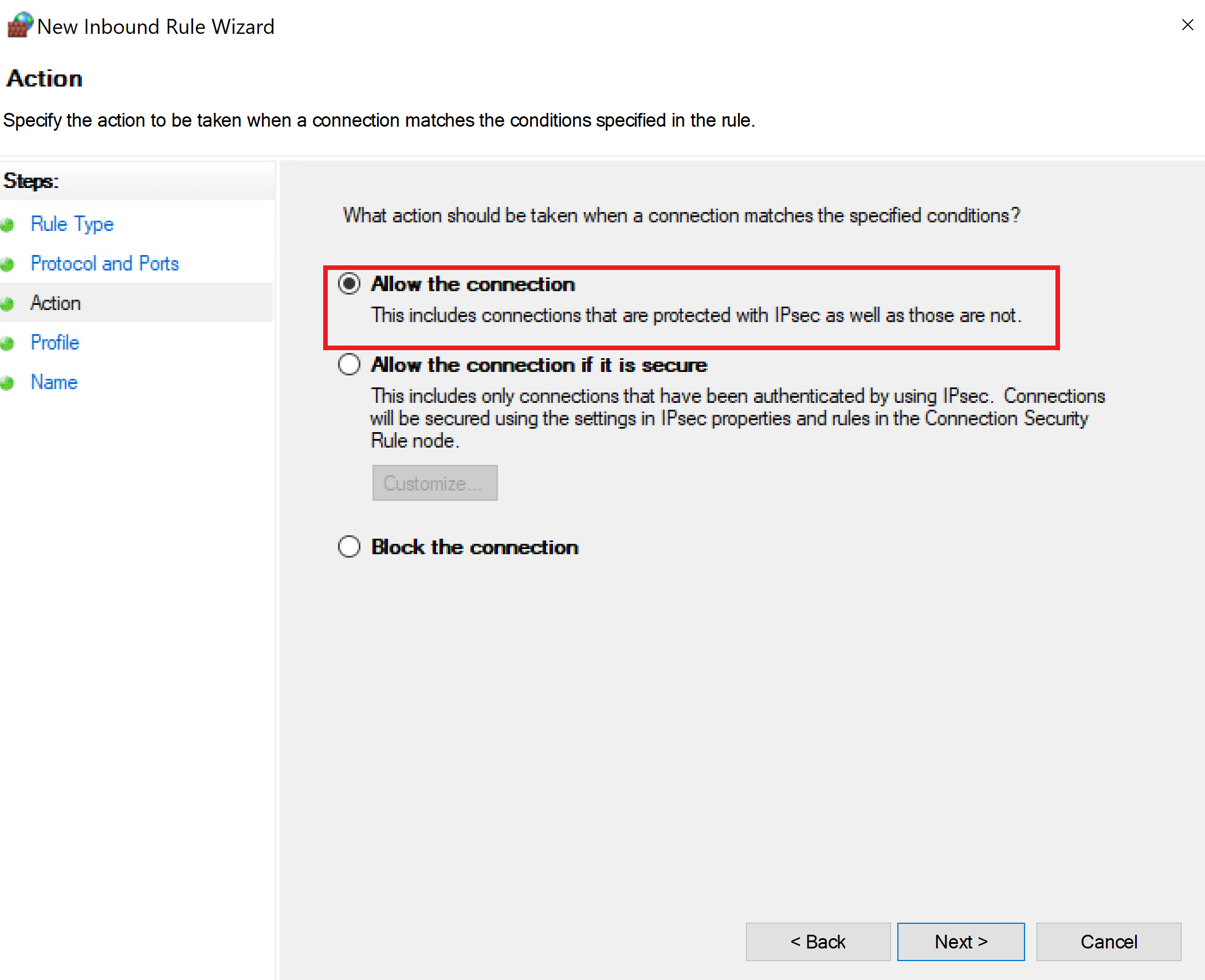
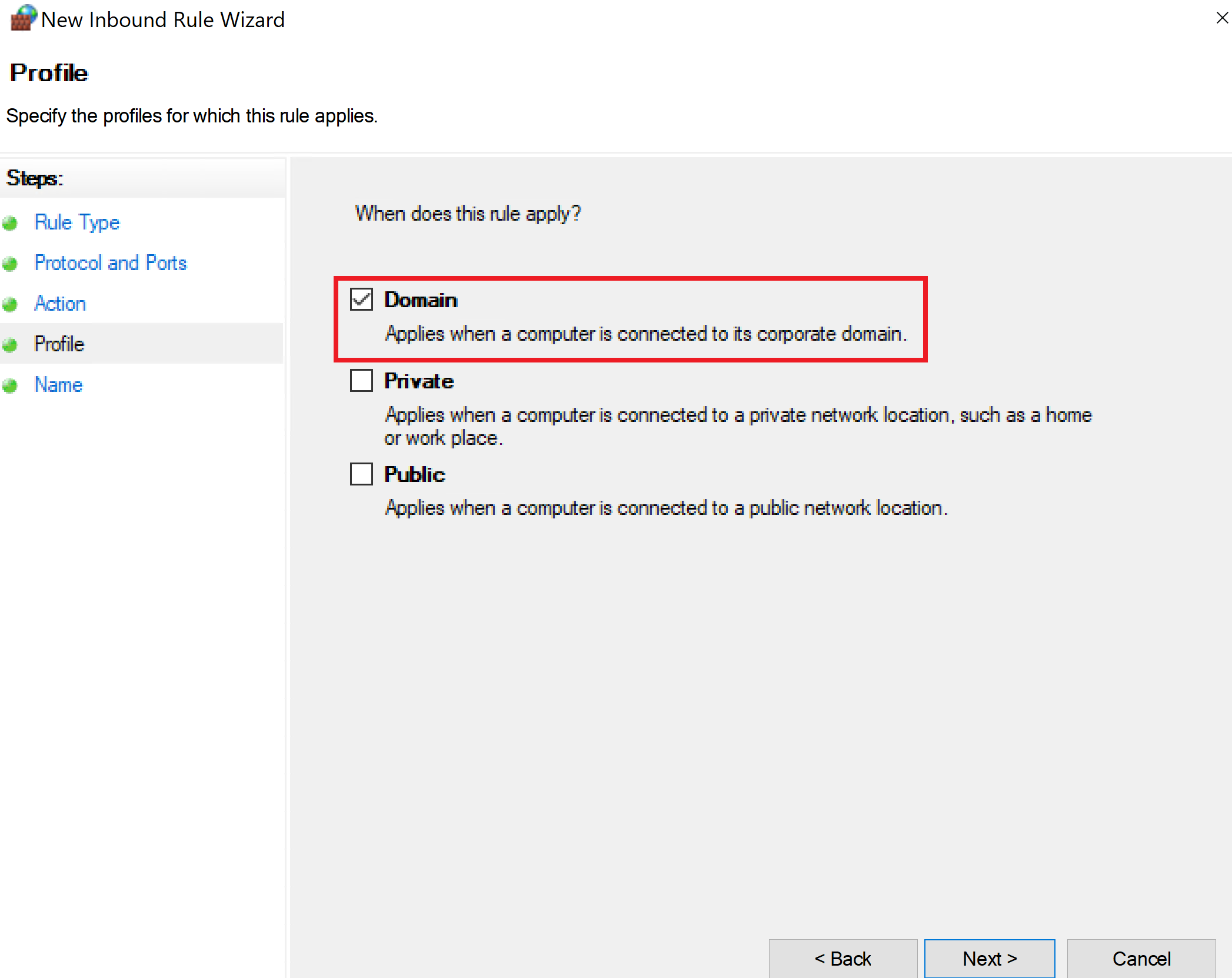
Configure Firewall Rules for SQL Server
Allow inbound domain traffic for ports: 1433 and 4022
Additional Software and Updates
-
Install latest SQL Server 2022 Cumulative Update
-
Install SQL Reporting Services 2022
-
Install SQL Server Management Studio (SSMS)
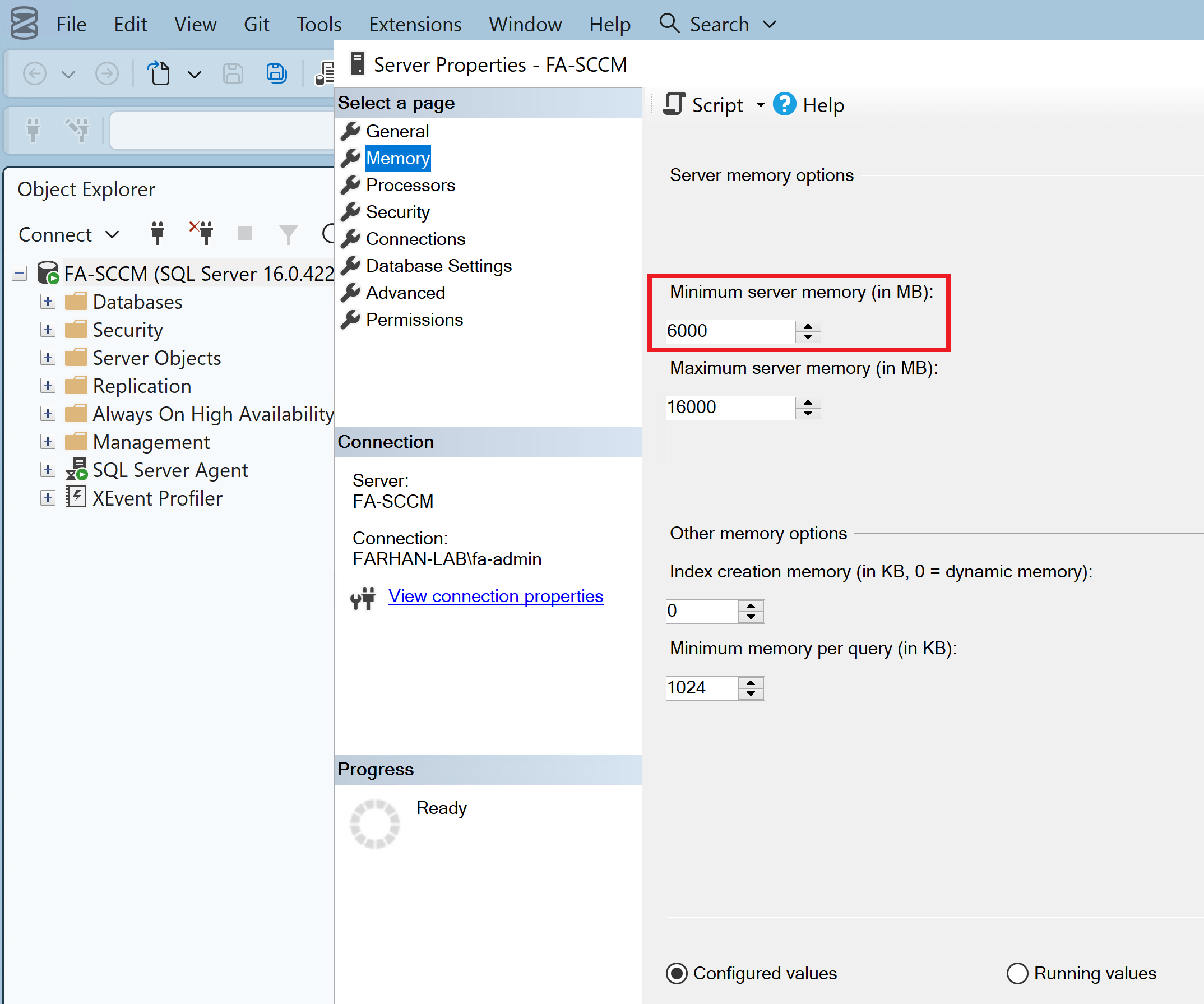
SQL Memory Configuration
-
Set SQL Min Memory: 80% of RAM
3. Prepare FA-SCCM for SCCM Installation
Install Windows Roles and Features
Install BITS, RDC, IIS, and other pre-requisites using PowerShell command:
Install-WindowsFeatureWeb-Static-Content,Web-Default-Doc,Web-Dir-Browsing,Web-Http-Errors,Web-Http-Redirect,Web-Net-Ext,Web-ISAPI-Ext,Web-Http-Logging,Web-Log-Libraries,Web-Request-Monitor,Web-Http-Tracing,Web-Windows-Auth,Web-Filtering,Web-Stat-Compression,Web-Mgmt-Tools,Web-Mgmt-Compat,Web-Metabase,Web-WMI,BITS,RDC
WSUS Installation for Software Update Point (SUP) Configuration
-
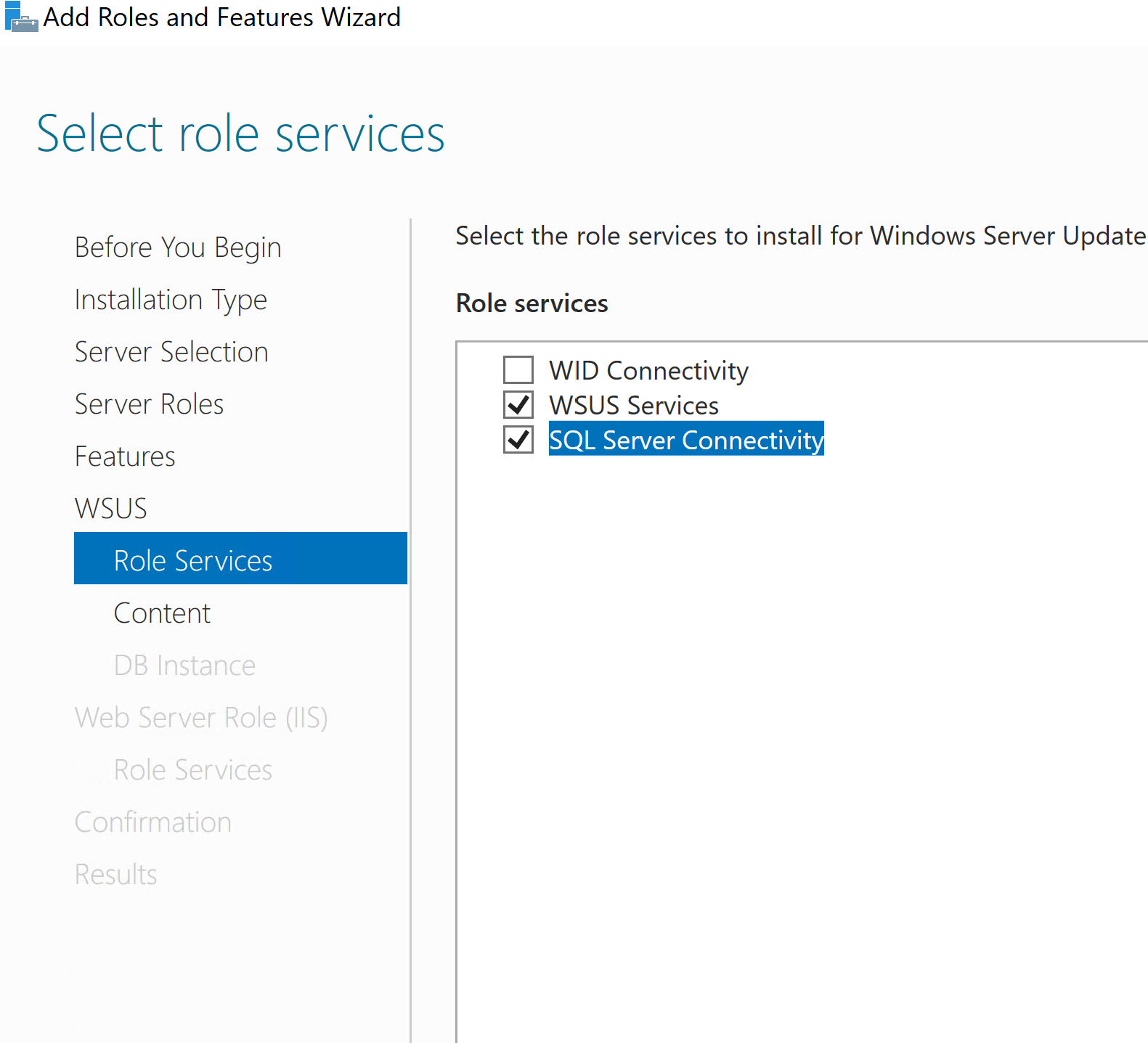
Add WSUS role
-
Select SQL Connectivity instead of WID
-
WSUS content path → SCCM_ContentLibrary drive
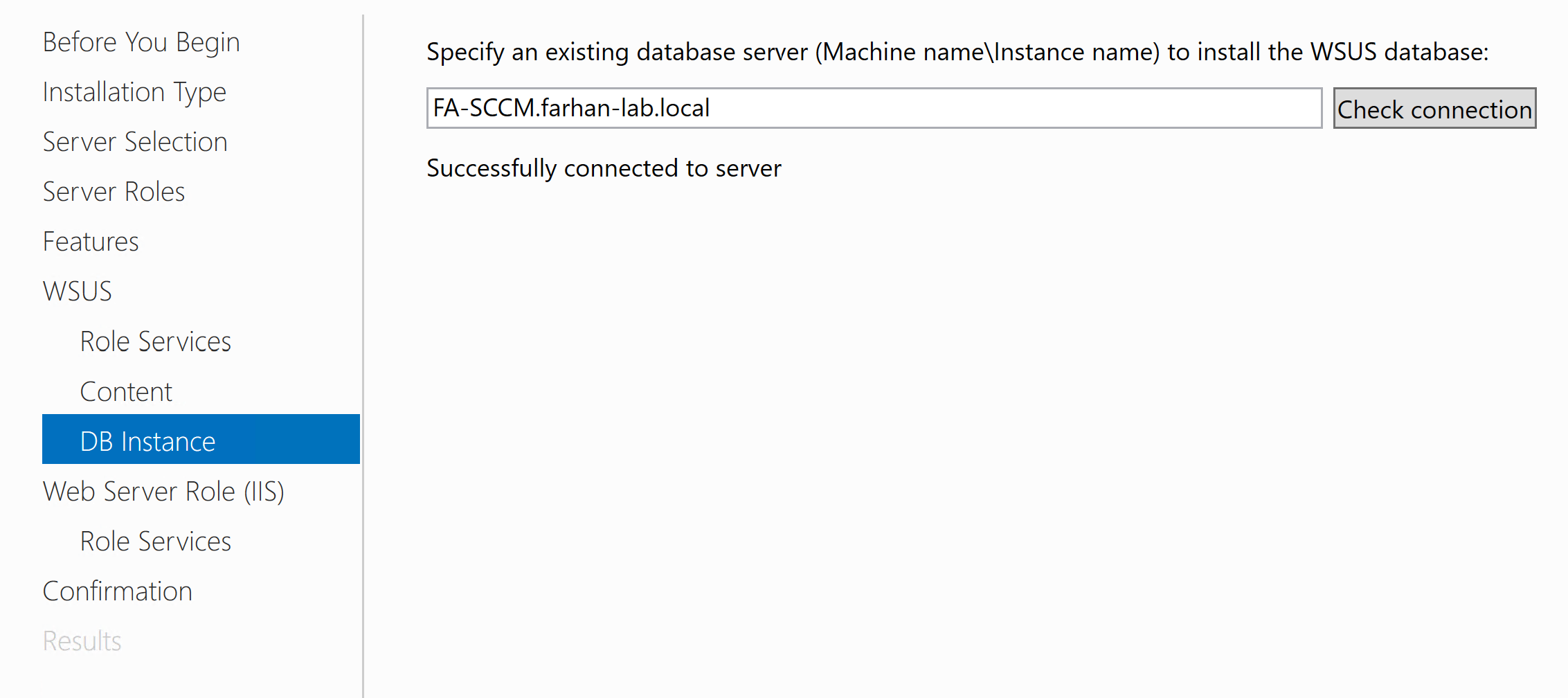
-
Set DB server → FA-SCCM.farhan-lab.local
-
Launch WSUS Post-Install Tasks
Within SQL Server Management Studio:
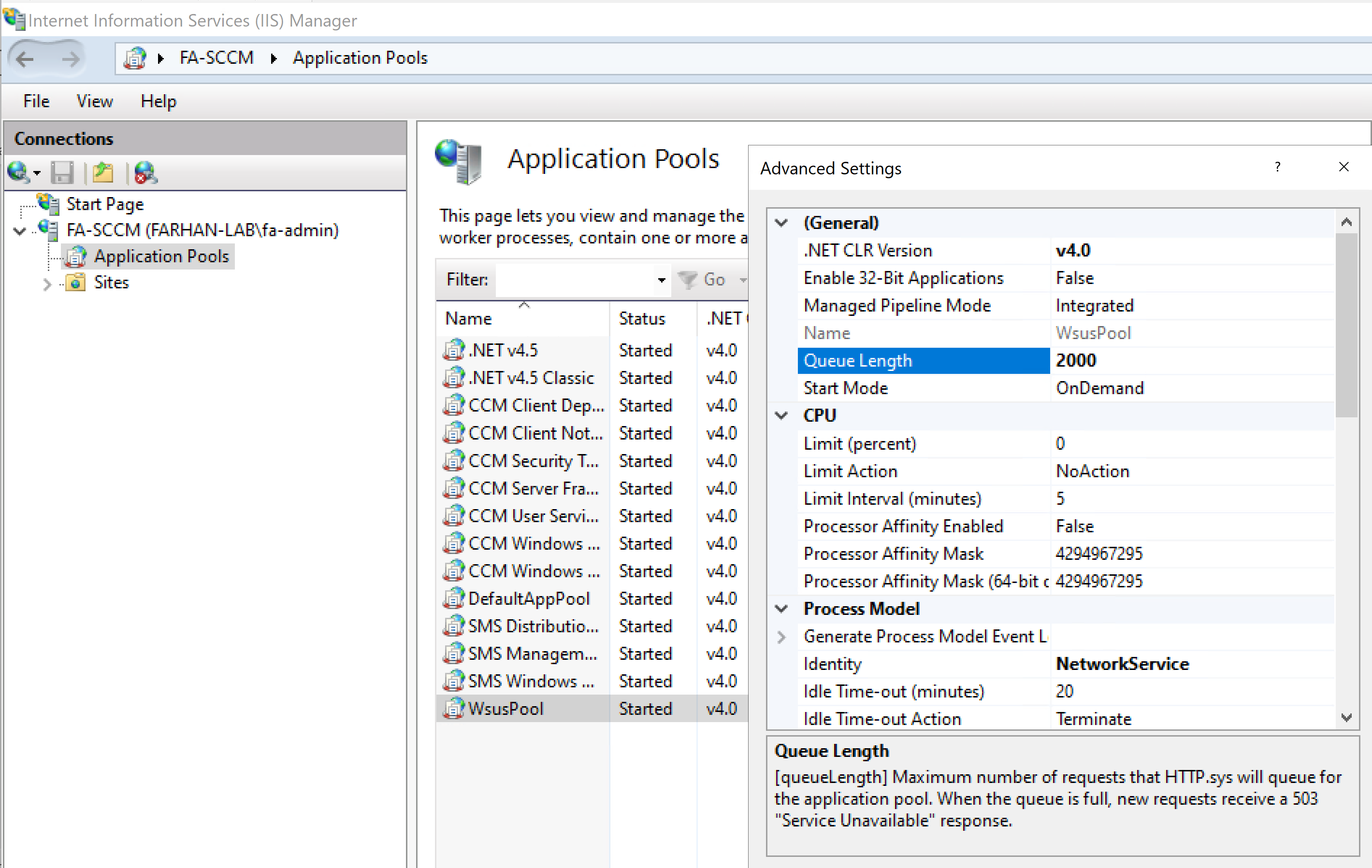
-
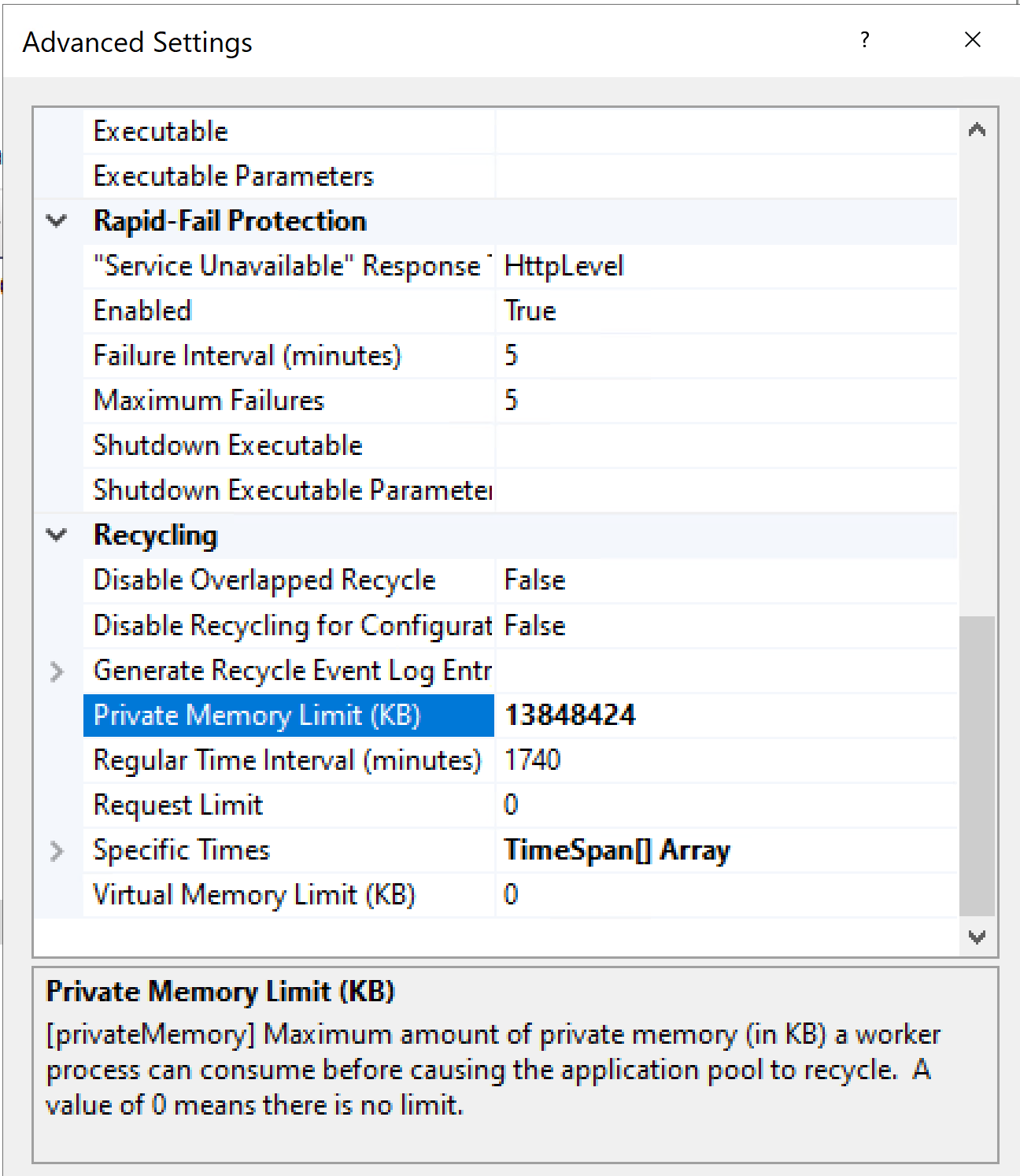
Increase WsusPool Queue Length to 2000
-
Increase Private Memory Limit ×4
Move WSUS Database to Dedicated Disk
-
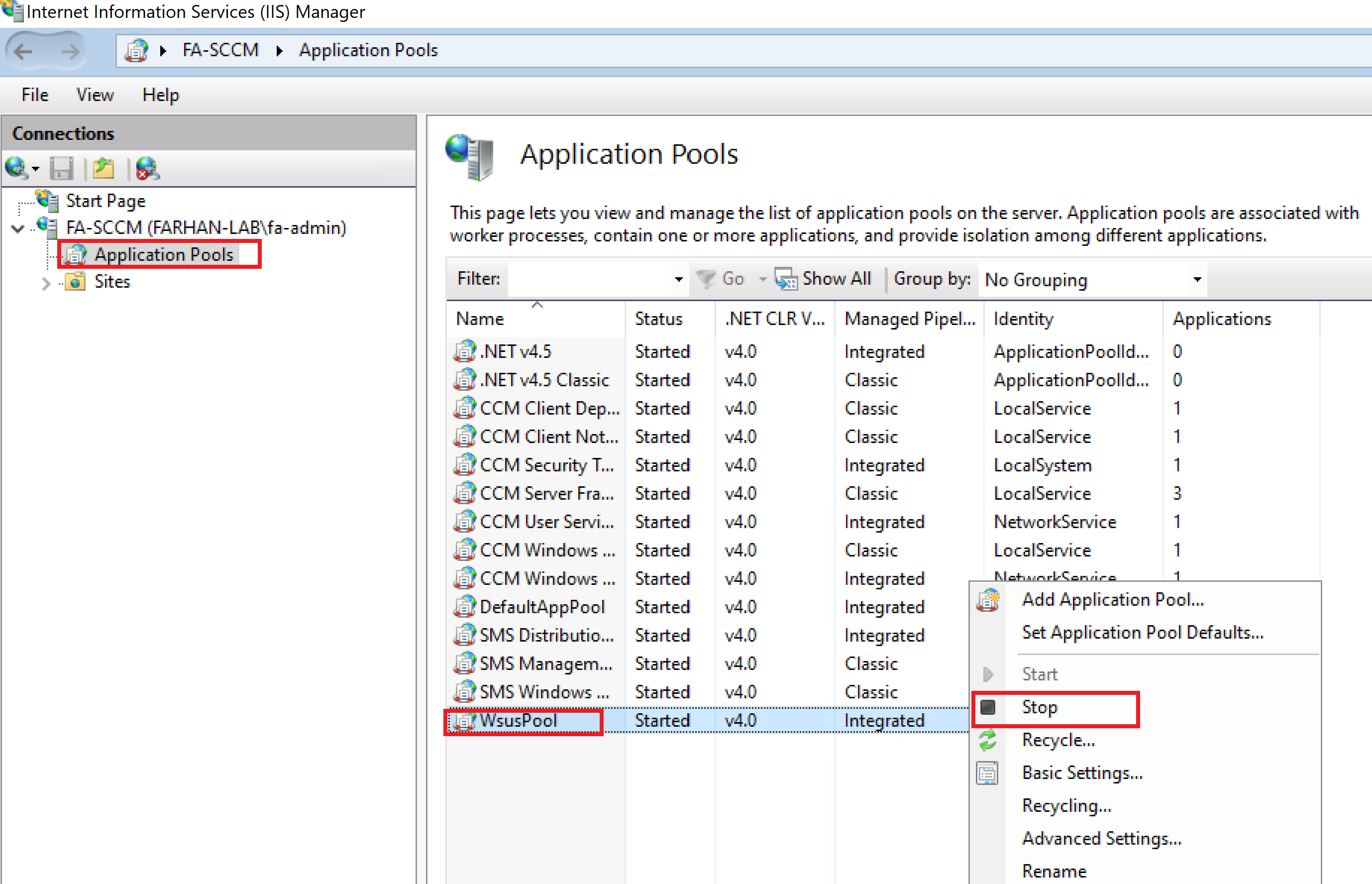
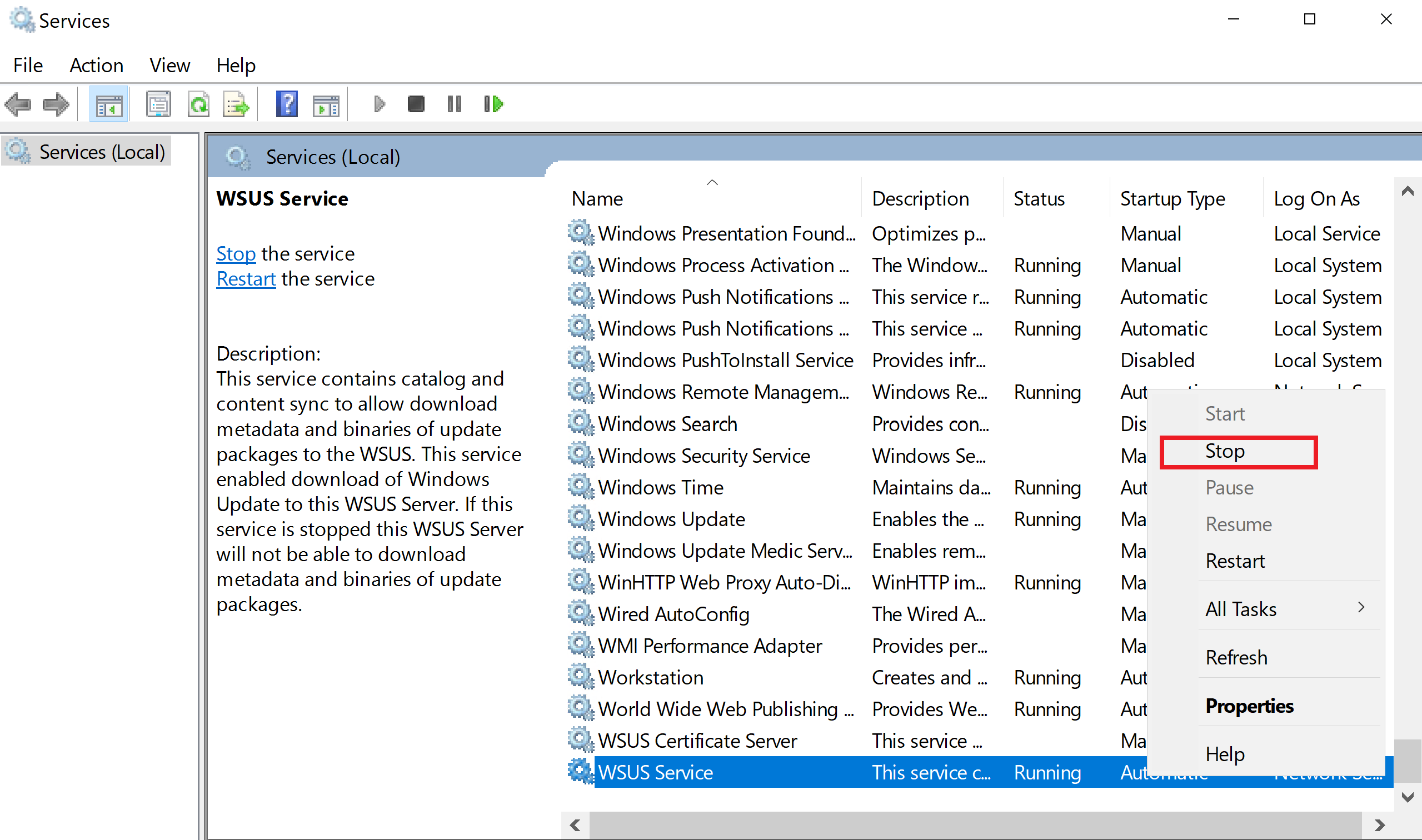
Stop WSUS service (IIS Manager + Services.msc)
Within SQL Server Management Studio:
-
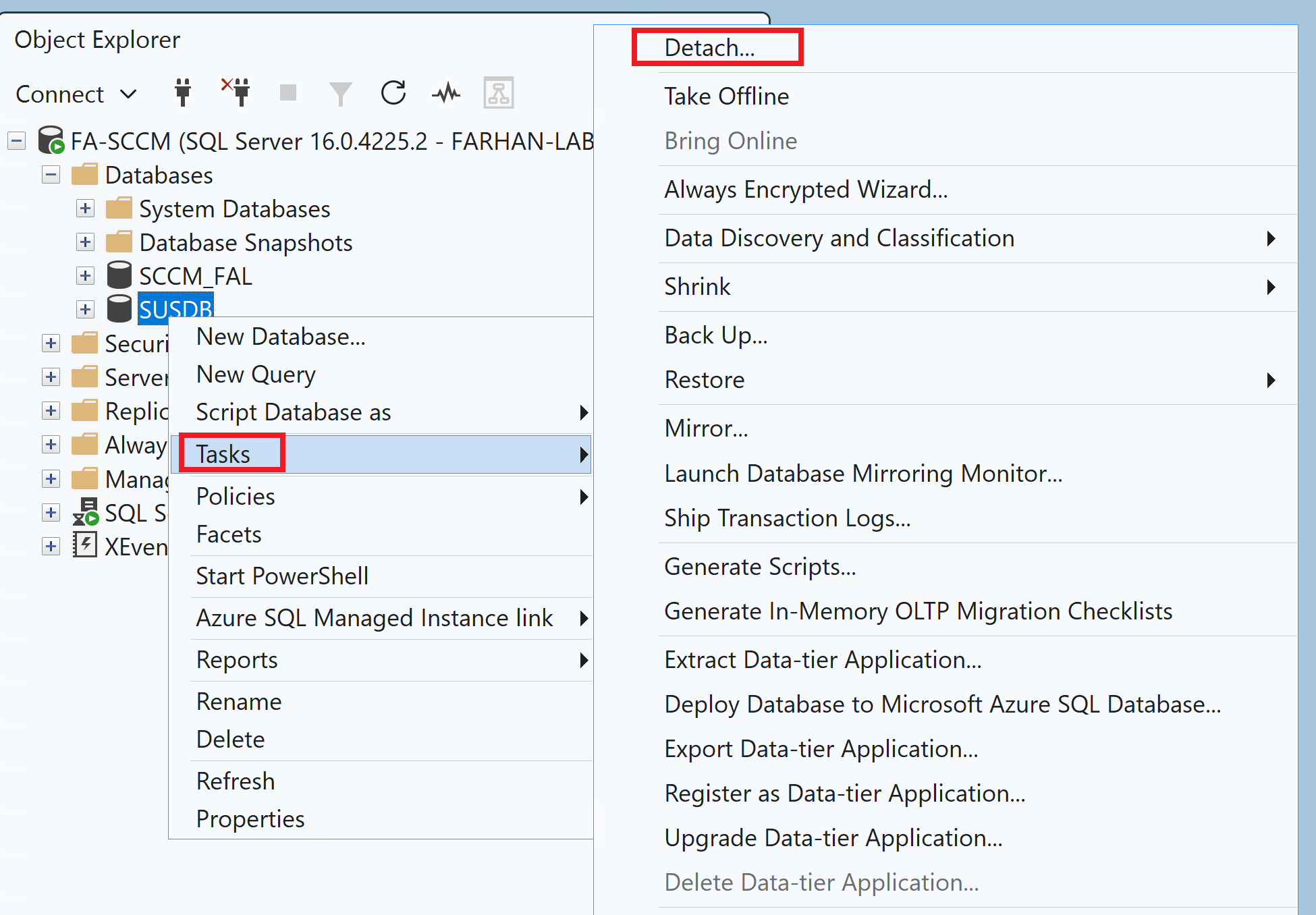
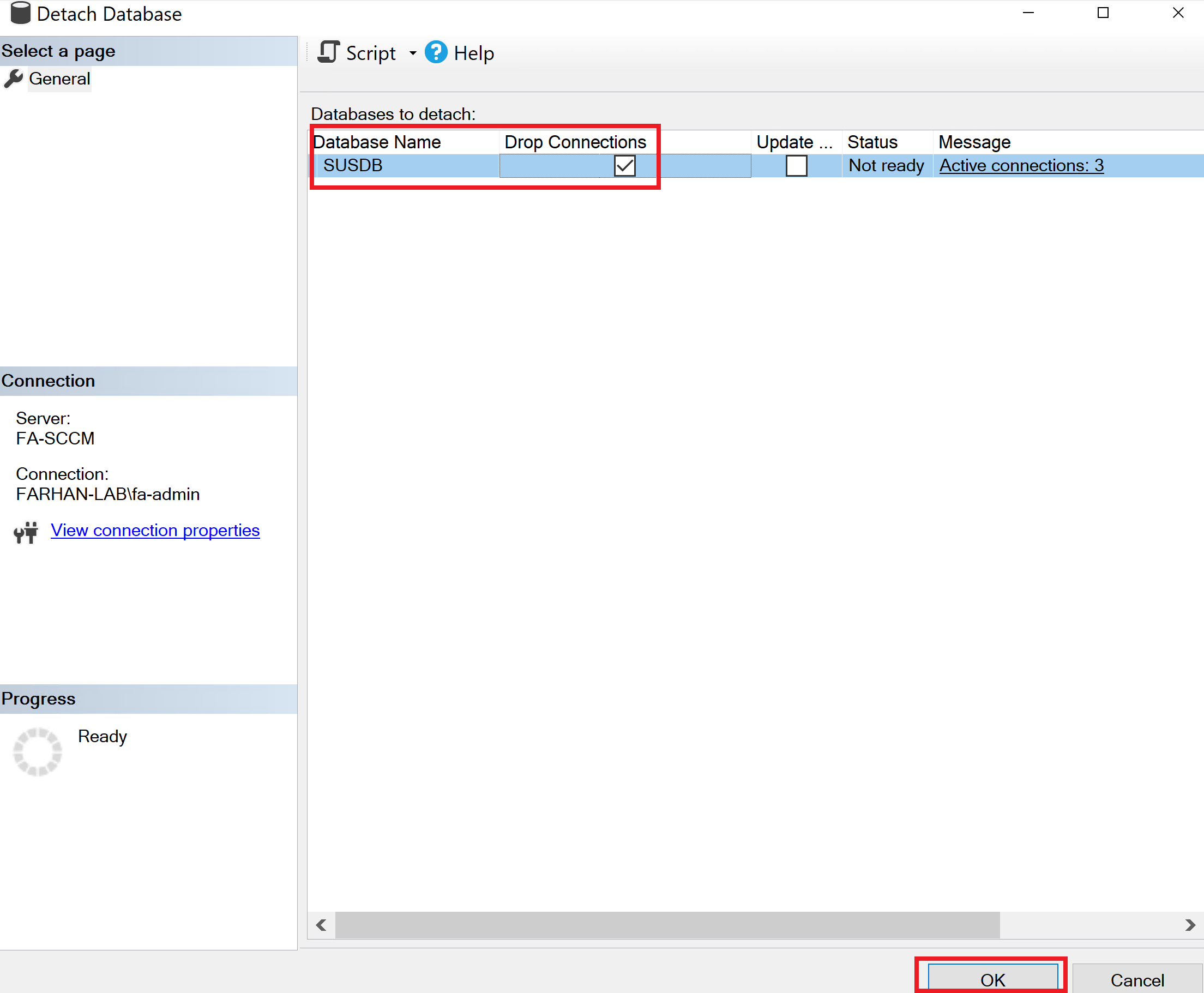
Copy existing SUSDB.mdf & SUSDB_log.ldf path
-
Detach DB
-
Move SUSDB.mdf & SUSDB_log.ldf files from original location to SQL_WSUS_Database drive
-
Re-attach DB
-
Start WSUS services again (IIS Manager + Services.msc)
ADK + WinPE
-
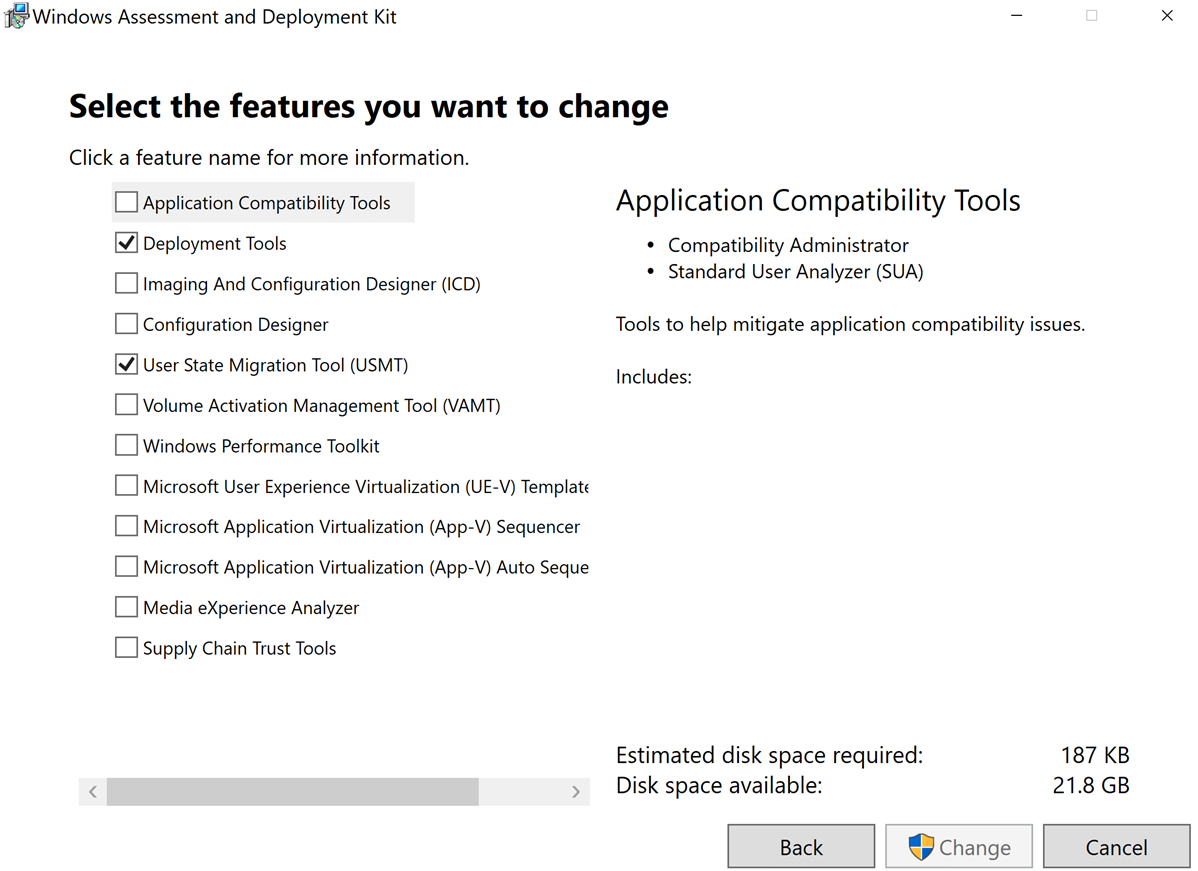
Install Windows ADK:
-
Deployment Tools
-
USMT
-
-
Install Windows PE add-on
-
Install Windows ADK latest cumulative update
Extend AD Schema for SCCM
-
Extract Configuration Manager setup files
-
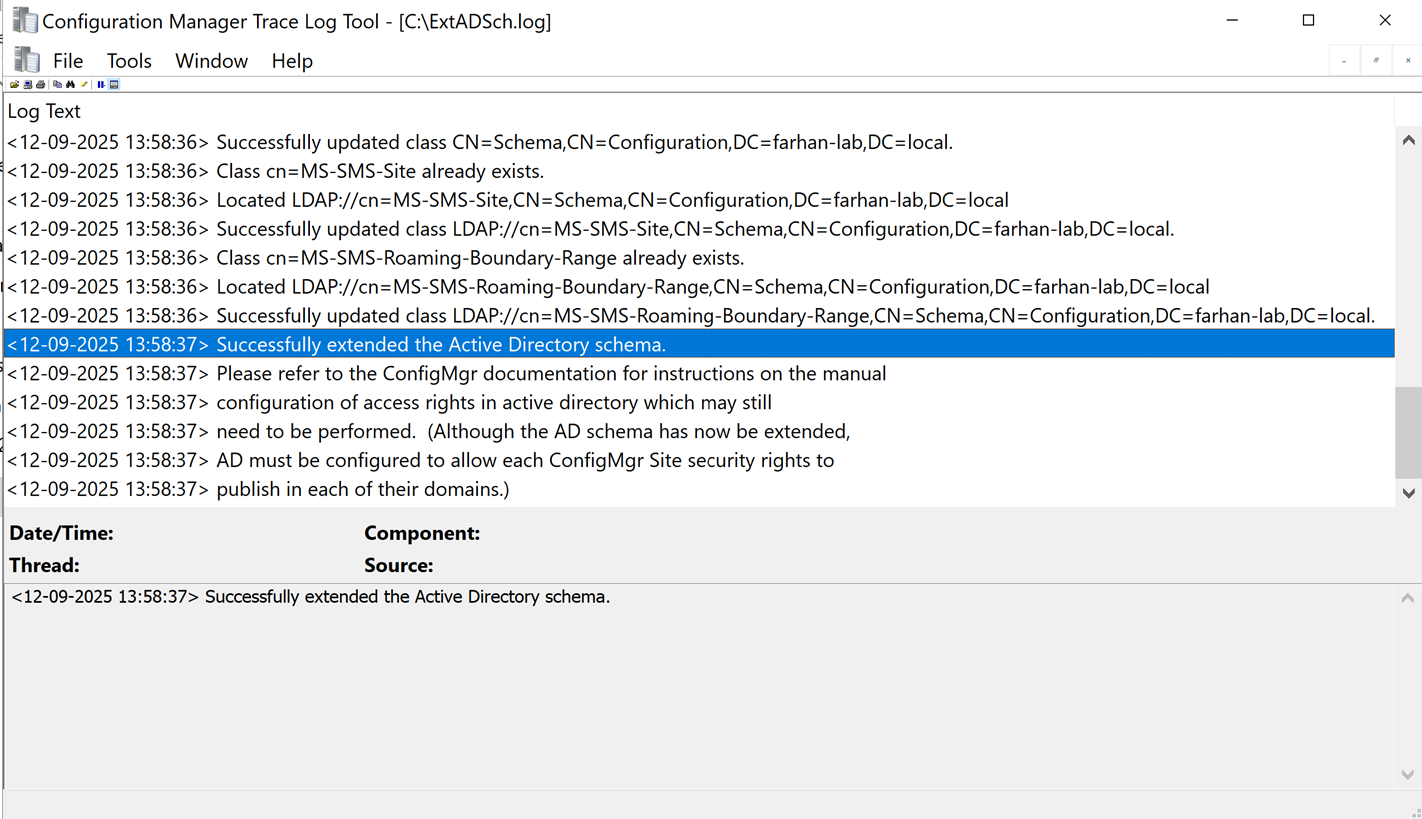
Run extadsch.exe from SMSSETUP\BIN\X64
-
Verify success via:
-
C:\ExtADSch.log
4. Install System Center Configuration Manager
SCCM Installation
Ran Splash.hta, installed a Primary Site.
Configuration Values
-
Site Code: FAL
-
Site Name: Farhan Ali Lab Primary Site
-
Install Path: SCCM_INSTALL drive
-
SQL Server: FA-SCCM.farhan-lab.local
-
Database: SCCM_FAL
-
Change SQL datafile path → SCCM_SQL_MDF drive
-
Change SQL log path → SCCM_SQL_LDF drive
Site System Roles
-
Install:
-
Management Point (MP)
-
Distribution Point (DP)
-
Post-Install
-
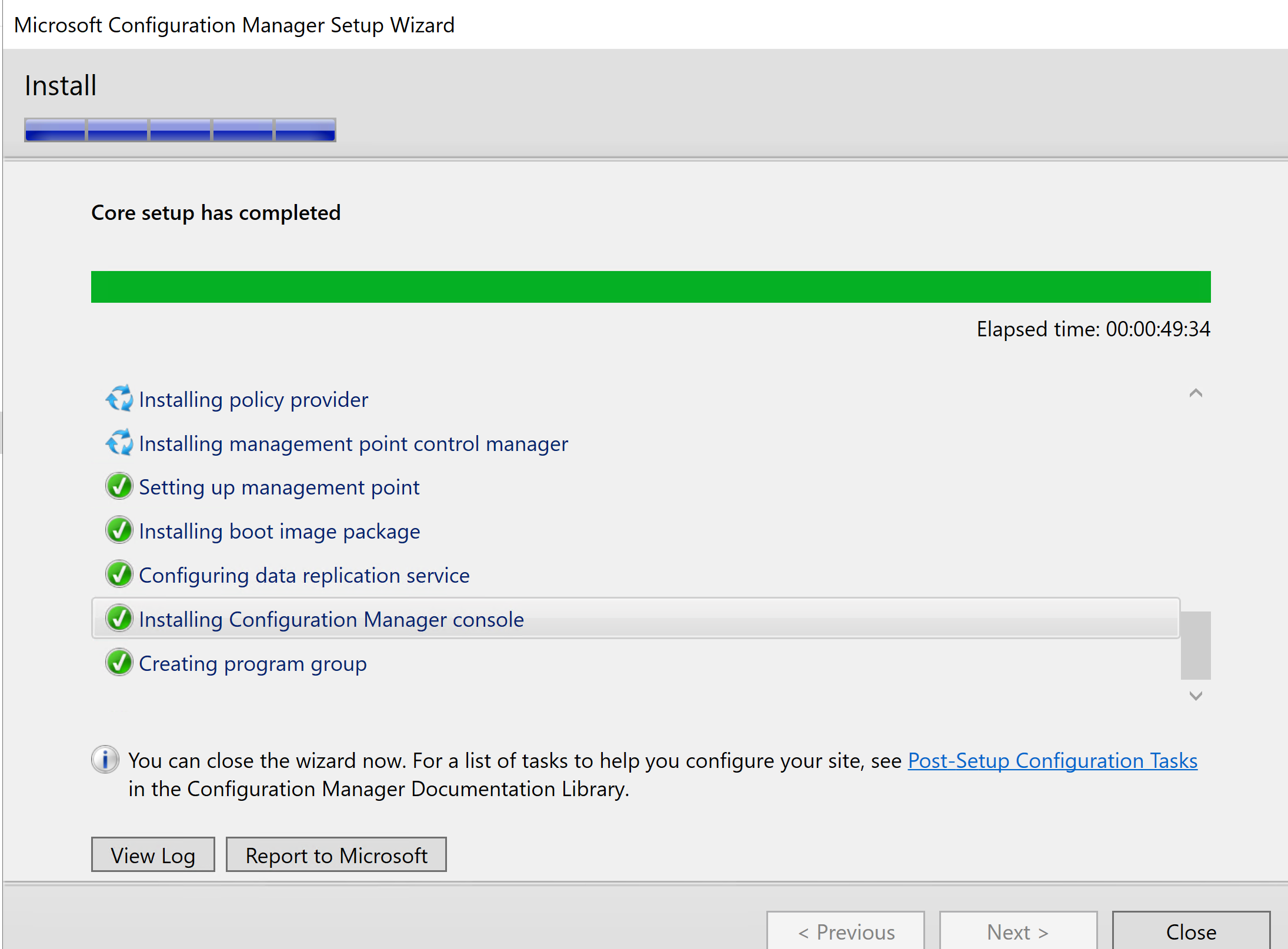
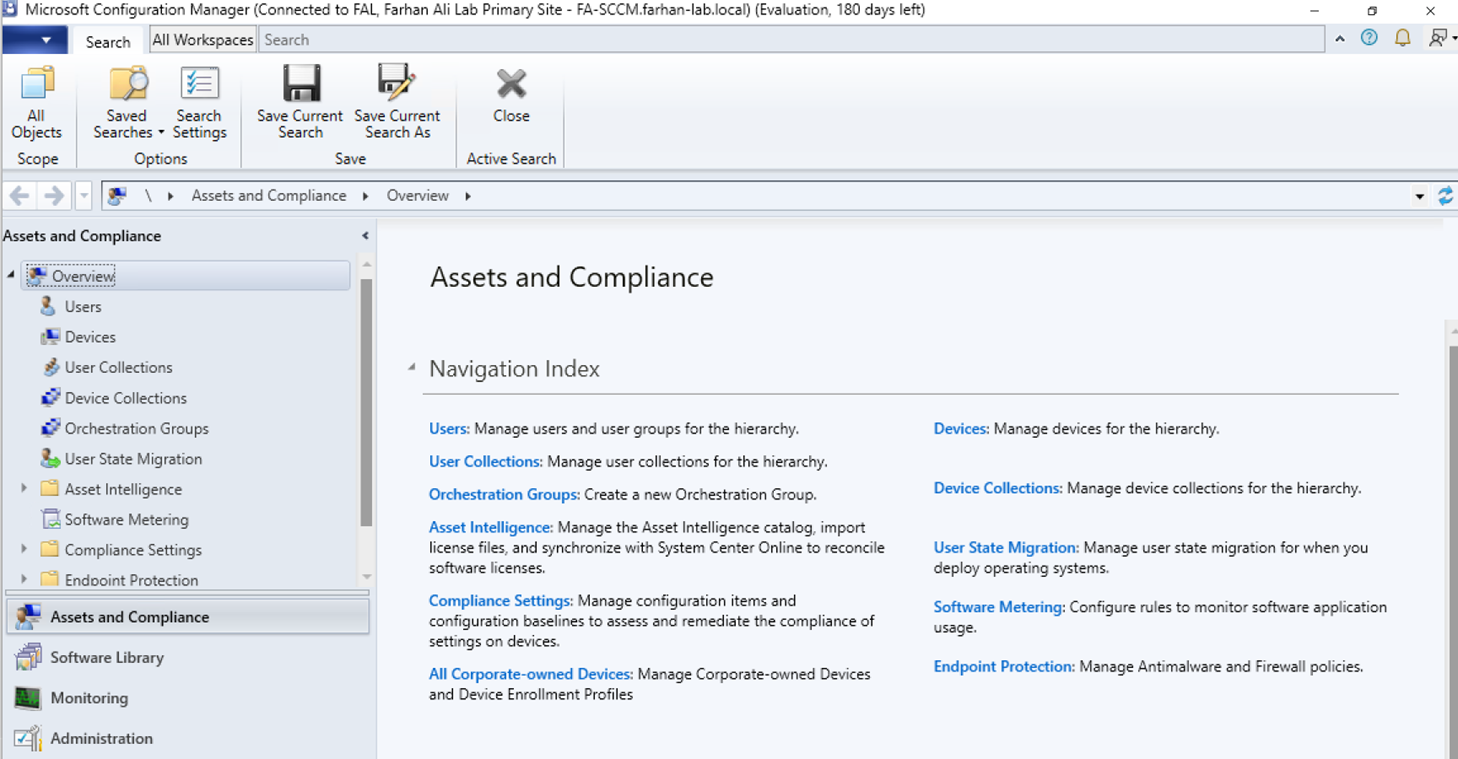
Verify installation completed successfully
-
Set CMTrace.exe as default log viewer and copy it from source file to a different location so CM updates don’t interfere with its functionality.
Helpful logs (Microsoft Configuration Manager\Logs):
-
sitecomp.log (site creation progress)
-
CMUpdate.log
-
hman.log
Related Microsoft Documentation
- Site and site system prerequisites for System Center Configuration Manager: https://learn.microsoft.com/en-us/intune/configmgr/core/plan-design/configs/site-and-site-system-prerequisites
- Supported SQL Server versions for System Center Configuration Manager: https://learn.microsoft.com/en-us/intune/configmgr/core/plan-design/configs/support-for-sql-server-versions
- Recommended hardware for System Center Configuration Manager: https://learn.microsoft.com/en-us/intune/configmgr/core/plan-design/configs/recommended-hardware
- Supported Active Directory domains for System Center Configuration Manager: https://learn.microsoft.com/en-us/intune/configmgr/core/plan-design/configs/support-for-active-directory-domains
- Prepare Active Directory for site publishing: https://learn.microsoft.com/en-us/intune/configmgr/core/plan-design/network/extend-the-active-directory-schema
- The content library in System Center Configuration Manager (no_sms_on_drive.sms file): https://learn.microsoft.com/en-us/intune/configmgr/core/plan-design/hierarchy/the-content-library
Other References
Shout out to my guy Justin Chalfant at Patch My PC, couldn’t have done it without his detailed guide: https://youtu.be/amrg_mlFvuk?si=KSHFS0FwOEqUkIzP